A strong password should be long, unique, and safely stored in a password manager.
Quick answer
Create a strong password by making it long, unique, and hard to guess. The safest practical method is to use a trusted password manager and generate a different random password for every important account.
For most accounts, use at least 16 characters when possible. If you are not using multi-factor authentication, aim for at least 15 characters. For very important accounts, such as email, banking, cloud storage, password managers, and work accounts, use a longer randomly generated password and turn on multi-factor authentication.
A strong password should be:
- long
- unique
- not reused anywhere else
- not based on your name, birthday, pet, address, favorite team, or common words
- stored safely in a password manager
- protected with multi-factor authentication when available
Example of a better password style:
river-candle-planet-silver-87Example of a password manager generated password:
V7q!t9L#p2Rz@6xMDo not reuse either example. They are only here to show the format.
Private password strength checker
Private tool
Try the private password strength checker
Check a password pattern locally in your browser. ClearHowGuide does not receive, store, cache, or log what you type here.
Score
Not checked yet
Type a password to see an educational crack-time estimate.
What this password uses
- Waiting for input.
Pattern check
- Waiting for input.
How to improve it
- Use at least 16 characters and make every important account unique.
Private password generator
Use this private password generator to create a strong password directly in your browser. The generated password is not saved, sent, or tracked.
Private tool
Private password generator
Generate strong passwords locally in your browser. Nothing is saved. Nothing is sent. Nothing is tracked.
For best security, avoid names, birthdays, addresses, company names, or personal details. A fully random password is still the safest option.
Save this password in a trusted password manager. Do not reuse it on other accounts.
Strength score
Not generated yet
Generate a password to see an educational crack-time estimate.
What this generator uses
- Waiting for a generated password.
Safety notes
- Use a different password for every important account.
- Store generated passwords in a trusted password manager.
When to use this solution
Use this guide when you need to:
- create a new password for an account
- replace a weak or reused password
- secure your email, bank, cloud storage, shopping, or social media account
- set up a password manager for the first time
- help someone choose safer passwords
- recover after a data breach or suspicious login alert
This guide is especially useful if you currently use passwords like:
Password123
Summer2026!
NameBirthday!
CompanyName2026
Those passwords may look “complex,” but they are still predictable.
Before you start
Before creating a strong password, you need three things:
- a trusted password manager, such as Bitwarden, 1Password, iCloud Passwords, Google Password Manager, Firefox Password Manager, or another reputable option
- access to the account where you want to change the password
- a few minutes to turn on multi-factor authentication after changing the password
If you are changing the password for your main email account, make sure your recovery phone number and recovery email address are up to date before you start. Your email account is often the key to resetting many other accounts.
Steps
1. Choose the right method
There are two good ways to create a strong password.
The best method is to let a password manager generate a random password. This is ideal for almost every online account because you do not need to remember each password yourself.
The second method is to create a long passphrase. This can work for passwords you must type manually, such as the master password for your password manager or a device login.
Use this rule of thumb:
| Situation | Best choice |
|---|---|
| Website or app login | Random password from a password manager |
| Password manager master password | Long passphrase you can remember |
| Work or school account | Follow the organization’s policy, then add MFA |
| Account with sensitive data | Random password + MFA |
| Account you rarely use | Random password saved in a password manager |
2. Make it long enough
Length matters more than making a short password look complicated.
A password like this is weak:
P@ssw0rd!It has symbols and numbers, but it is still based on a common pattern.
A longer password or passphrase is much better:
coffee-maple-window-river-42For most accounts, aim for at least 16 characters when the service allows it. For your most important accounts, longer is better.
3. Make it unique for every account
Never reuse the same password on multiple websites.
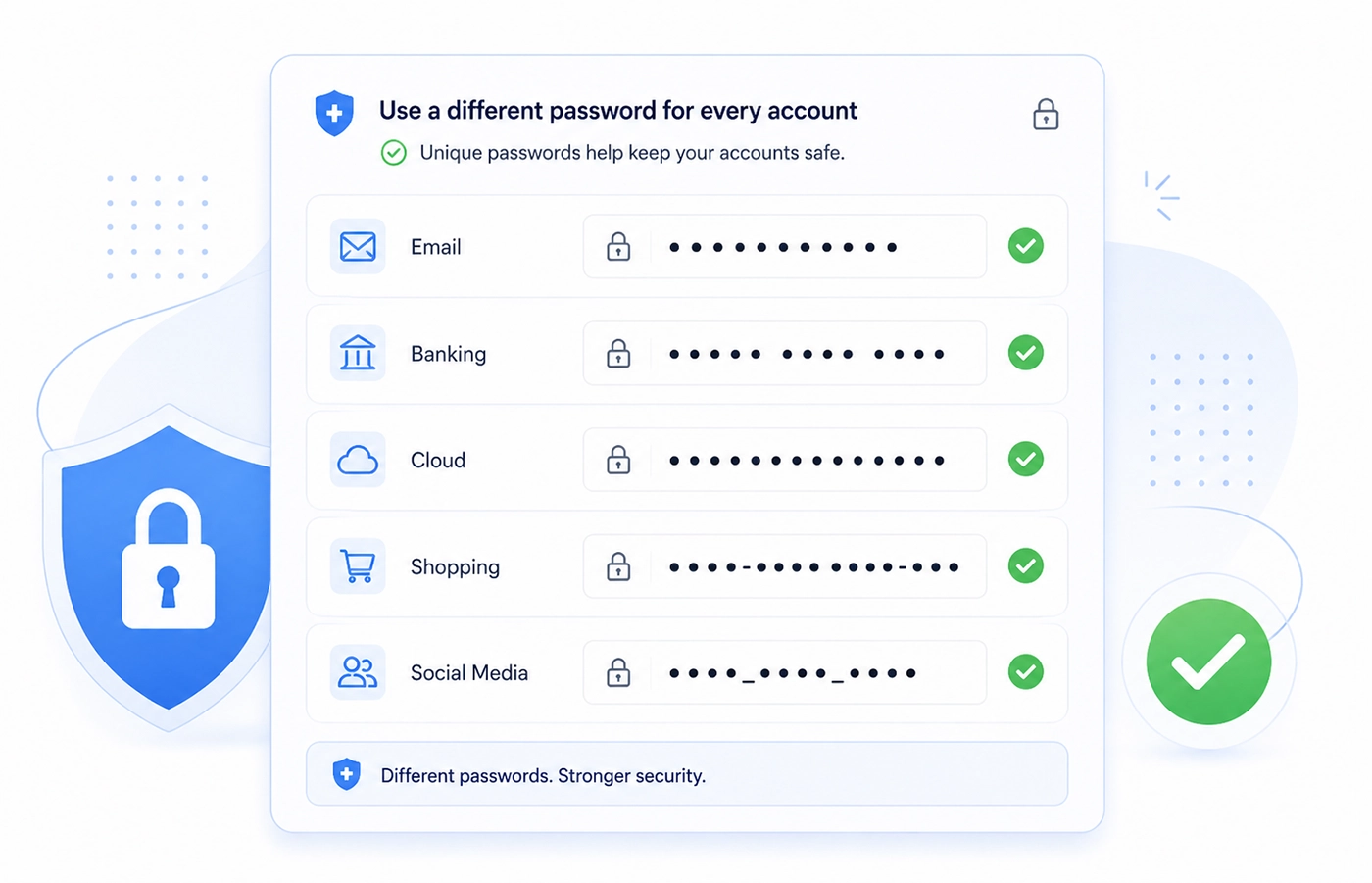
Each important account should use a different password to reduce the damage from data breaches.
This is one of the most important password rules. If one website experiences a data breach and your password is exposed, attackers may try the same email and password combination on other services. This is called credential stuffing.
For example, do not use the same password for:
- Gmail
- Amazon
- PayPal
- online banking
- cloud storage
- your password manager
Each account needs its own password.
4. Generate the password with a password manager
Open your password manager and use its password generator.
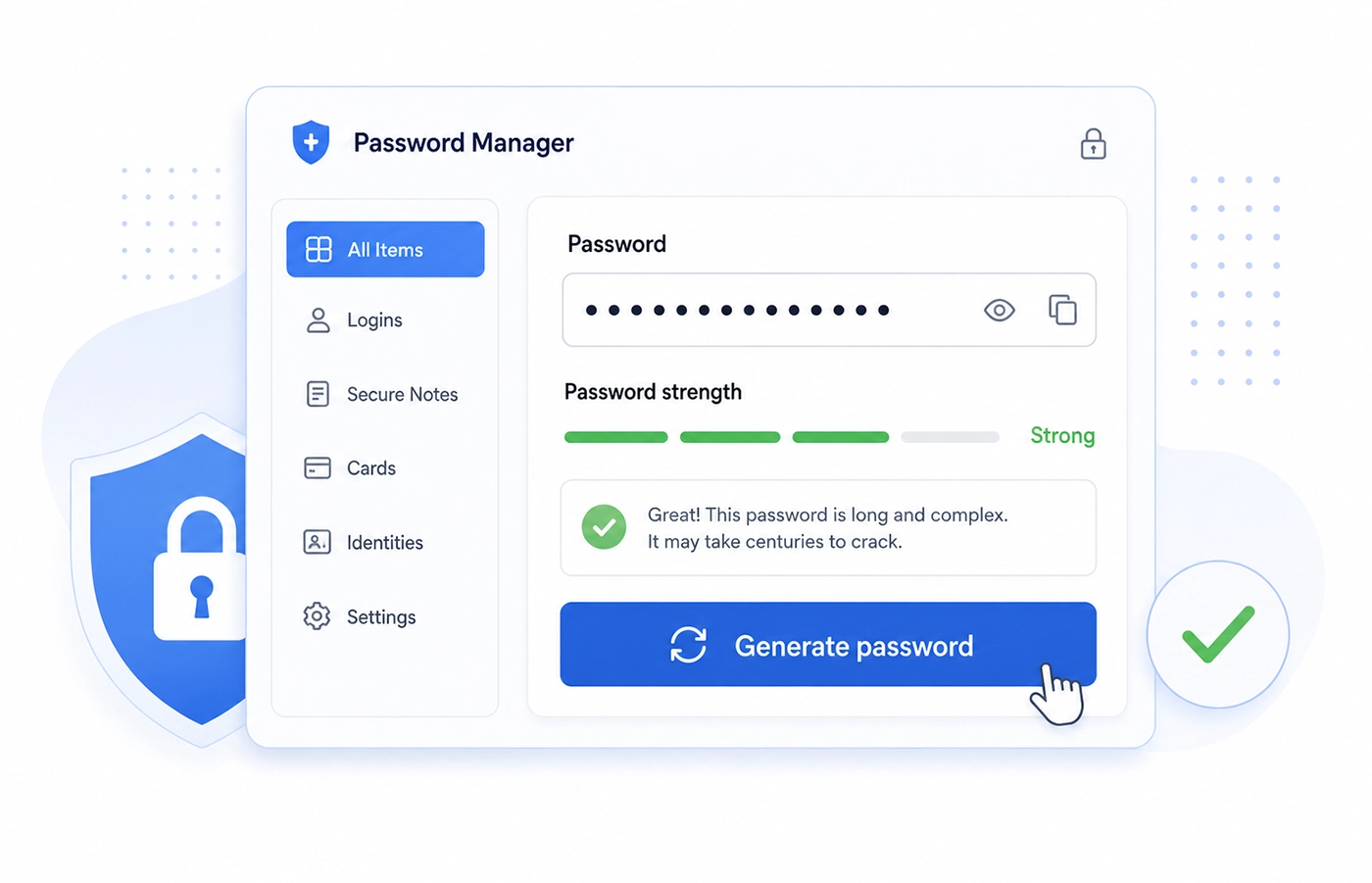
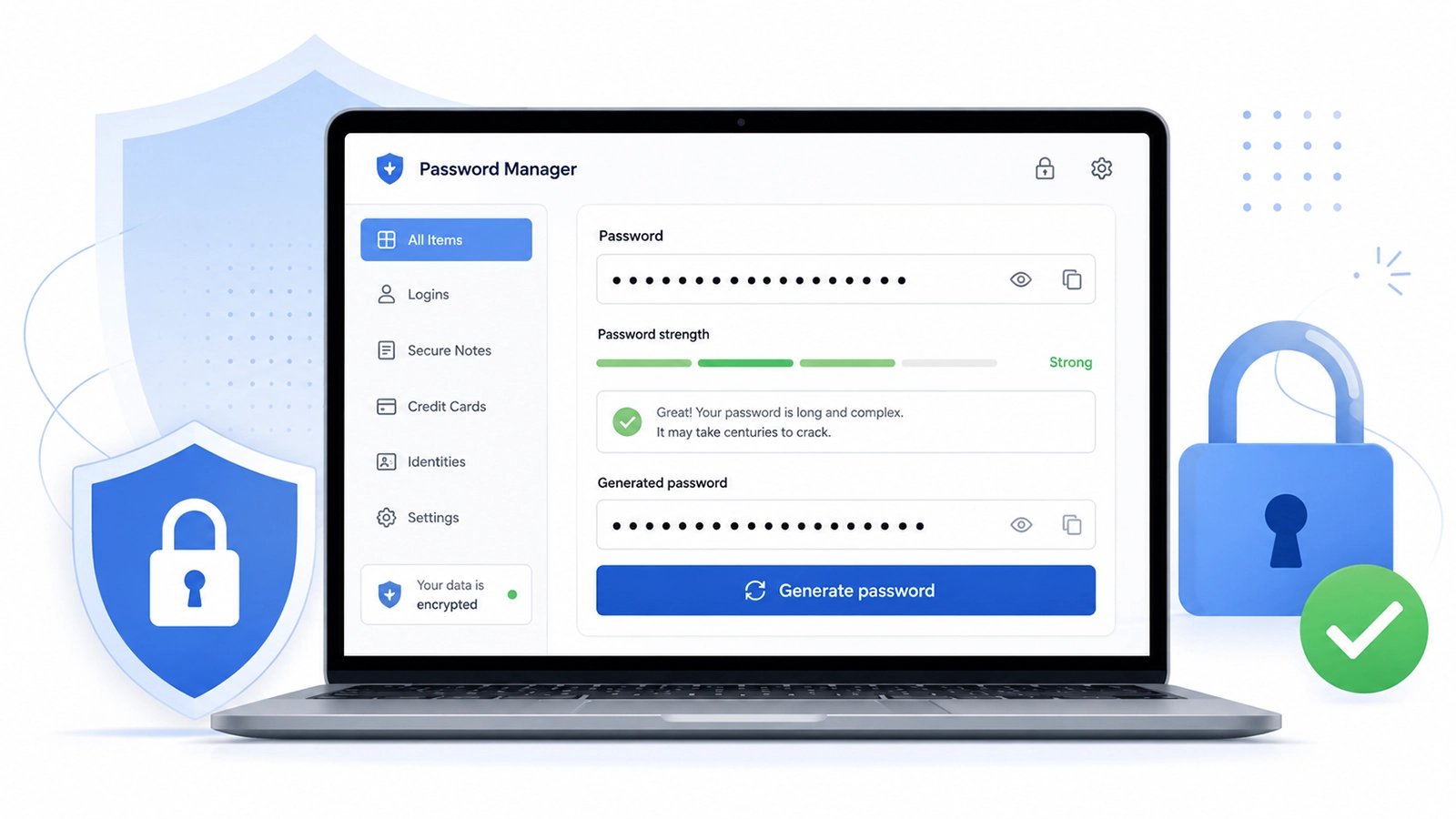
A password manager can generate long, random passwords and save them securely.
Recommended settings:
| Setting | Recommended value |
|---|---|
| Length | 16 characters or more |
| Letters | Yes |
| Numbers | Yes |
| Symbols | Yes, if the website accepts them |
| Unique | Yes |
| Memorable | Not required for normal website passwords |
If the website rejects symbols, generate another password using letters and numbers only, but keep it long and unique.
Do not try to invent a “clever” password yourself for every account. Humans tend to create patterns. Password managers are better at creating random passwords.
5. Save the password immediately
After generating the password, save it in your password manager before logging out.
Check that the saved entry includes:
- website or app name
- login URL
- username or email address
- password
- notes, if necessary
- recovery codes, if the service provides them
Do not save passwords in plain-text files, screenshots, chat messages, email drafts, or notes apps without encryption.
6. Turn on multi-factor authentication
A strong password is important, but it is not the whole defense.
Turn on multi-factor authentication, also called MFA or 2FA, for your important accounts. MFA means the account requires something more than your password, such as:
- an authenticator app code
- a security key
- a passkey
- a trusted device confirmation
- biometric confirmation on your device
For high-value accounts, an authenticator app, passkey, or hardware security key is usually safer than SMS codes.
Turn on MFA especially for:
- password manager
- banking and payment apps
- cloud storage
- social media
- work accounts
- domain registrar and hosting accounts
- crypto or investment accounts
7. Store recovery codes safely
Many services give recovery codes when you enable MFA.
Save these codes somewhere safe. Good options include:
- your password manager
- an encrypted backup
- a printed copy stored in a secure place
Do not keep recovery codes only on an unlocked device that already gives access to your account.
8. Replace reused or weak passwords first
If you have many weak passwords, start with the most important accounts.
Priority order:
- Main email account
- Password manager account
- Banking and payment accounts
- Cloud storage accounts
- Work or school accounts
- Social media accounts
- Shopping accounts
- Forums and low-risk accounts
If your email password is weak, fix that first. Anyone who controls your email may be able to reset passwords for many other accounts.
Common mistakes
Using the same password everywhere
This is the biggest mistake. Even a strong password becomes dangerous if you reuse it on multiple sites.
Creating passwords from personal information
Avoid using:
- your name
- your partner’s name
- your pet’s name
- your birthday
- your city
- your favorite team
- your business name
- your username
- your phone number
Attackers can often find this information from social media, old breaches, public profiles, or simple guessing.
Making tiny changes to old passwords
Do not do this:
ClearHow2024!
ClearHow2025!
ClearHow2026!
This pattern is easy to guess if one version is exposed.
Thinking symbols alone make a password strong
A short predictable password with symbols is still weak.
This is not good enough:
P@ssword1!It follows a common pattern and is based on a known word.
Saving passwords in unsafe places
Avoid storing passwords in:
- screenshots
- unencrypted notes
- WhatsApp or Telegram messages to yourself
- email drafts
- spreadsheets without encryption
- paper notes left near your computer
A password manager is safer and easier to manage.
Changing passwords too often for no reason
Changing passwords every few weeks can lead people to create predictable patterns. It is better to use a strong, unique password and change it when there is a real reason, such as a breach, suspicious activity, or account compromise.
Security and privacy risks
A strong password protects only one part of your account security. You should also protect the devices, recovery methods, and authentication settings connected to that account.
A password manager is safer than memorizing everything
A password manager helps you create and store strong, unique passwords. It also reduces the temptation to reuse the same password.
Use a strong master password for your password manager and turn on MFA for the password manager itself.
Be careful with browser password saving
Browser password managers can be convenient and are better than reusing weak passwords. However, for your most sensitive accounts, a dedicated password manager may give you better organization, sharing controls, security checks, and cross-platform management.
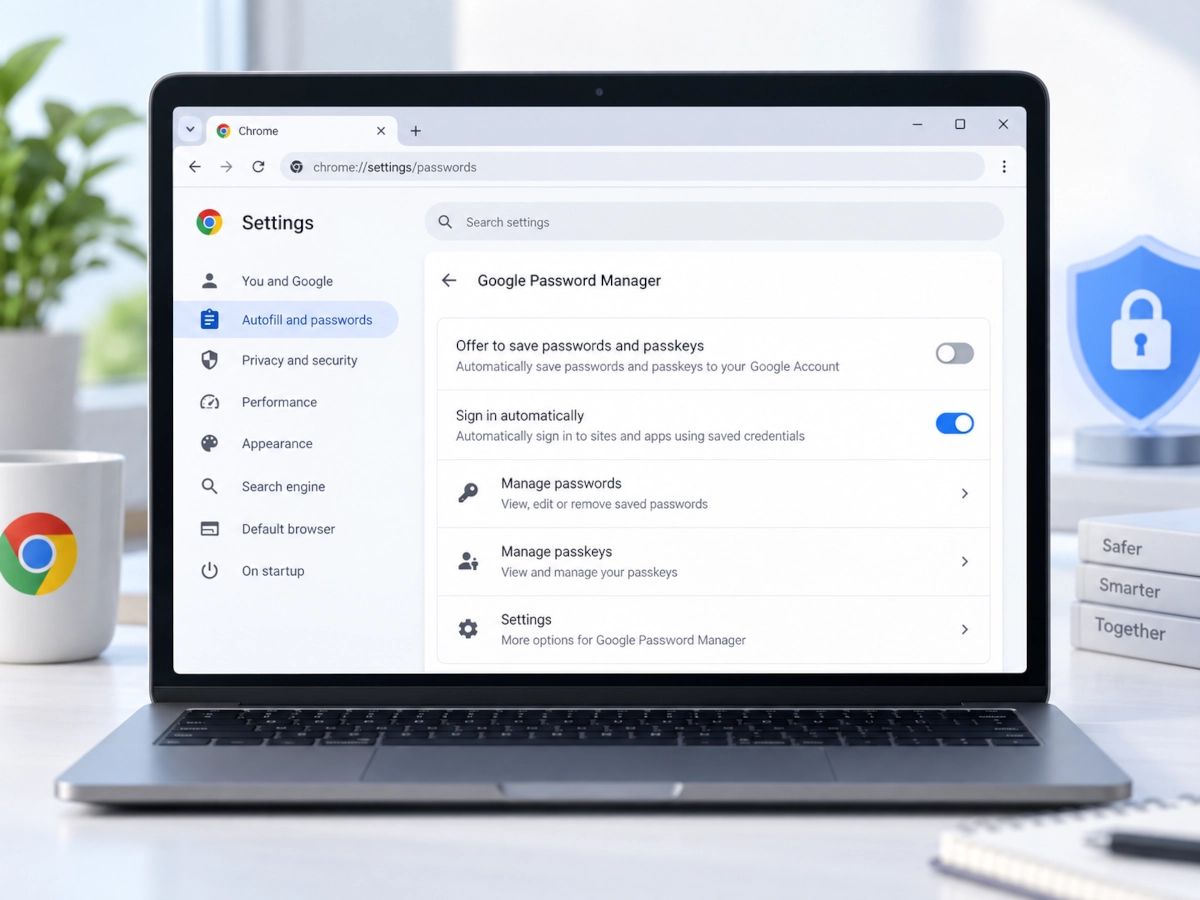
If you are moving away from Chrome’s built-in password storage, first make sure the passwords you still need are safely stored elsewhere, then remove saved passwords from Chrome after you have verified the migration.
Check for breached passwords carefully
You can check whether a password has appeared in known data breaches using a reputable breach-checking service. If a password has been exposed, stop using it immediately and change it anywhere you used it.
Never type your real password into random websites that claim to check password strength. Use trusted tools only, preferably inside your password manager or from a reputable breach-checking provider.
Watch for phishing
A strong password will not protect you if you type it into a fake login page. Before entering a password, carefully check the website address. Be extra careful with links from emails, ads, direct messages, or urgent warnings.
Use passkeys when available
Some services now support passkeys. A passkey can be safer and easier than a traditional password because it is designed to resist phishing and does not require you to remember or type a password.
If a trusted service offers passkeys, consider enabling them, especially for your important accounts.
Faster alternative
The fastest safe method is:
- Open your password manager.
- Generate a password with at least 16 characters.
- Save it to the correct website entry.
- Turn on MFA for the account.
- Save the recovery codes.
This is usually faster and safer than trying to invent a password yourself.
FAQ
How long should a strong password be?
For most accounts, use at least 16 characters when possible. If the password is the only protection and MFA is not enabled, use at least 15 characters. For important accounts, longer is better.
Is a passphrase better than a random password?
A passphrase can be good when you need to remember and type the password manually. A random password generated by a password manager is better for normal website and app logins because it is harder to guess and does not need to be memorable.
Should I use symbols, numbers and uppercase letters?
They can help, but they are not the most important part. Length and uniqueness matter more. A long unique password is better than a short predictable password with a few symbols.
Is it safe to use a password manager?
For most people, yes. A reputable password manager is safer than reusing passwords or storing them in notes, screenshots, or spreadsheets. Protect the password manager with a strong master password and MFA.
Should I change my passwords regularly?
Not just because time has passed. Change a password if it is weak, reused, exposed in a breach, shared with someone, or connected to suspicious account activity.
What is the most important password to secure first?
Your main email password. Your email account is often used to reset other passwords, so it should have a strong unique password and MFA.
Can I use the same password if I add 2FA?
No. MFA helps, but you should still use a unique password for every account. If a password is reused and leaked, attackers may still try to exploit it.
What should I do if my password was leaked?
Change it immediately on every account where you used it. Create a new, unique password, save it in your password manager, and turn on MFA. Also check recent account activity if the service provides a login history.
Last tested
Tested on:
- Bitwarden password generator
- 1Password password generator
- Google Password Manager
- iCloud Passwords
- Firefox Password Manager
Last tested: 2026-05-23
Editorial sources
This guide was reviewed against the following external references:
- NIST SP 800-63B — Digital Identity Guidelines. National Institute of Standards and Technology. Used for guidance on password length, memorized secrets, blocklists, and verifier requirements.
- CISA Secure Our World — Use Strong Passwords. Cybersecurity and Infrastructure Security Agency. Used for practical public guidance on long, unique passwords and password managers.
- OWASP Authentication Cheat Sheet. OWASP Foundation. Used for application security recommendations around authentication, multi-factor authentication, password storage, and password strength checks.
- Have I Been Pwned — Pwned Passwords. Have I Been Pwned. Used for breach-aware password checking and guidance on exposed passwords.
Accessed: June 24, 2026.
Related guides
Carefully selected guides to help you understand the topic and complete the next useful step.