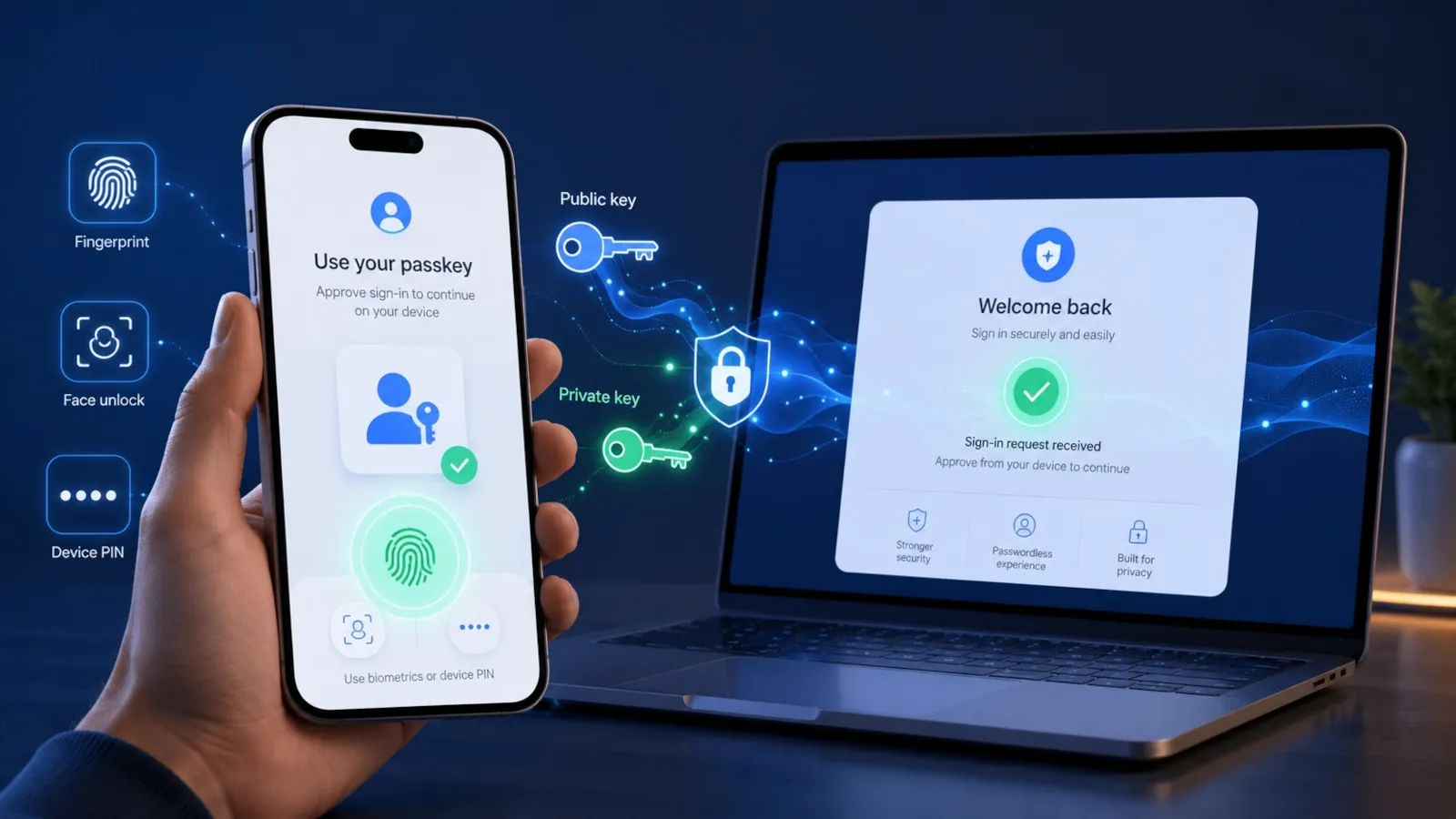
What it means on your phone, where it’s stored, how to create one, and what happens if you lose your device.
A passkey is a safer way to sign in to an app or website without typing a traditional password. If your phone, browser, or account suddenly shows “Create a passkey” or “Sign in with a passkey,” it is asking you to create or use a cryptographic sign-in credential that is protected by your device, password manager, or security key.
You normally approve the sign-in with something you already use every day, such as a device PIN, fingerprint, face scan, screen lock, Windows Hello, or a hardware security key. Your fingerprint, Face ID, or phone PIN is not the passkey itself; it is only a local way to unlock and authorize use of the passkey.
The practical questions matter most: where the passkey is saved, how to find it later, whether it syncs to another device, how to create one safely, and what happens if you lose your phone or computer. This guide answers those questions first, then explains how passkeys work and when to use them.
Quick answer
A passkey is a digital sign-in credential that can replace a password. Instead of typing a reusable secret, you approve the login by unlocking your device, password manager, or security key with a PIN, fingerprint, face scan, screen lock, Windows Hello, or another supported local method.
If you see “Create a passkey” on your phone, the service is asking your device or credential manager to create and save that credential for the account. The passkey may be synced through a password manager or kept on one device, depending on where you save it.
Passkeys are usually safer than passwords because they are unique to each service, much harder to phish, and never need to be typed into a login form. The website receives a public key and verifies a cryptographic response; it does not receive your fingerprint, face data, device PIN, or private passkey.
What does a passkey mean on your phone?
When Android or iPhone shows “Create a passkey,” “Save a passkey,” or “Sign in with a passkey,” it means the website or app supports a passwordless sign-in credential that can be protected by your phone.
The phone does not turn your fingerprint, Face ID, or screen-lock PIN into the passkey. Instead, the device or your chosen credential manager creates or retrieves the passkey, while your fingerprint, face scan, or PIN is used locally to approve access to it.
On many phones, the passkey can be stored in a synced credential manager, such as Google Password Manager or Apple Passwords/iCloud Keychain, so it can become available on other trusted devices signed in to the same provider account. Some passkeys are device-bound, which means they remain tied to one device or hardware security key instead of syncing.
If a prompt appears unexpectedly and you did not start a sign-in or security change, do not approve it. Open the app or website yourself and check the account’s security settings.
Where are passkeys stored?
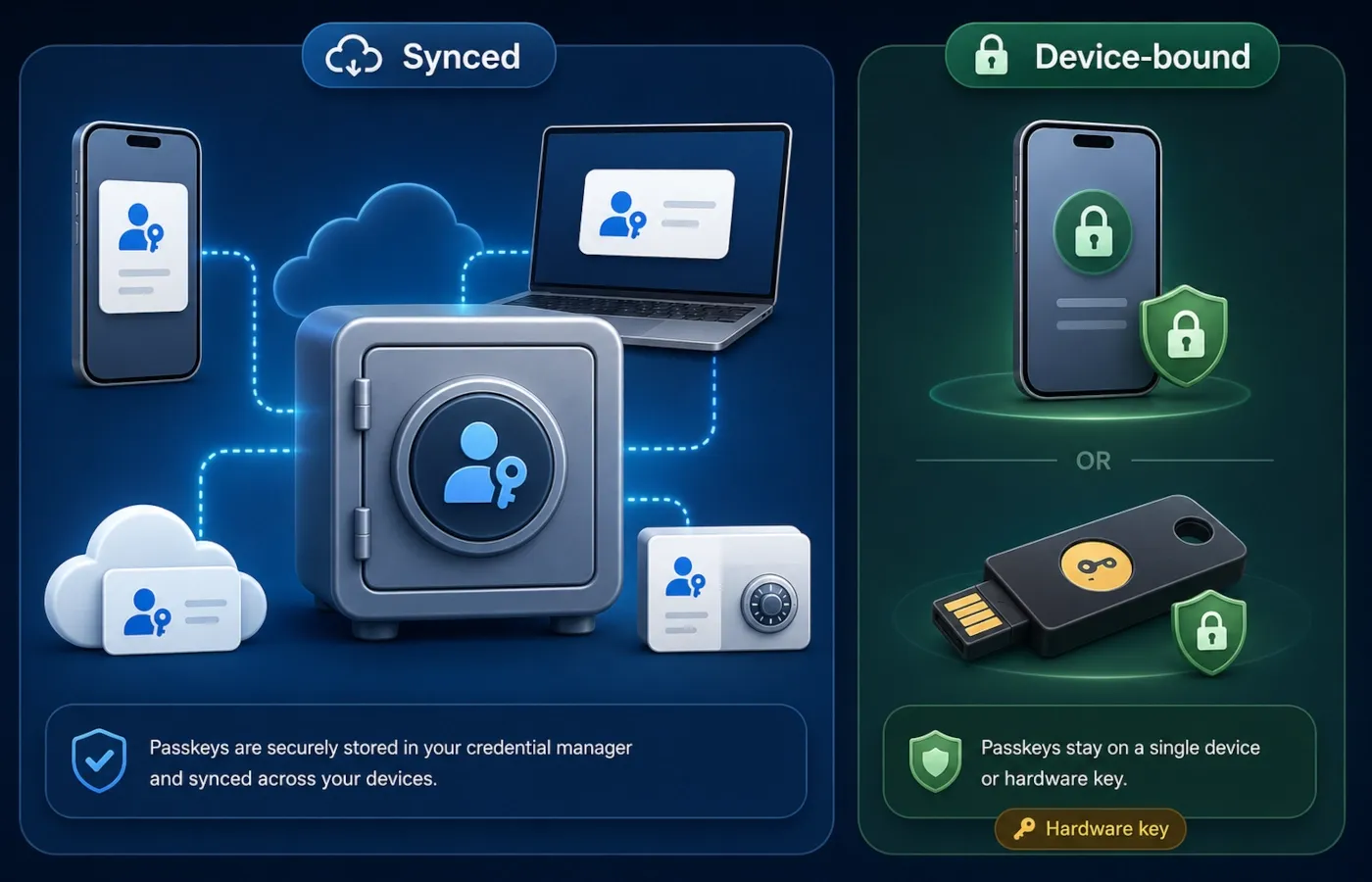
A passkey can be stored on your phone or computer, inside a synced credential manager, or on a hardware security key. There is no single universal “passkey folder.” The exact location depends on the device and provider you chose when the passkey was created.
Common places include:
- Google Password Manager on Android and Chrome;
- Apple Passwords and iCloud Keychain on iPhone, iPad and Mac;
- Windows passkey storage protected by Windows Hello;
- Microsoft Password Manager for synced Microsoft passkeys;
- third-party password managers that support passkeys;
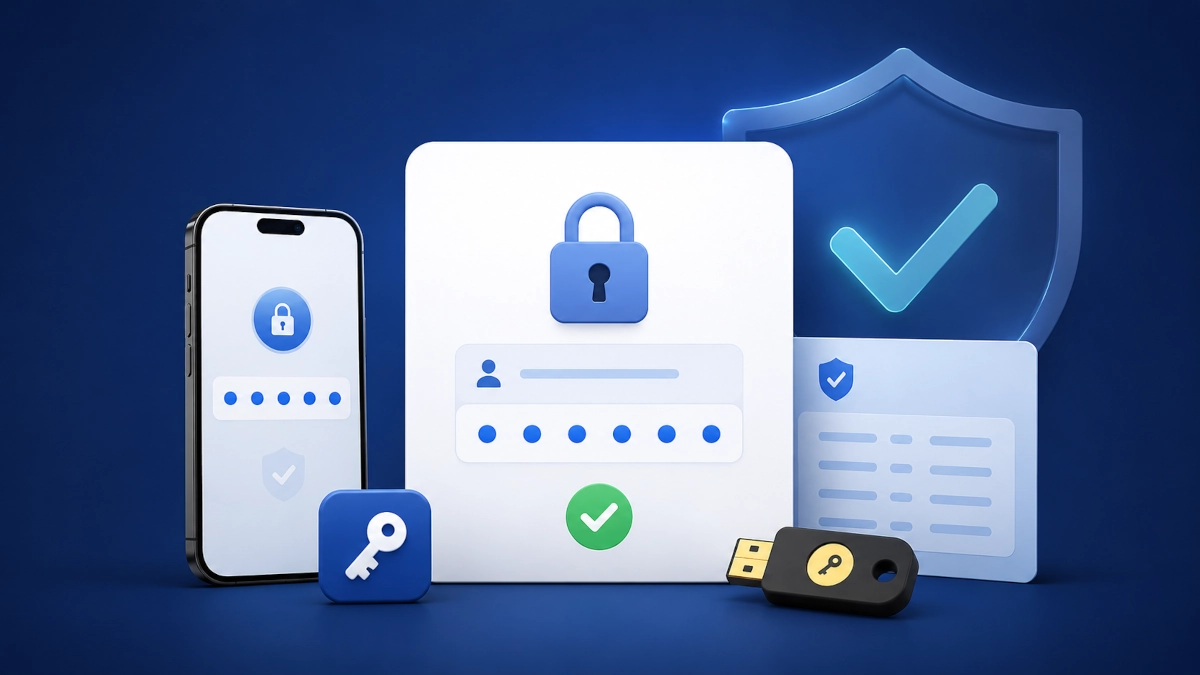
- FIDO2-compatible hardware security keys.
There are two broad storage models.
Synced passkeys
A synced passkey is stored in a credential manager and can become available on more than one trusted device. For example, Google Password Manager can save and sync passkeys, Apple can sync passkeys through iCloud Keychain, and Microsoft Password Manager can sync supported passkeys through a Microsoft account.
The advantage is convenience and recovery when you move to another device. The trade-off is that the security of the credential manager or cloud account becomes part of your overall security setup.
Device-bound passkeys
A device-bound passkey stays tied to one device or hardware security key and does not automatically sync elsewhere.
This can provide stronger separation, but losing the device or security key can remove that sign-in method if you do not have another passkey or recovery option.
For important accounts, avoid relying on a single device. Keep at least one trusted backup sign-in or recovery method.
Where is my passkey?
If you already created a passkey but do not know where it went, start with the device or password manager you used when you created it. These are the most useful places to check:
| Device or provider | Where to look |
|---|---|
| Android | Settings → Passwords, passkeys & accounts. Open or select the password manager that is enabled for passkeys. |
| Google Password Manager | Open Google Password Manager on Android or Chrome, or manage saved credentials at passwords.google.com. |
| iPhone / iPad | Open the Passwords app, unlock it with Face ID, Touch ID, or your device passcode, then select the relevant website or app. |
| Windows 11 | Open Settings → Accounts → Passkeys to view or delete passkeys saved locally to Windows. |
| Microsoft Password Manager | In Windows, check Settings → Accounts → Passkeys → Advanced options, or manage the passkey through the Microsoft Password Manager/provider that stored it. |
| Third-party password manager | Open that password manager and search the login or passkey vault for the website or app. |
| Hardware security key | Use the security-key management tool or the account’s security settings to review registered security keys/passkeys. |
A passkey may need to be removed in two places: from the account’s own sign-in settings and from the device, credential manager, or security key where the credential is stored.
How to find passkeys on Android
On current Android devices, Google documents this path for choosing the password manager that saves and suggests passkeys:
- Open Settings.
- Tap Passwords, passkeys & accounts.
- Tap the password manager shown there.
- Open the password manager you use, such as Google Password Manager or another supported provider.
- Search for the website or app whose passkey you want to inspect or manage.
You can also view and manage passwords and passkeys stored in Google Password Manager through Android, Chrome, or passwords.google.com.
The exact wording can vary by Android version or phone manufacturer. If you do not see Passwords, passkeys & accounts, search the Settings app for password, passkey, or autofill.
How to find passkeys on iPhone
On iOS 18 and later, Apple provides a dedicated Passwords app for saved passwords and passkeys:
- Open the Passwords app.
- Unlock it with Face ID, Touch ID, or your device passcode.
- Choose the relevant category or group.
- Select the website or app to view its saved credential information.
On iOS 17 or earlier, saved passwords and passkeys are managed from Settings → Passwords.
Apple passkeys can sync through iCloud Keychain across approved Apple devices signed in to the same Apple Account when the required security features are enabled.
When to use this guide
Use this guide if you have seen a message such as:
- “Create a passkey”
- “Sign in with a passkey”
- “Use your fingerprint or screen lock”
- “Skip password when possible”
- “Save a passkey”
- “Use Windows Hello”
- “Use passkey from nearby device”
This article is for normal users, not developers. It explains what a passkey means, how it works, whether you should use one, what can go wrong, and how to manage passkeys safely.
Before you start
Before you create a passkey for an important account, make sure you have:
- a personal device, not a shared or public computer;
- a secure screen lock, PIN, fingerprint, Face ID, Touch ID, or Windows Hello setup;
- access to your recovery email and recovery phone number;
- a trusted password manager or cloud account if you want passkeys synced across devices;
- a backup method for important accounts, such as another passkey, recovery codes, or a hardware security key.
Do not create passkeys on devices you do not control. If someone else can unlock that device, they may be able to use the passkey.
What is a passkey?
A passkey is a modern login credential that helps you sign in without typing a password.
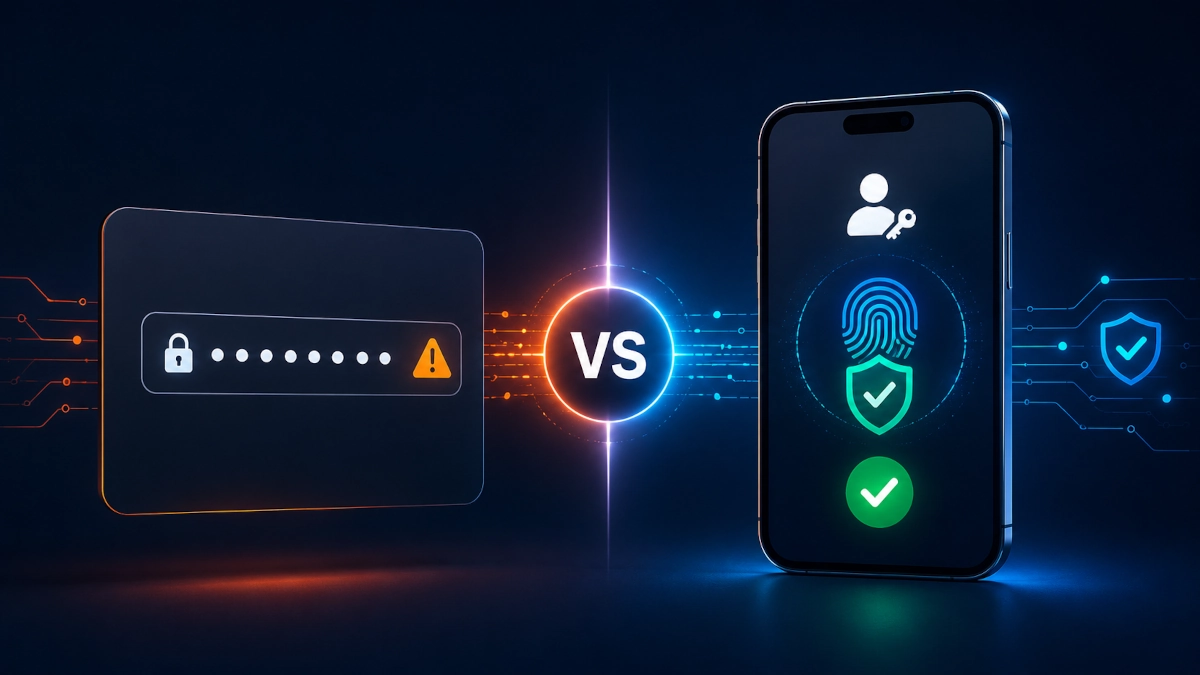
A traditional password works like a shared secret. You know it, and the website stores a version of it. When you sign in, you type the password and the website checks whether it matches. That model creates many risks: people reuse passwords, attackers steal them, fake websites trick people into typing them, and data breaches expose password databases.
A passkey works differently. It uses a pair of cryptographic keys:
| Part | Where it is kept | What it does |
|---|---|---|
| Private key | On your device, password manager, or security key | Proves it is really you during sign-in |
| Public key | On the website or app | Lets the service verify the sign-in without knowing your private key |
The website does not need to store a password for that login. It stores the public key. Your device keeps the private key protected.
When you sign in, the website sends a challenge to your device. Your device asks you to unlock it with your fingerprint, face, PIN, screen lock, or security key. Then it uses the private key to sign the challenge. The website checks the signature with the public key and lets you in.
That is why a passkey is often described as passwordless authentication.
What a passkey is not
A passkey is easy to misunderstand, so these distinctions matter.
A passkey is not your fingerprint or face scan. Biometrics may unlock access to the passkey on your device, but they are not sent to the website.
A passkey is not a one-time code. It is different from SMS codes, email codes, and authenticator app codes.
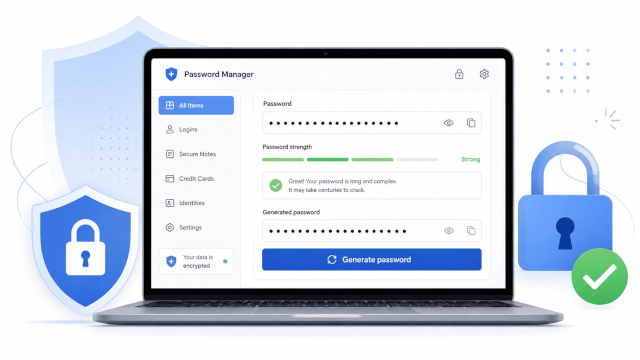
A passkey is not just a password manager entry. A password manager can store passkeys, but the passkey itself is a cryptographic credential, not a text password.
A passkey is not automatically an account recovery plan. You still need recovery options in case you lose access to your device or passkey provider.
Passkey example
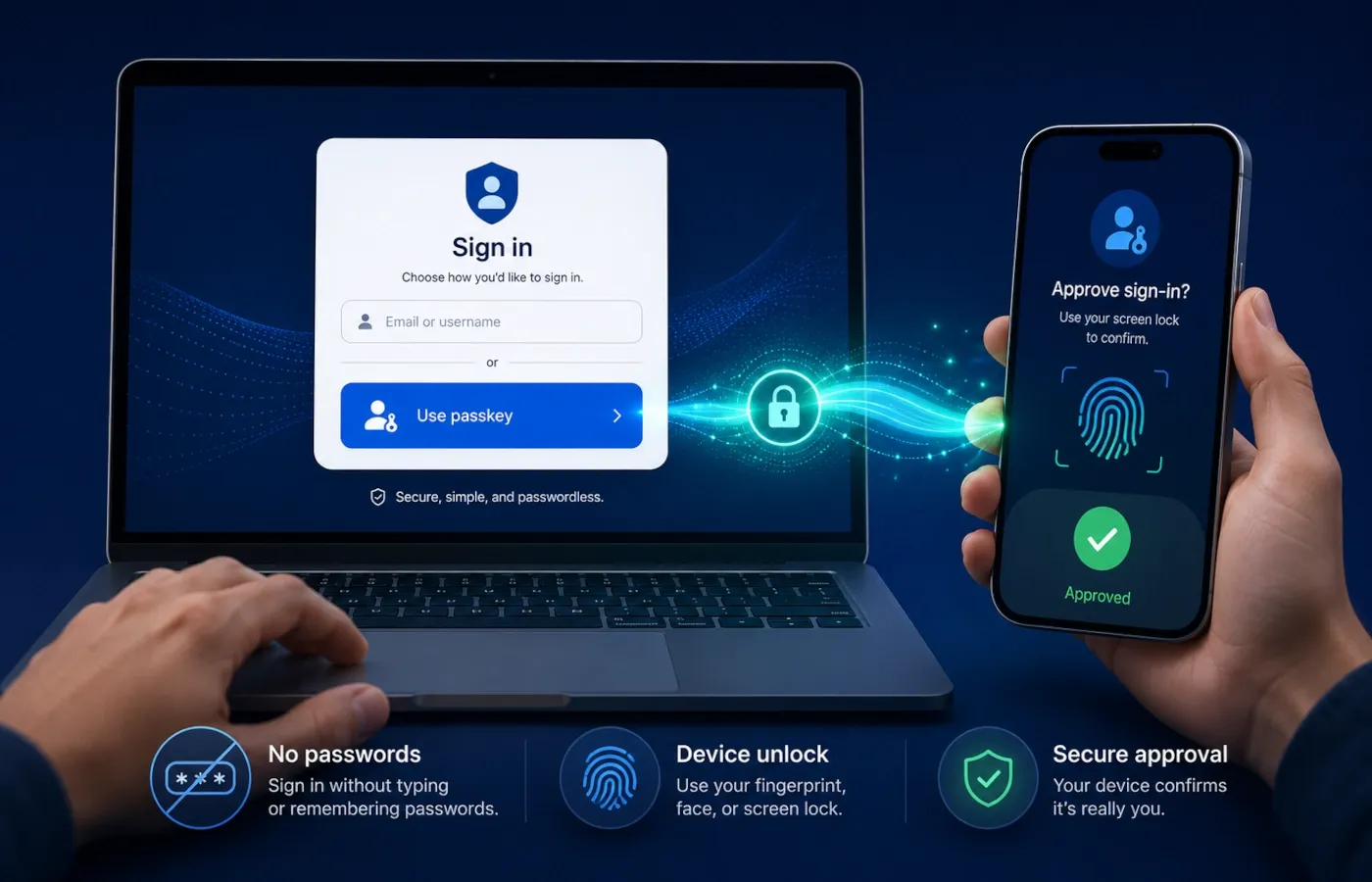 Imagine you are signing in to your Google Account on a laptop.
Instead of typing your password, Google asks you to use a passkey. You choose your phone. Your phone asks you to unlock it with your fingerprint or screen lock. After you unlock it, the phone confirms the sign-in and your laptop logs in.
In that example:
- you did not type a password;
- your fingerprint stayed on your phone;
- Google did not receive your private passkey;
- the login worked because your phone proved it had the private key for that account.
That is the experience passkeys are trying to create: strong authentication that feels like unlocking your device.
How does a passkey work?
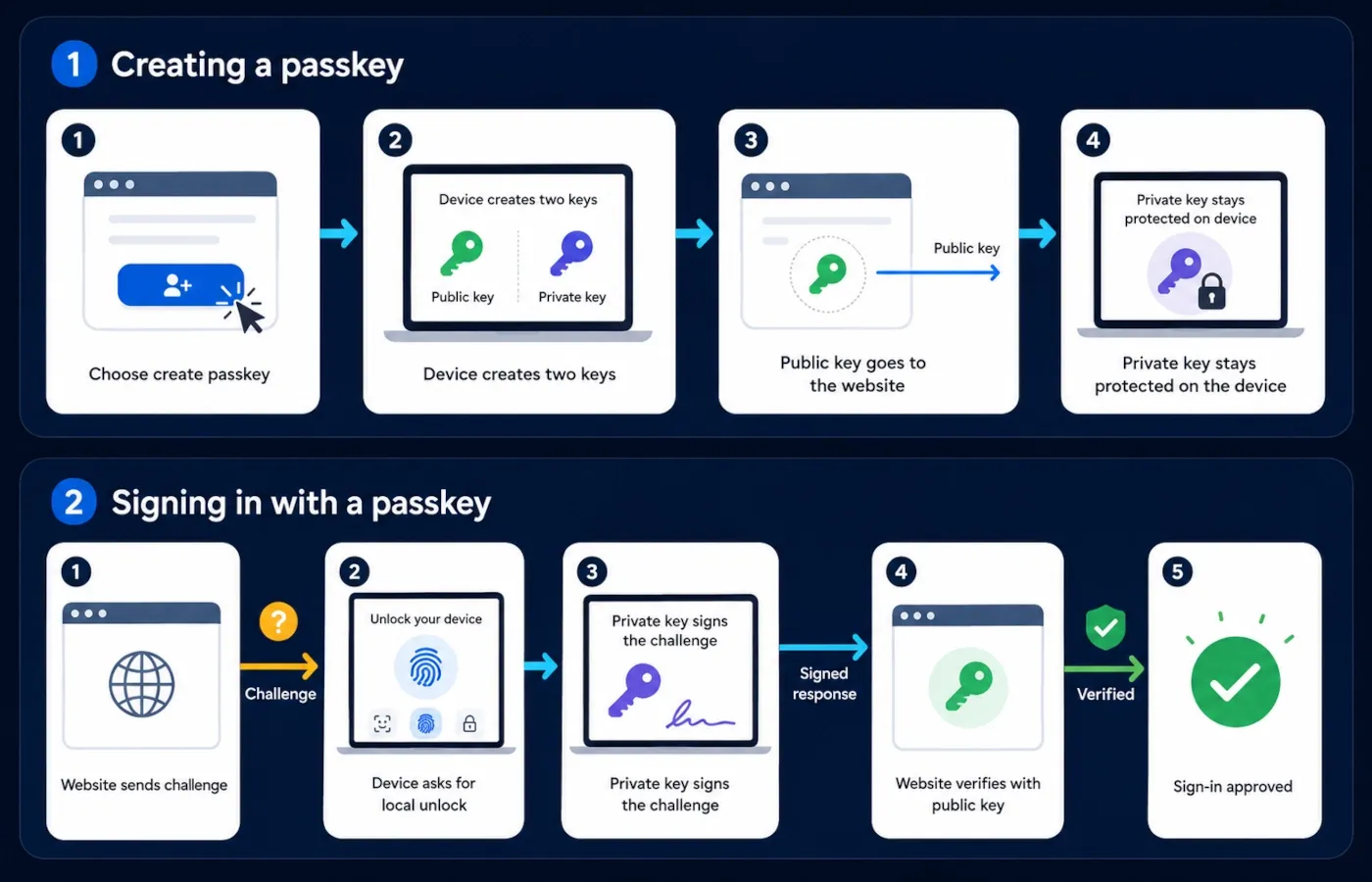 You do not need to understand the mathematics to use passkeys safely, but you should understand the basic flow.
When you create a passkey
| Step | What happens |
|---|---|
| 1 | You sign in to the website or app with an existing method. |
| 2 | The website offers to create a passkey. |
| 3 | You unlock your device with a PIN, fingerprint, face scan, screen lock, or security key. |
| 4 | Your device creates a public key and a private key. |
| 5 | The public key is registered with the website. |
| 6 | The private key stays protected on your device, password manager, or security key. |
When you sign in with a passkey
| Step | What happens |
|---|---|
| 1 | You enter your email, username, or select an account. |
| 2 | The website asks for your passkey. |
| 3 | Your device asks you to unlock it. |
| 4 | Your device signs a challenge with the private key. |
| 5 | The website verifies the signature with the public key. |
| 6 | You are signed in without typing a password. |
This design is powerful because the private key is not typed, copied, or sent to the website. The credential is tied to the service it was created for.
Passkey vs password vs 2FA vs security key
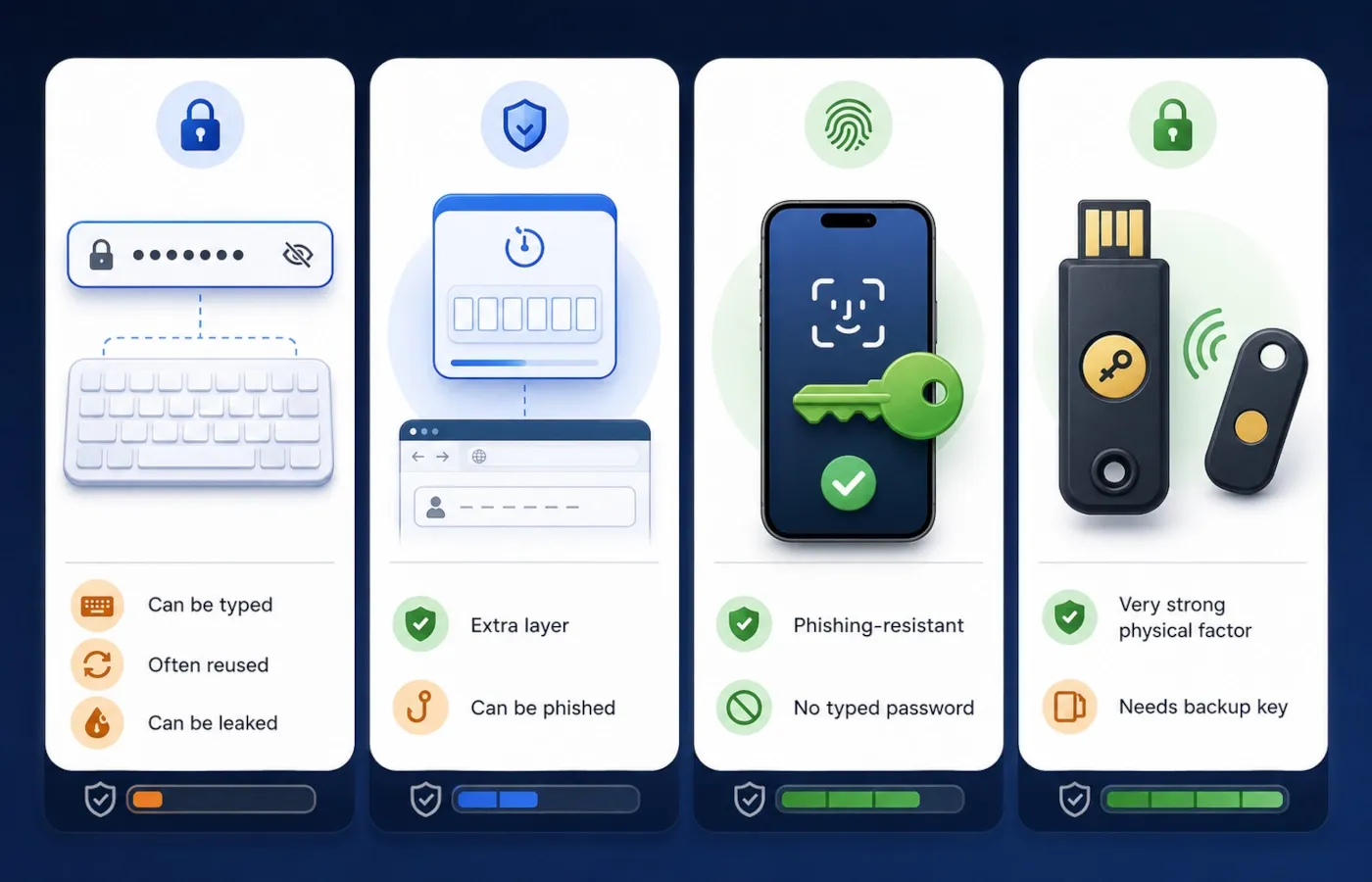
These methods are related, but they solve different parts of the sign-in problem.
| Method | What you use | Main strength | Main weakness |
|---|---|---|---|
| Password | Text you remember or store | Works almost everywhere | Can be weak, reused, leaked or phished |
| Authenticator / SMS 2FA | A second verification step | Adds protection to password-based sign-in | Codes can still be phished; SMS has extra risks |
| Passkey | Device or credential manager plus local unlock | Phishing-resistant and easy to use | Requires good storage and recovery management |
| Hardware security key | Physical USB/NFC/security device | Very strong and often device-bound | Can be lost if you have no backup |
A passkey can replace the password on supported services. In some account systems it can also satisfy strong authentication requirements, but the exact role depends on the provider and account policy.
Want to know whether you should actually replace your password? Read the full Passkey vs Password: Which Is Safer? comparison.
Are passkeys safe?
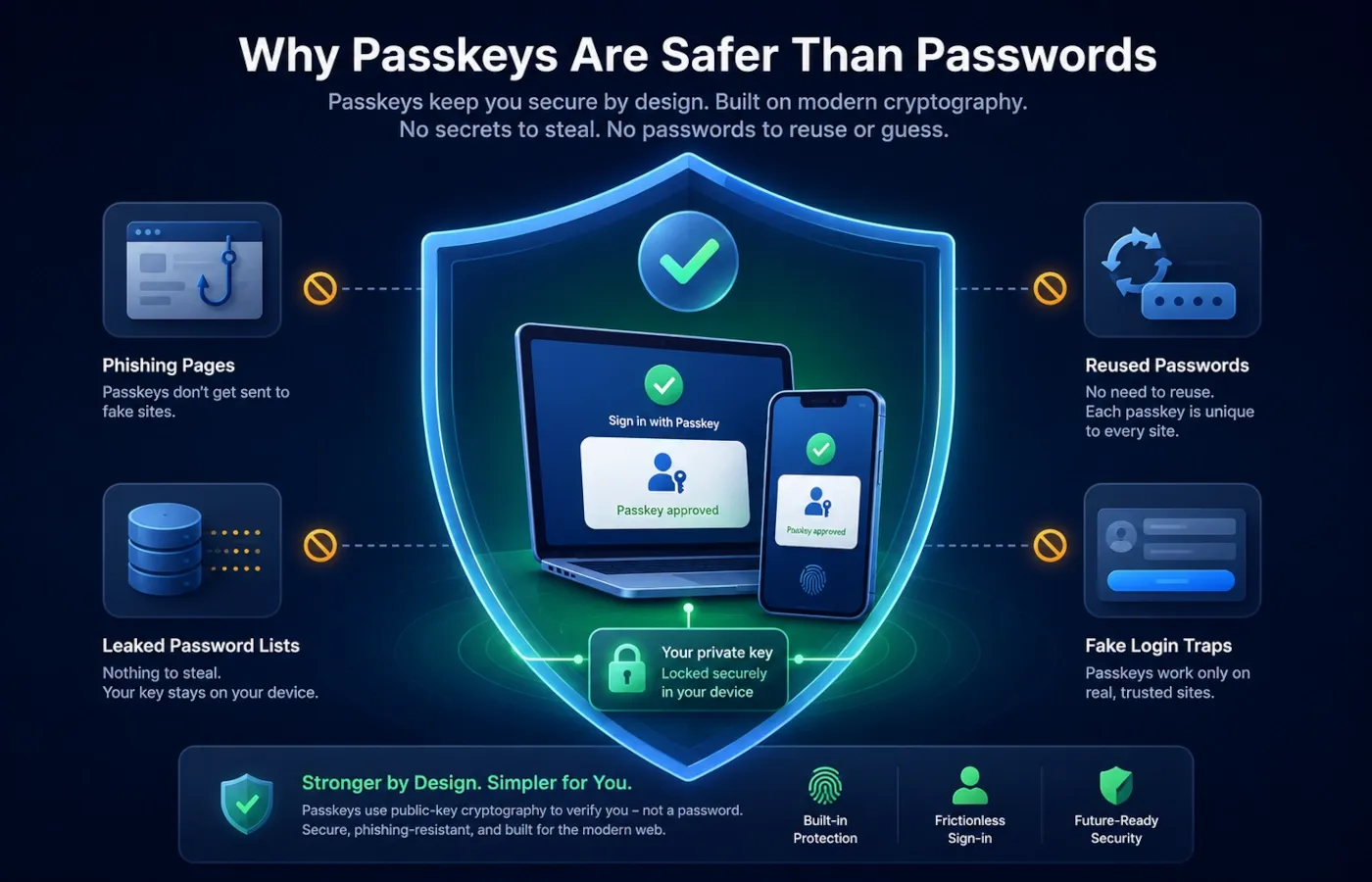 Yes. For supported accounts, passkeys are generally a stronger sign-in method than passwords because they are phishing-resistant and service-specific. FIDO Alliance, Google, Apple, Microsoft and the UK National Cyber Security Centre all describe passkeys as a more secure alternative to traditional password sign-in.
They are safer because:
- you do not type them;
- they are unique for each website or app;
- they are harder to steal through phishing;
- they are not reused across accounts;
- the website does not store your private key;
- your biometric data stays local to your device.
Passkeys are especially strong against common password attacks. If a phishing website tricks you into visiting a fake login page, it cannot simply collect your passkey like it could collect a password. If a company suffers a password database leak, there should be no reusable passkey password for attackers to try elsewhere.
But passkeys are not magic. You can still be at risk if your device is stolen and can be unlocked, your password manager account is compromised, malware controls your device, or the website has weak account recovery. The practical rule is simple: passkeys are a major security improvement, but they work best when your device lock, recovery methods, and password manager are also secure.
What are the downsides of passkeys?
The biggest downside of passkeys is not the cryptography. It is the user experience around storage, syncing, recovery, and support.
Here are the main limitations.
Not every website supports passkeys
Passkey support is growing, but it is not universal. You may still need passwords for many accounts.
People may not know where a passkey was saved
A passkey might be in Apple Passwords, Google Password Manager, Windows Hello, a browser profile, a third-party password manager, or a hardware security key. If you do not know where it is stored, managing it later can be confusing.
Changing devices can be confusing
If your passkey is synced, moving to a new device may be easy. If it is device-bound, you may need to create another passkey before replacing the old device.
Recovery still matters
If you lose your phone, laptop, or security key, you need a backup method. That could be another device, another passkey, recovery codes, a verified recovery email, or a hardware security key.
Some accounts still keep passwords enabled
Many services let you use both a passkey and a password. That can be convenient, but it also means your overall account security may still depend on the old password and recovery settings.
Shared devices are dangerous
Creating a passkey on a family computer, school computer, internet cafe device, or someone else’s phone can create unnecessary risk. If another person can unlock that device, they may be able to sign in.
Should you turn on passkeys?
For most personal accounts, yes. You should consider turning on passkeys when the account supports them and you understand where the passkey will be saved.
Passkeys are especially useful for email accounts, cloud storage, password managers, payment accounts, social media accounts, and work accounts when your organization supports them.
Turn on passkeys if
- the device is yours;
- you use a strong screen lock or device PIN;
- your recovery email and phone number are current;
- you know where the passkey will be stored;
- you have another way to recover the account;
- you want less risk from phishing and password leaks.
Be careful if
- the device is shared;
- you are on a public computer;
- you do not control the password manager;
- your recovery methods are outdated;
- you are about to sell, wipe, or replace the device;
- you do not know whether the passkey syncs to your other devices.
The best time to turn on a passkey is after you update recovery information, remove old devices, and protect your main email account.
How to create a passkey
The exact buttons differ by service, but the process is similar.
- Open the account settings for the website or app.
- Go to Security, Sign-in, Login methods, Password and security, or Passkeys.
- Choose Create passkey, Add passkey, or Set up passkey.
- Confirm your identity.
- Choose where to save the passkey if you are given options.
- Unlock your device with fingerprint, face scan, PIN, screen lock, Windows Hello, or a security key.
- Save the passkey.
- Check that your recovery methods are still correct.
If the account is important, create a second trusted sign-in method. For example, add another passkey on a second device or register a hardware security key.
Google, Apple and Microsoft passkeys
The underlying passkey idea is cross-platform, but each ecosystem stores and manages credentials differently.
For Google Accounts and Android, passkeys can be used as an alternative to passwords and can be saved through Google Password Manager or another supported password manager. Google currently documents Settings → Passwords, passkeys & accounts on Android for selecting the password manager used for passkeys. Google Account passkeys can also be reviewed in the account’s sign-in options.
For Apple devices, passkeys can be saved in Apple Passwords and synchronized through iCloud Keychain across approved devices signed in to the same Apple Account. On iOS 18 and later, the Passwords app is the main place to find and manage saved passkeys.
For Microsoft and Windows, passkeys can be stored locally to a Windows device and protected by Windows Hello, or saved through a synced credential manager such as Microsoft Password Manager. Windows 11 provides passkey management under Settings → Accounts → Passkeys.
FIDO Alliance uses the same cross-platform terminology: synced passkeys can be available across devices through a provider, while device-bound passkeys stay with a particular authenticator or device.
The practical rule is the same everywhere: know where the passkey is being saved, protect the device or credential manager that holds it, and keep recovery options current.
Can you still use your password if you have a passkey?
Often, yes, but it depends on the account.
Some services let you keep both a password and a passkey. In that case, the passkey is a safer and easier sign-in method, but the password may still exist as a backup option.
Other services may move toward passwordless sign-in, especially for personal accounts where passkeys are fully supported. Work or school accounts may have different rules controlled by an administrator.
Do not assume that adding a passkey automatically removes all password risk. If the account still allows password sign-in, keep the password strong, unique, and stored in a password manager.
What happens if you lose your phone or computer?
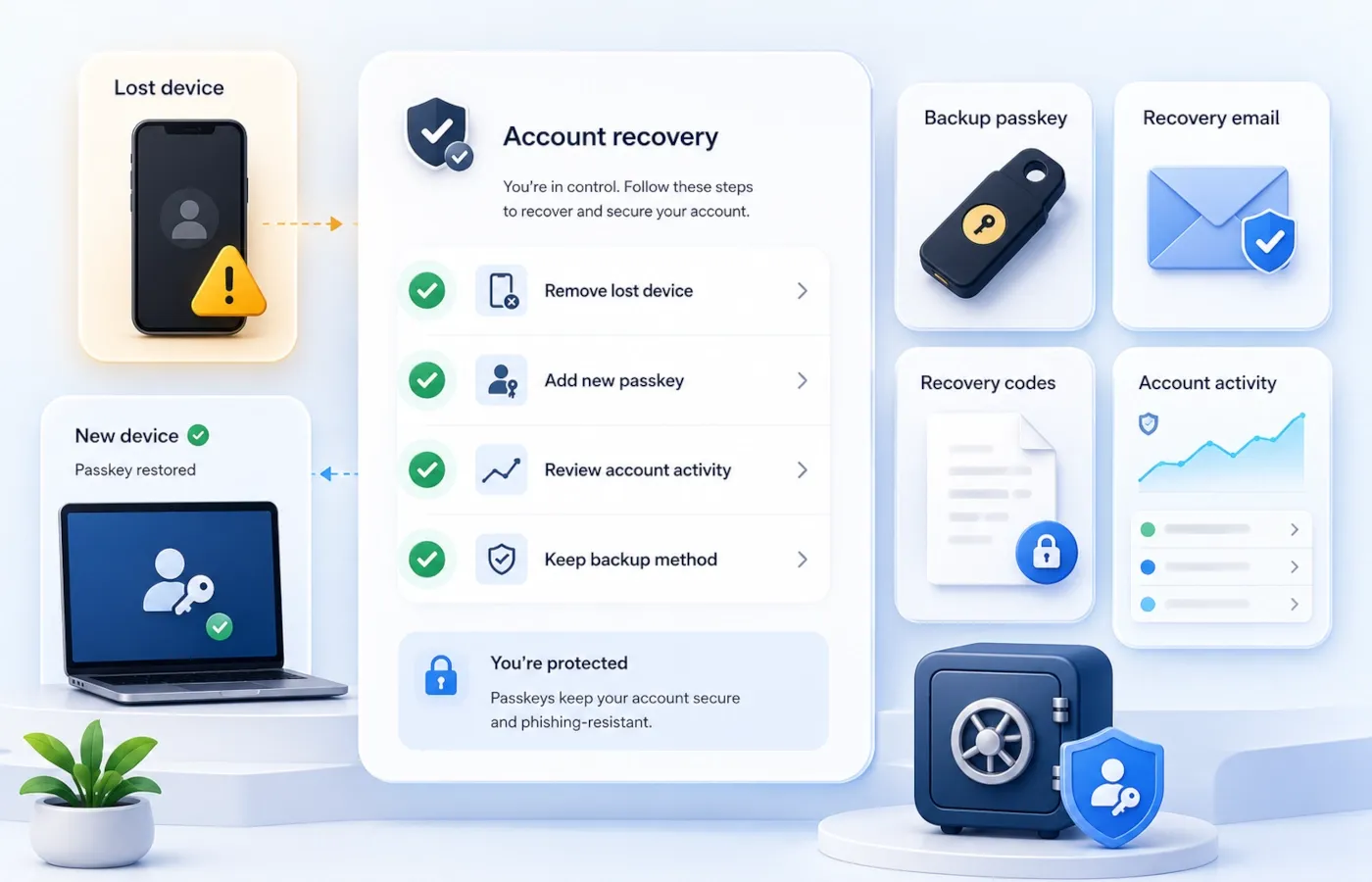 If you lose a device with a passkey, the next step depends on where the passkey was stored.
If the passkey was saved in a synced credential manager, you may be able to recover it by signing in to the same provider on a new trusted device. This is why the provider account must be protected well.
If the passkey was tied only to that device or a hardware security key, losing it can remove that sign-in method. You should then use another recovery method, such as another passkey, a backup hardware security key, recovery codes, recovery email, recovery phone, or the account recovery flow from the service.
If a device with passkeys is lost or stolen:
- Use another trusted device to sign in to important accounts.
- Remove the lost device from account access.
- Remove passkeys associated with the lost device, if possible.
- Review recent account activity.
- Add a new passkey on your replacement device.
- Keep at least one backup method for important accounts.
How to manage or delete passkeys
Once you know where a passkey is stored, management usually happens in two places: the account security settings of the website or app, and the credential manager or device that holds the passkey.
Common management locations include:
- Google Account security or sign-in options and Google Password Manager;
- Apple Passwords and iCloud Keychain;
- Windows Settings → Accounts → Passkeys;
- Microsoft account security settings or Microsoft Password Manager;
- Chrome or another browser credential manager;
- third-party password manager passkey vaults;
- hardware security key management tools.
You may need to remove a passkey in two places: from the website or app account, and from the password manager, device, browser, or security key where it is stored.
Common passkey problems
If you do not see a passkey option, the website may not support passkeys yet, or your device, browser, or operating system may need an update.
If your passkey appears on the wrong device, check both the account’s passkey settings and the credential manager where it was saved. Remove passkeys from shared or unwanted devices.
If the website still asks for your password, the service may still require passwords for some actions or may not be set to passkey-first sign-in.
If a passkey does not appear after changing phones or computers, use another trusted device, recovery email, recovery phone, recovery codes, or a backup security key. After you recover the account, create a new passkey on the new device.
Common mistakes
Avoid these mistakes when using passkeys:
- creating passkeys on shared devices;
- forgetting to update recovery methods;
- assuming a passkey removes every security risk;
- wiping or selling an old phone before checking whether passkeys are available elsewhere;
- keeping a weak password active on an account that still allows password sign-in.
Passkeys reduce several major risks, but they should be part of a complete account security setup.
Security, privacy and safety notes
Passkeys are designed to be private. Your fingerprint, face scan, and device PIN are used locally to unlock access to the passkey. They are not supposed to be sent to the website you are signing in to.
Use these safety rules:
- use passkeys only on devices you own;
- keep device software and browsers updated;
- use a strong device screen lock;
- protect your Apple, Google, Microsoft, or password manager account;
- remove lost or old devices from important accounts;
- do not approve passkey prompts you did not start;
- keep at least one backup method for important accounts;
- use a hardware security key for high-value accounts when possible.
For sensitive accounts, passkeys work best with updated recovery methods, strong device security, phishing awareness, and regular review of signed-in devices.
Faster alternative
If you only want a simple rule, use this:
Turn on passkeys for important accounts when you are using your own device, your recovery methods are up to date, and you know where the passkey will be saved.
Do not create a passkey on a shared device. Do not rely on only one device for an account you cannot afford to lose.
FAQ
What is an example of a passkey?
Signing in to an account by unlocking your phone with your fingerprint instead of typing a password is a common passkey example.
Is a passkey the same as a password?
No. A password is text you type. A passkey is a cryptographic credential unlocked locally by your device or security key.
Is my passkey my fingerprint?
No. Your fingerprint may approve use of the passkey on your device, but it is not sent to the website.
Can I still use my password if I have a passkey?
Often yes, but it depends on the service and your account settings.
Are passkeys safer than passwords?
Usually yes. Passkeys are unique per service, harder to phish, and not typed into login forms.
What are the downsides of passkeys?
The main downsides are limited support, storage confusion, device changes, and account recovery.
Can a hacker steal my passkey?
Not like a typed password. However, malware, stolen unlocked devices, weak recovery, and session theft can still put accounts at risk.
What happens if I forget my passkey?
You do not memorize a passkey. The real issue is losing access to the device, password manager, or security key that stores it.
How do I find my passkeys?
On Android, start with Settings → Passwords, passkeys & accounts and open your enabled password manager. On iPhone with iOS 18 or later, open the Passwords app. On Windows 11, check Settings → Accounts → Passkeys. You should also review the website or app’s own account security settings.
Should I turn on passkeys?
Yes, if the account supports them, the device is yours, your device lock is secure, and recovery methods are updated.
Is it better to use a passkey or a password?
For the full comparison, see Passkey vs Password.
Are passkeys the same as two-factor authentication?
Not exactly. A passkey can replace a password as the primary sign-in method, and in some accounts it can also be used as a second factor.
Can I remove a passkey?
Yes. Remove it from the account security settings and, if needed, from the device, password manager, browser, or hardware key where it is stored.
Editorial sources
This article follows current passkey and account security guidance from:
- FIDO Alliance — Passkeys
- FIDO Alliance — How FIDO Works
- Google Account Help — Sign in with a passkey instead of a password
- Google Android Help — Sign in with passkeys
- Google Account Help — Use passwords and passkeys across devices
- Microsoft Support — What are passkeys and why they matter
- Microsoft Learn — Support for Passkeys in Windows
- Microsoft Support — Manage your saved passkeys
- Apple Support — Use passkeys to sign in to websites and apps on iPhone
- Apple Support — Find saved passwords and passkeys on iPhone
- Apple Support — About the security of passkeys
- UK NCSC — Passkeys: what you need to know
Last tested
Tested and reviewed against:
- Google Account passkey settings
- Android passkey and password manager settings
- Google Password Manager passkey guidance
- Apple Passwords app and iCloud Keychain documentation
- Microsoft account passkeys
- Windows Hello and Windows Settings passkey management
- Chrome passkey sign-in behavior
- current FIDO Alliance passkey terminology and guidance
- UK NCSC passkey guidance
Last reviewed: 2026-09-11
Related guides
Carefully selected guides to help you understand the topic and complete the next useful step.