
Quick answer
To delete one saved password, open Google Password Manager, sign in to the correct Google Account, select the saved login, and choose Delete.
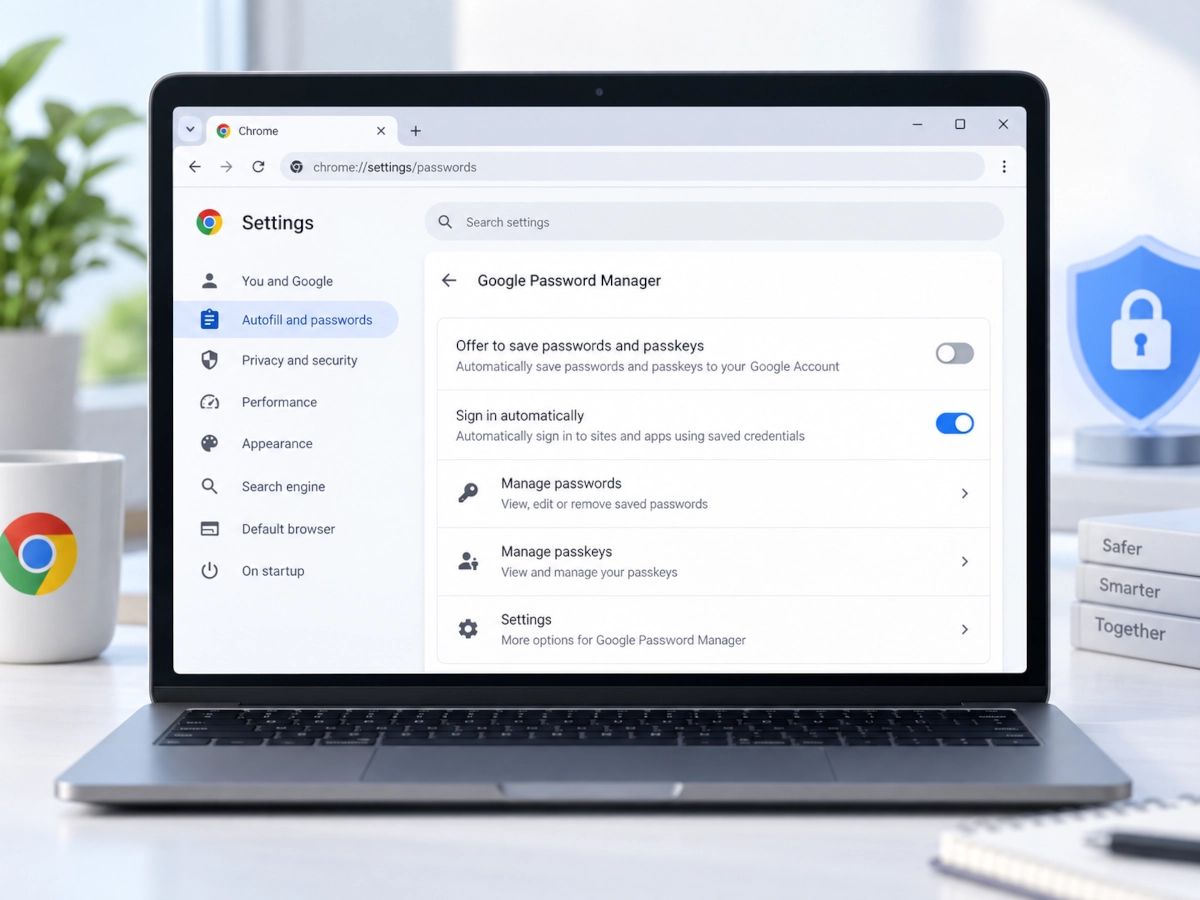
To delete all Google Password Manager data on a computer, Google’s current desktop procedure starts in Chrome: open Chrome → More → Passwords and autofill → Google Password Manager → Settings, then choose Delete data next to Delete all Google Password Manager data and confirm Delete. This removes Google Password Manager data including passwords and passkeys. It does not delete the actual accounts you have with websites or apps.
Important: If you only want to remove one old login, delete that individual credential. Do not use Delete all Google Password Manager data unless you deliberately want to remove the password-manager data stored in that Google Account.
When to use this solution
Use this guide when your goal is to remove credentials that are saved in Google Password Manager or in your Google Account.
This is the right guide if:
- the password appears at
passwords.google.com; - the login is saved to your Google Account;
- the credential is available through Google Password Manager on more than one signed-in device;
- you want to delete one saved login;
- you want to remove all Google Password Manager data;
- you need to understand what will happen to synced devices or passkeys before deleting anything;
- you deleted a credential and want to verify that it is really gone.
This is not a general Chrome cleanup guide.
If the password is stored only in Chrome or your goal is browser-specific cleanup, use our guide to remove saved passwords from Chrome instead.
Before you start
Password deletion can be irreversible, especially when you use the option to delete all Google Password Manager data. Take a minute to confirm what you are about to remove.
Check these four things first
-
Are you signed in to the correct Google Account?
If you use multiple Google Accounts, confirm the profile shown in Google Password Manager before deleting anything. -
Do you still know how to access the website or app?
Removing a saved password does not close the website account, but you may need the password again the next time you sign in. -
Are you migrating to another password manager?
If your goal is migration rather than permanent deletion, export first. Google supports password export from Google Password Manager. The exported file is sensitive and should be deleted from the device after you finish the migration. -
Do you have passkeys stored in Google Password Manager?
The Delete all Google Password Manager data option includes passkeys stored in Google Password Manager. Check them before you use the all-data option.
Migration rule: Export first if you are moving your passwords somewhere else. Delete first only when you are sure you no longer need the stored data.
Before you delete: check where the password is actually saved
One of the most important distinctions in this guide is the difference between a credential saved to your Google Account and one stored only on a device.
Google explains that when you are signed in to Chrome, passwords can be saved to your Google Account and used across devices. When you are not signed in, Chrome can store passwords locally on the device instead.
Passwords saved to your Google Account can be managed through passwords.google.com.
| Where the credential is stored | Does this guide apply? | What to do |
|---|---|---|
Visible at passwords.google.com |
Yes | Continue below |
| Saved in your Google Account | Yes | Continue below |
| Synced through Google Password Manager | Yes | Continue below |
| Stored only in a local Chrome profile | Not necessarily | Use the Chrome-specific guide |
| Stored in Bitwarden, 1Password, Apple Passwords, or another manager | No | Manage it in that password manager |
| Stored in another Google Account | No | Switch to that Google Account first |
This distinction matters because deleting data from one Google Account is not the same as deleting a local credential or a credential stored by another password manager.
Choose the right desktop route
| What you want to do | Desktop route |
|---|---|
| Delete one saved password | passwords.google.com or Google Password Manager in Chrome |
| View or manage saved passwords | passwords.google.com or Google Password Manager in Chrome |
| Delete all Google Password Manager data | Chrome → Google Password Manager → Settings |
| Remove all saved passwords + GPM passkeys | Chrome full-data deletion |
This distinction is useful if you are signed in at passwords.google.com and cannot find a bulk-delete control: on desktop, Google’s current full-data deletion workflow starts inside Chrome.
How to delete one saved password from Google Password Manager
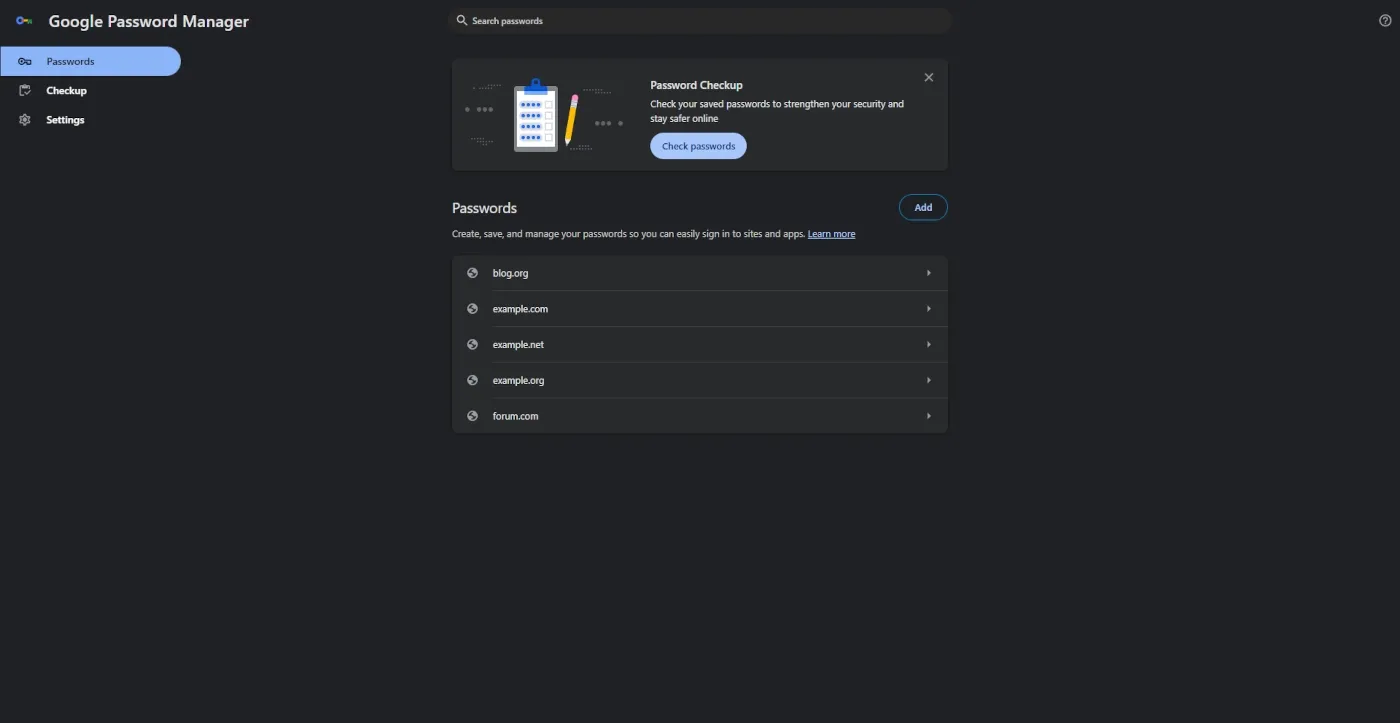
Deleting one password is the safest choice when you only want Google Password Manager to forget a specific login.
1. Open Google Password Manager
Go to:
Sign in if Google asks you to.
2. Confirm the Google Account
Before selecting anything, check the Google Account shown in the interface.
This is especially important if you use:
- a personal Google Account;
- a work or school account;
- more than one Gmail address;
- different Chrome profiles.
Deleting the correct credential from the wrong Google Account is impossible; you first need to be looking at the account where that credential is actually stored.
3. Find the website or app
Use the search field or browse your saved credentials.
Select the website or app whose saved login you want to remove.
If several usernames are saved for the same site, choose the specific account you intend to delete.
4. Verify your identity if prompted
Google Password Manager may ask you to confirm your identity before showing or changing sensitive credential data.
Complete the verification using the method offered on your device.
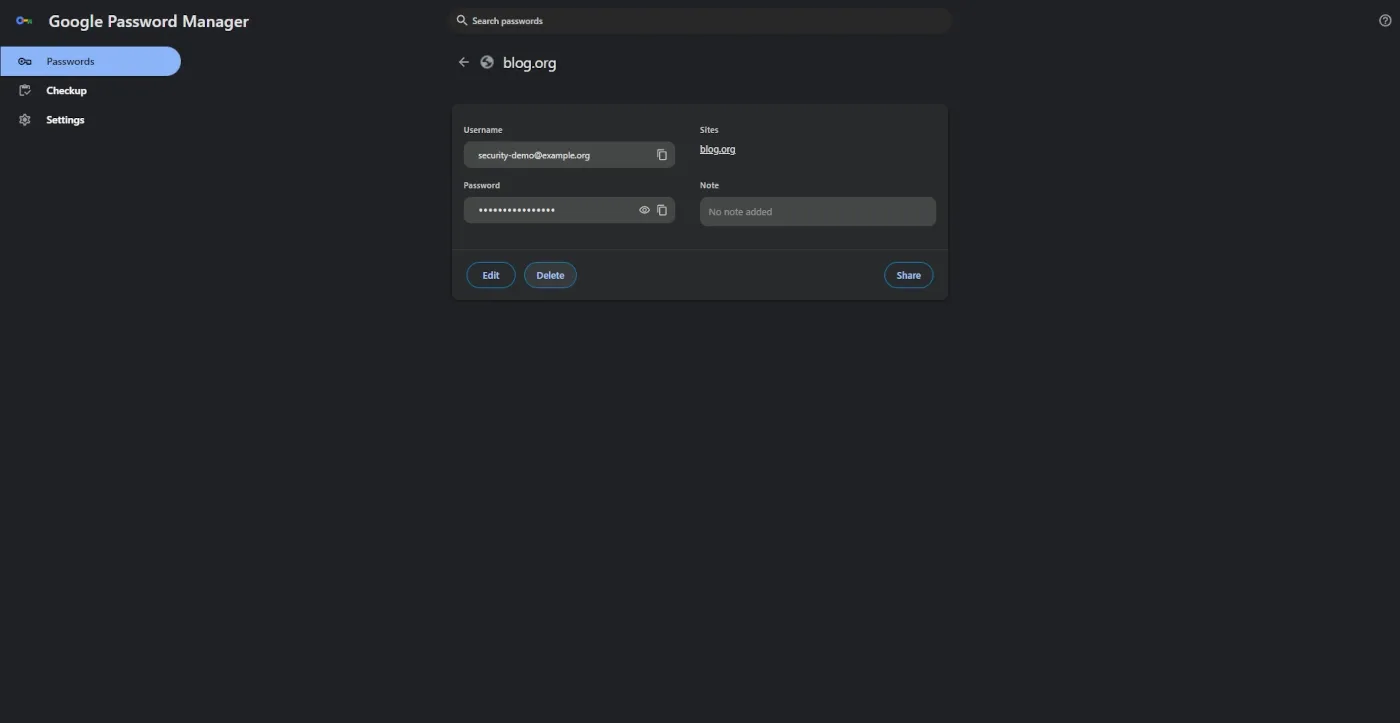
5. Select Delete
Open the saved credential and choose Delete.
Google’s current help documentation describes individual deletion as selecting the saved password and then selecting Delete.
6. Verify the result
Do not stop at the Delete button.
Refresh Google Password Manager, search for the site again, and confirm that the credential no longer appears under that Google Account.
If it still appears somewhere else, use the verification checklist later in this guide before deleting more data.
How to delete all Google Password Manager data
Use this only when you deliberately want to erase the Google Password Manager data associated with the account.
Warning: this is not the same as deleting one password. Google’s documentation states that Delete all Google Password Manager data includes passwords and passkeys stored in Google Password Manager.
Desktop note: On a computer, Google’s current official procedure for deleting all Google Password Manager data starts in Chrome. The bulk-delete control may not appear in the settings page you see at
passwords.google.com.
1. Open Google Chrome
On your computer, open Google Chrome.
Make sure Chrome is using the Google Account whose Google Password Manager data you intend to delete.
2. Open Google Password Manager from Chrome
At the top right of Chrome, select More.
Then go to:
Passwords and autofill → Google Password Manager
3. Open Settings
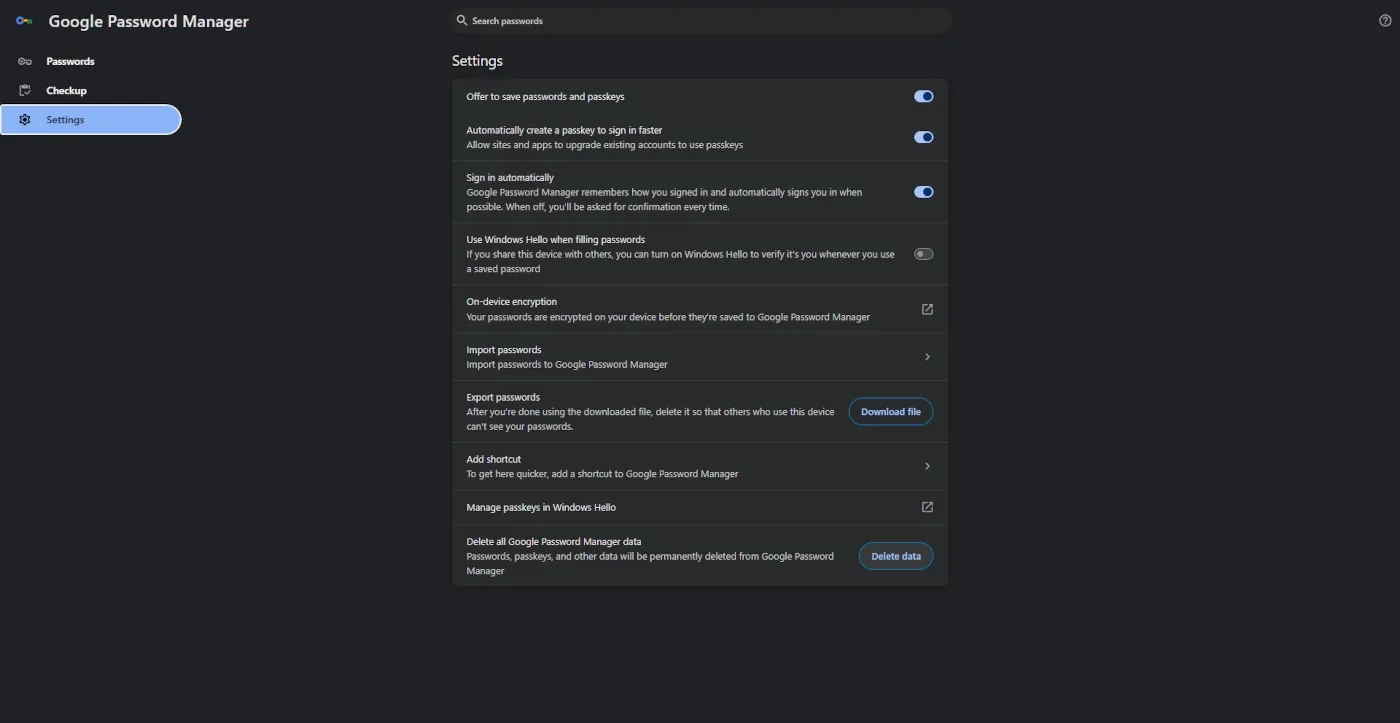
In Google Password Manager, select Settings on the left.
4. Find “Delete all Google Password Manager data”
On the right side of the Settings page, find:
Delete all Google Password Manager data
If you were previously looking at passwords.google.com in another browser and could not find this option, use the Chrome path above. Google’s current desktop instructions specifically use Chrome for the full-data deletion workflow.
Can’t find “Delete all Google Password Manager data” at
passwords.google.com? On desktop, use Google Password Manager from inside Chrome. Google’s current official bulk-deletion instructions start there.
5. Check your passkeys before continuing
If you use passkeys, stop here and review them first.
A full Google Password Manager data deletion is broader than simply clearing old passwords.
If your goal is only to remove obsolete passwords, deleting them individually is usually safer.
6. Select Delete data
Next to Delete all Google Password Manager data, select Delete data.
Then confirm the operation by selecting Delete.
Mobile note: Google also documents bulk deletion through Chrome on Android and iPhone/iPad, but the steps above focus on the desktop workflow tested for this guide.
7. Verify the account afterwards
Reopen Google Password Manager and confirm that the expected credentials are no longer present.
Then check another device signed in to the same Google Account.
Do not assume that any credential you still see must be the same Google Account copy. It may come from a local store, another account, or another password manager.
What exactly gets deleted?
This is the distinction most people should understand before pressing Delete.
| Data or account | Delete one saved password | Delete all Google Password Manager data |
|---|---|---|
| The selected saved password | Yes | Yes |
| Other passwords stored in that Google Password Manager | No | Yes |
| Passkeys stored in Google Password Manager | No, unless separately removed | Yes |
| The actual website or app account | No | No |
| The password currently set on the website | No | No |
| Credentials stored in another password manager | No | No |
| Credentials belonging to another Google Account | No | No |
| Local-only credentials outside that Google Account | Not necessarily | Not necessarily |
The key rule is simple:
Deleting a saved credential from Google Password Manager is not the same as deleting the online account or changing its real password.
Google Password Manager stores a credential that helps you sign in. The website or app itself controls the actual account.
What happens on synced devices?
Google Password Manager can make passwords and passkeys saved to your Google Account available on devices where you are signed in with that same account.
Conceptually, the relationship looks like this:
Google Account
      |
      v
Google Password Manager
      |
  +---+---+----------------+
  |       |                |
  v       v                v
Laptop   Phone            Tablet
           \
            \--> other signed-in devices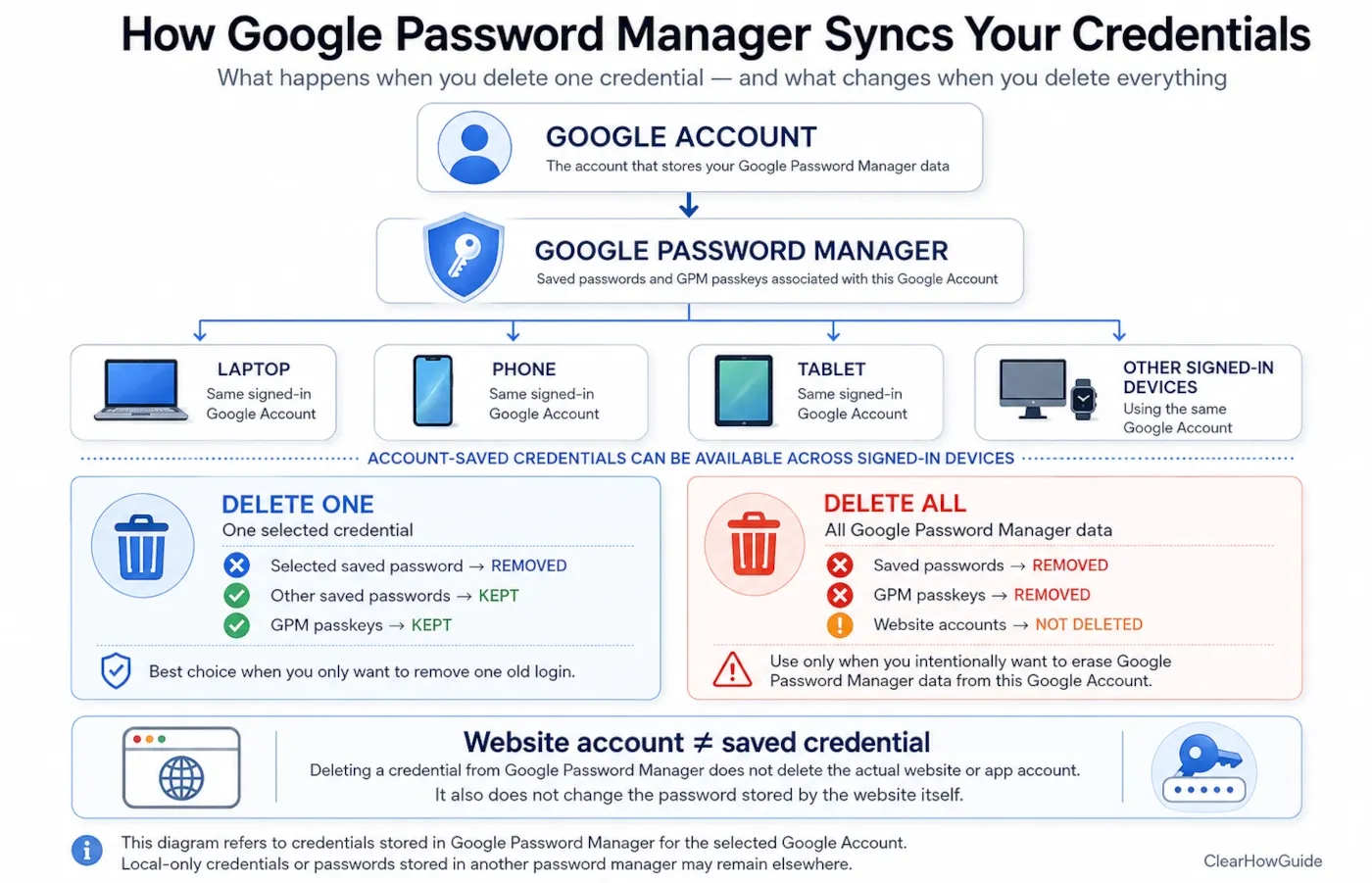
When you remove an account-saved credential from Google Password Manager, you are changing the password-manager data associated with that Google Account, not merely hiding a row on one computer.
After deletion:
- refresh Google Password Manager;
- check another signed-in device;
- confirm that the device is using the same Google Account;
- make sure the credential is not being supplied by another manager or a local-only store.
Avoid promises about instant timing. The important point is to verify the source of any credential that still appears.
What happens to your passkeys?
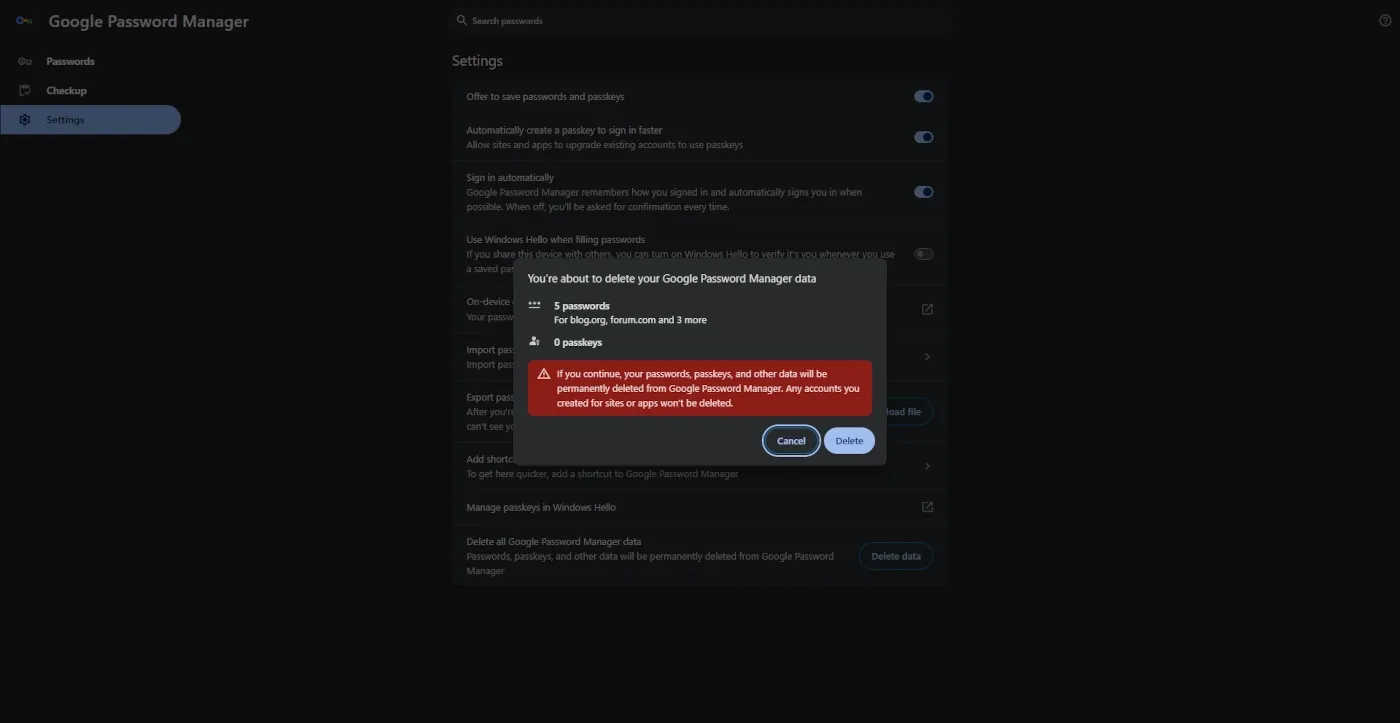
Passkeys need special attention because Delete all Google Password Manager data is broader than “delete all passwords”.
Google explicitly documents that Google Password Manager data includes passwords and passkeys.
That means:
If you only want to remove old passwords, do not use Delete all data until you have checked which passkeys are stored in Google Password Manager.
Does this remove every passkey everywhere?
No. The full-data action concerns data stored in Google Password Manager for that account.
A passkey may instead be stored:
- in another credential manager;
- on another platform;
- in a different Google Account;
- as a sign-in method managed separately for your Google Account.
Google also provides separate controls for passkeys used to sign in to the Google Account itself under the account’s Security settings.
If you are trying to remove a Google Account sign-in passkey rather than clean up Google Password Manager, review the passkeys listed in your Google Account sign-in options instead of assuming that password-manager deletion covers every passkey you use.
Does deleting a saved password delete the website account?
No.
Deleting a saved credential from Google Password Manager does not:
- close the website account;
- cancel a subscription;
- delete your data from that service;
- change the password stored by the website;
- sign you out of every existing session;
- request account deletion from the website.
It only removes the credential from the password manager location you selected.
For example, if you delete the saved login for an online store, the store account still exists. The next time you visit, you may simply have to enter the password manually or reset it if you no longer know it.
What if the password was compromised?
If you are removing a credential because it was exposed in a breach, change the password on the website first.
Deleting the saved copy from Google Password Manager does not make a compromised website password safe. The website must receive a new password.
After changing it, remove the obsolete saved credential if it is no longer needed.
How to verify the password was deleted everywhere
Verification is what turns a basic deletion guide into a reliable cleanup procedure.
Use this checklist after deleting a saved password.
1. Refresh Google Password Manager
Reload passwords.google.com or reopen Google Password Manager.
2. Search for the website again
Use the search field and look for the site or app whose credential you deleted.
If the specific username is gone, the deletion succeeded in the Google Account you are currently viewing.
3. Confirm the Google Account
Check the account avatar or account selector.
If you use multiple Google Accounts, make sure you did not delete from one and verify another.
4. Check another device using the same account
Open Google Password Manager on another device signed in with the same Google Account.
Search for the same site and username.
5. Check whether the credential is local-only
If the password still appears in a browser but not at passwords.google.com, it may not be coming from the Google Account copy.
That is a browser-specific case.
See our guide to remove saved passwords from Chrome if you need to clean up a local or Chrome-specific credential.
6. Check other password managers
If you use another password manager, the credential may be coming from there instead.
Common examples include:
- Apple Passwords;
- Bitwarden;
- 1Password;
- Microsoft Edge’s password manager;
- a device-specific credential manager.
Deleting data from Google Password Manager does not delete copies stored by unrelated services.
Why can a deleted password still appear?
A password that seems to “come back” does not automatically mean Google restored it.
Check these possibilities in order.
You are viewing a different Google Account
This is common when several accounts are signed in on the same browser or device.
Confirm the account before deleting or verifying.
The credential is stored locally
Google distinguishes between credentials saved to a Google Account and credentials stored locally on a device.
A local-only password can remain even if the account-saved copy was removed.
Another password manager is filling it
A second password manager can make an old credential appear even though Google Password Manager no longer contains it.
Disable guessing: identify which manager supplied the credential before deleting anything else.
The page has not been refreshed
Reopen Google Password Manager or refresh the web interface before concluding that the item survived deletion.
A different username is saved for the same site
One website can have several stored logins.
Deleting one username does not remove the others.
Common mistakes
Using “Delete all data” to remove one old password
This creates unnecessary risk because the all-data option also covers passkeys stored in Google Password Manager.
Do instead: delete the individual credential.
Deleting from the wrong Google Account
People who use several Google Accounts can easily inspect one account while thinking they are managing another.
Do instead: verify the account before every destructive action.
Assuming the website account was deleted
Google Password Manager is not the website’s account-management system.
Do instead: use the website’s own account settings if you want to close the actual account.
Deleting a compromised saved password without changing it on the site
Removing the stored copy does not invalidate the compromised password at the service.
Do instead: change the website password first, then remove obsolete saved credentials.
Exporting passwords and leaving the CSV file behind
Google warns that an exported password file can be opened by anyone who can access it.
Do instead: use the export only for the intended migration or backup task, then delete the file securely from the device.
Forgetting about passkeys
A user may think “delete all passwords” means passwords only.
Do instead: review Google Password Manager passkeys before using the full-data deletion option.
Security, privacy and safety notes
Google Password Manager contains highly sensitive authentication data. Treat deletion, export, screenshots, and account switching as security-sensitive actions.
- Never share screenshots that expose real usernames, passwords, recovery details, passkeys, QR codes, or account identifiers.
- Never paste real passwords into a third-party website just to check whether deletion worked.
- Do not export passwords on a shared or untrusted computer.
- If you export passwords for migration, delete the exported file from the device after the migration is complete.
- If you are cleaning up after a suspected compromise, secure the actual account first: change the website password, review recovery methods, and then remove obsolete saved credentials.
- If the Google Account itself may be compromised, secure the Google Account before focusing on password-manager cleanup.
- Do not use the full-data deletion option unless you understand that it includes Google Password Manager passkeys.
Faster alternative
If you only need to remove one known credential and you are already sure that it is saved to your Google Account, the fastest route is:
- Open passwords.google.com.
- Confirm the correct Google Account.
- Search for the website.
- Select the specific saved login.
- Choose Delete.
- Search for it once more to confirm that it is gone.
This skips the deeper sync and source checks in this guide.
Use the full procedure instead if:
- the password appears on several devices;
- you use multiple Google Accounts;
- you use more than one password manager;
- you are considering Delete all Google Password Manager data;
- passkeys are involved;
- a deleted credential appears to return.
Want to remove passwords directly from Chrome instead?
Google Password Manager and Chrome are closely connected, but the deletion intent is not always the same.
If your goal is to clean up passwords stored directly in Chrome, work with local/browser-specific credentials, or troubleshoot Chrome passwords that keep appearing, see our complete guide to remove saved passwords from Chrome.
FAQ
How do I mass delete passwords from Google Password Manager?
On a computer, Google’s current official procedure uses Chrome. Open:
Chrome → More → Passwords and autofill → Google Password Manager → Settings
Then, next to Delete all Google Password Manager data, select Delete data and confirm Delete.
This removes Google Password Manager data broadly, including passwords and passkeys. If you only want to remove one or a few saved logins, delete those credentials individually instead.
How do I remove one saved password?
Open Google Password Manager, select the saved credential, and choose Delete.
If the credential is saved to your Google Account, you can manage it at passwords.google.com.
What happens if I delete all Google Password Manager data?
Google documents that the option removes Google Password Manager data including passwords and passkeys.
It does not delete your actual accounts on third-party websites or apps.
Where does Google Password Manager store my passwords?
Google Password Manager can save passwords to your Google Account so they are available on devices where you use that account.
Chrome can also store passwords locally when you are not signed in. A local-only password and an account-saved password are therefore not always the same copy.
Does deleting a saved password delete the website account?
No.
It removes the saved credential from the password manager. The website account continues to exist unless you separately delete it through the website or app itself.
What happens to passkeys when I delete Google Password Manager data?
The full Delete all Google Password Manager data action includes passkeys stored in Google Password Manager.
Deleting one saved password does not mean that all passkeys are deleted. Passkeys stored by another manager or managed separately can require separate removal.
Why can I still see a password after deleting it?
Common causes include:
- you are looking at another Google Account;
- the credential is stored locally;
- another password manager is providing it;
- another username is still saved for the same site;
- the Google Password Manager page has not been refreshed.
Identify the source before deleting more data.
Can I recover deleted Google Password Manager passwords?
Do not rely on a normal trash or recycle-bin workflow for deleted Google Password Manager credentials.
If you exported your passwords before deletion, you may be able to import the saved data again. If you did not create a backup and you no longer know the password, use the website’s account-recovery or password-reset process.
For that reason, export first when your goal is migration rather than permanent erasure.
Last tested
Documentation and workflow tested and reviewed against current official Google Password Manager and Google Account Help resources on 2026-09-04.
Reviewed for:
- Google Password Manager web access at
passwords.google.com; - individual saved-password deletion;
- desktop full-data deletion through Google Chrome;
- Delete all Google Password Manager data;
- Google Account password storage versus local device storage;
- cross-device password and passkey availability;
- passkey implications;
- password export safety.
Google can change labels or roll out interface updates gradually, so confirm destructive button labels before publishing new screenshots or following a full-data deletion flow.
Related guides
Carefully selected guides to help you understand the topic and complete the next useful step.