Quick answer
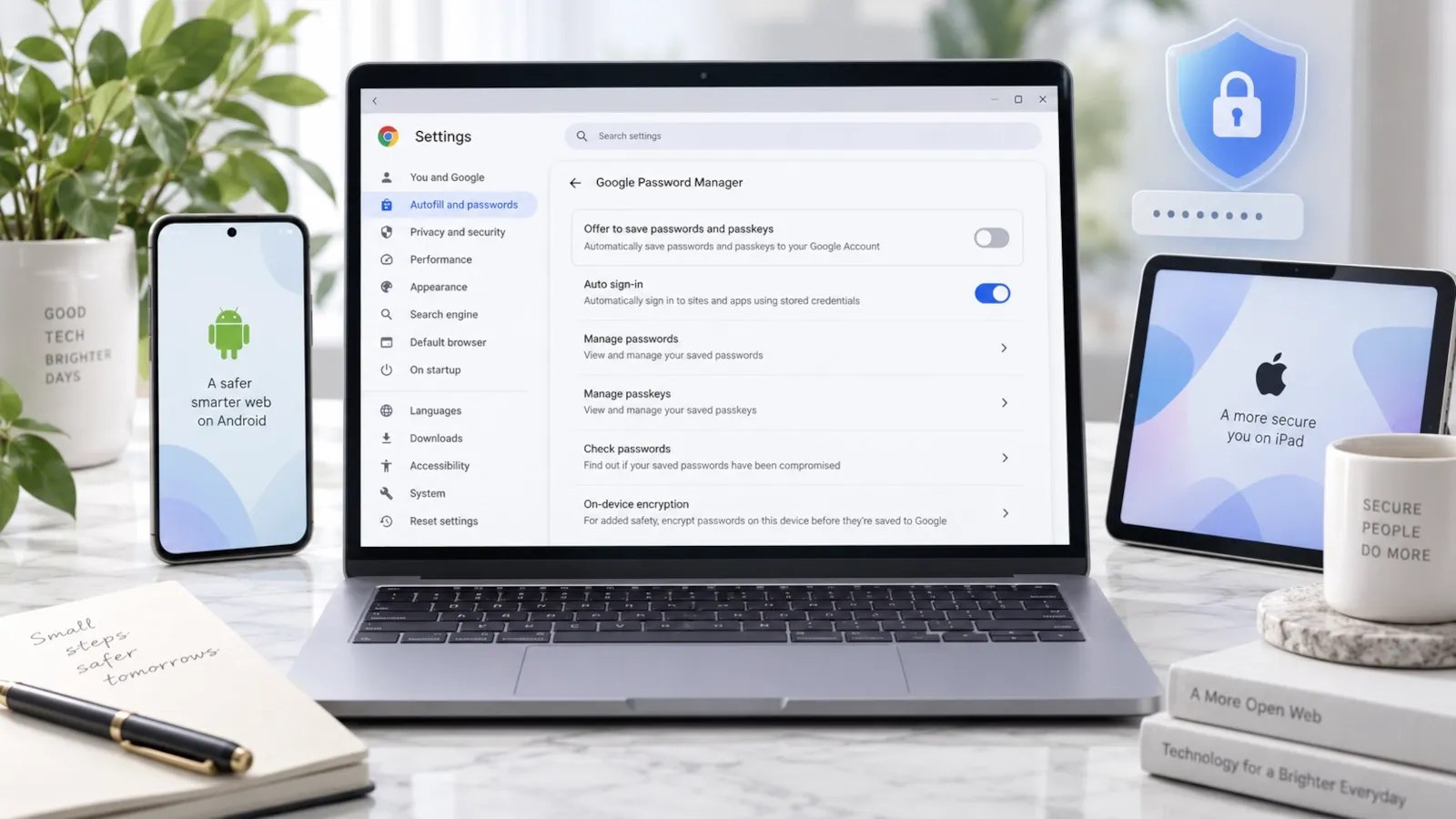
To stop Chrome from asking to save passwords on a computer, open Chrome → More → Passwords and autofill → Google Password Manager → Settings, then turn off Offer to save passwords and passkeys.
On Android, open Chrome → Settings → Google Password Manager → Settings and turn off Offer to save passwords. On iPhone or iPad, open Chrome → More → Password Manager → Settings and turn off Offer to Save Passwords.
This stops future save-password offers. It does not delete passwords you already saved in Chrome or Google Password Manager.
Important: Do not use Delete all Google Password Manager data just to stop the save-password prompt. That is a separate, destructive action. If your goal is deletion rather than disabling future prompts, use the dedicated guides linked below.
What do you want to do?
Use this quick router to go directly to the part that matches your goal.
| Your goal | Best section or guide |
|---|---|
| Stop Chrome asking to save passwords on a computer | Windows, macOS and Linux |
| Stop the prompt on Android | Android |
| Stop the prompt on iPhone or iPad | iPhone and iPad |
| Stop the prompt for one website only | Never save for one site |
| Keep existing passwords but stop new save prompts | What this setting changes |
| Delete passwords already stored in Chrome | Remove saved passwords from Chrome |
| Delete Google Password Manager data | Delete saved passwords from Google Password Manager |
| Chrome still keeps asking | Troubleshooting |
| Use Bitwarden, 1Password or another manager instead | Third-party password managers |
When to use this solution
Use this guide when you want Chrome to stop offering to save new passwords but you do not necessarily want to remove the passwords that are already stored.
This is the right solution if:
- Chrome shows a Save password? or similar password-saving prompt after you sign in to a website;
- you already use another password manager and want to avoid duplicate save prompts;
- you share a computer and do not want new passwords stored in Chrome;
- you want to keep existing Chrome passwords but stop adding new ones;
- the setting appears to be off but Chrome still shows a password-related prompt;
- you only want to suppress the save offer for one specific website.
This is not the right guide if your main goal is to erase passwords that are already saved.
To remove passwords already stored in the browser, see how to remove saved passwords from Chrome.
To delete password data stored directly in your Google Account or Google Password Manager, see how to delete saved passwords from Google Password Manager.
Before you start
Turning off the save-password offer is normally a non-destructive setting change. It should not erase your existing passwords.
Before changing anything, keep these distinctions in mind:
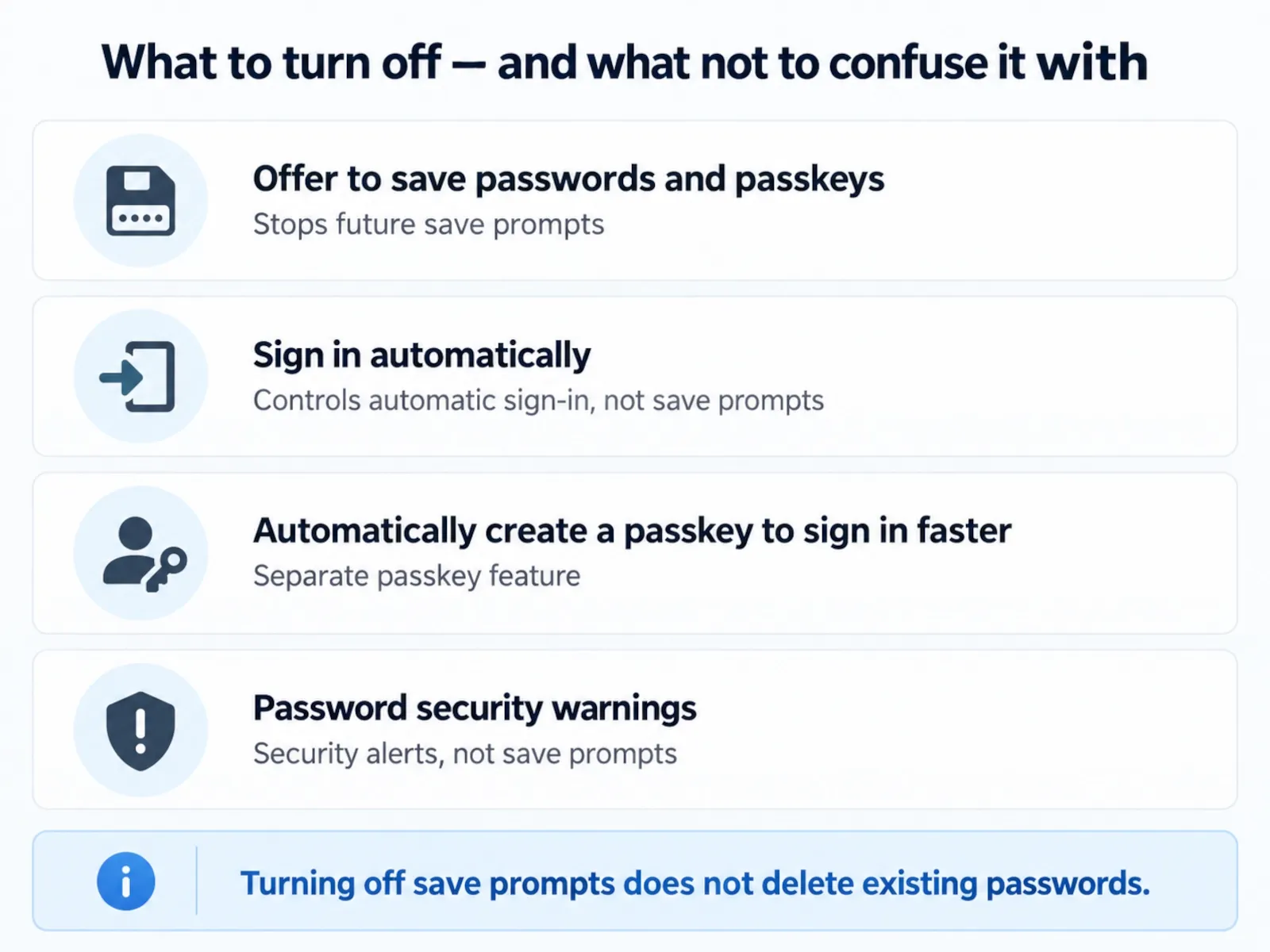
- Offer to save passwords and passkeys controls whether Google Password Manager offers to save new sign-in credentials.
- Sign in automatically controls whether saved credentials can be used to sign you in automatically.
- Automatic passkey creation is a separate setting and can produce passkey-related notifications even when you are thinking about password prompts.
- Password security warnings are not the same as save-password prompts.
- Autofill for addresses and payment methods is separate from password saving.
- Another password manager, the operating system, or a website itself can display a prompt that looks similar to a Chrome password prompt.
If you are on a work or school computer and the setting is locked, greyed out, or labelled as managed, your organisation may control it through Chrome policies.
What turning off password saving changes — and what it does not
The most important point is that these settings solve different problems.
| Setting or feature | What it controls | Should you change it just to stop the save-password prompt? |
|---|---|---|
| Offer to save passwords and passkeys | Whether Google Password Manager offers to save new credentials | Yes — this is the main setting |
| Sign in automatically | Whether saved credentials can sign you in without an extra confirmation step | No, unless you also want more manual control over sign-in |
| Automatically create a passkey to sign in faster | Whether Google Password Manager may create a passkey for a supported site when appropriate | No — this controls a separate passkey behaviour |
| Password alerts / compromised-password warnings | Security warnings about passwords that may be exposed or unsafe | No — these are security alerts, not save prompts |
| Address and payment autofill | Saved names, addresses, cards and form data | No — this is a different autofill category |
| Existing saved passwords | Credentials that are already stored | Turning off future offers does not delete them |
Google currently lists Offer to save passwords and passkeys, automatic passkey creation, and Sign in automatically as separate controls in Google Password Manager settings.
How to stop Chrome asking to save passwords on Windows, macOS and Linux
The desktop path is the same basic flow on Windows, macOS and Linux.
1. Open Google Chrome
Open the Chrome profile where the save-password prompt is appearing.
If you use several Chrome profiles, check the profile icon first. Password Manager settings can be associated with the profile and Google Account you are currently using.
2. Open Google Password Manager
At the top-right of Chrome, select the three-dot menu.
Then open:
Passwords and autofill → Google Password Manager
3. Open Settings
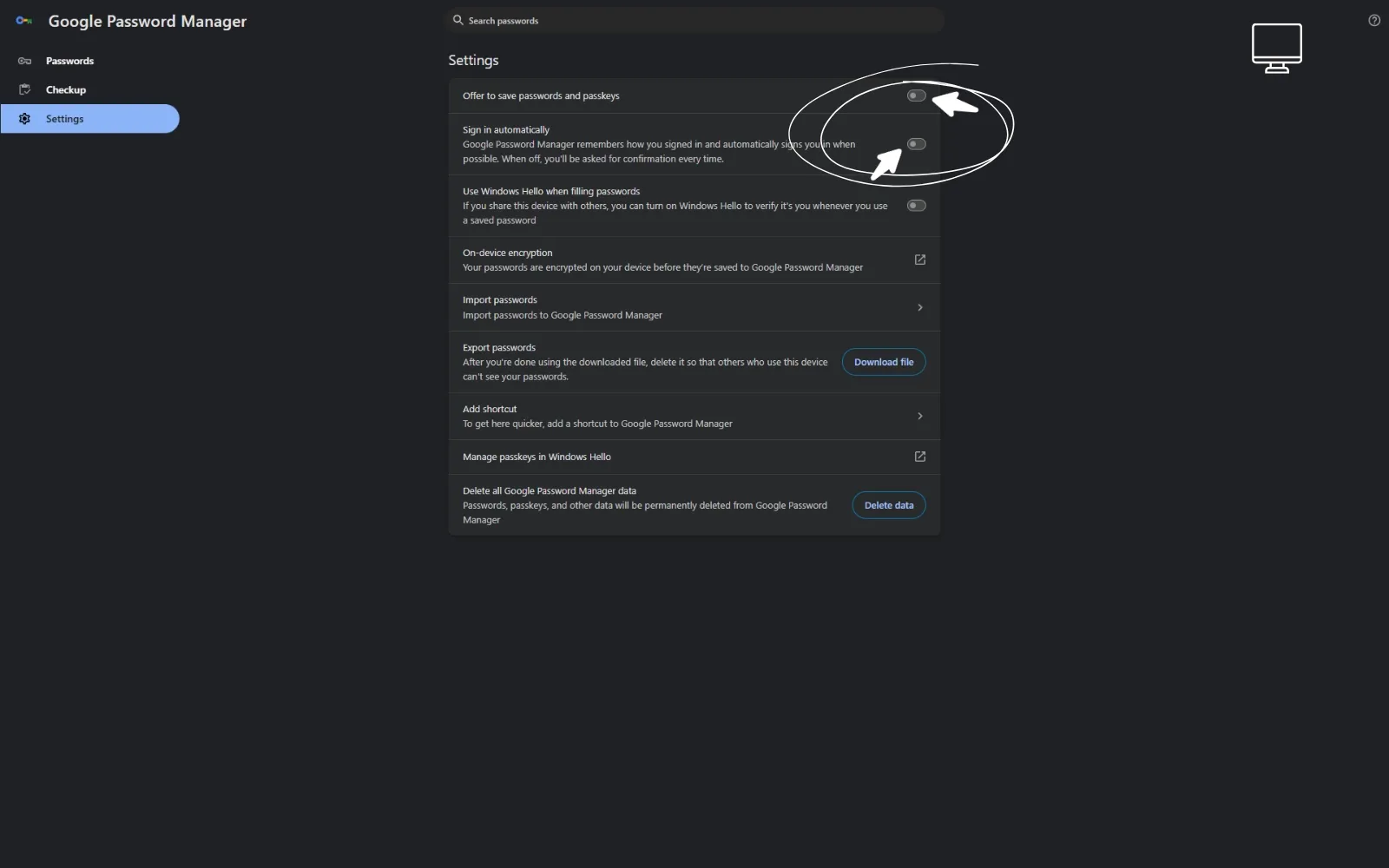
In Google Password Manager, select Settings on the left.
4. Turn off “Offer to save passwords and passkeys”
Find:
Offer to save passwords and passkeys
Turn it off.
Google documents this as the setting that controls whether Google Password Manager offers to save passwords and passkeys.
5. Test the change
Open a website where you can safely sign in with a test or non-sensitive account.
Sign in normally.
Chrome should no longer show its standard offer to save the password.
If a prompt still appears, do not assume the setting failed. First identify which prompt is actually appearing using the troubleshooting section later in this guide.
Faster desktop shortcut
On Chrome desktop, you can also enter this internal address in the address bar:
chrome://password-manager/settingsThis opens the Google Password Manager settings page directly in current Chromium-based Chrome builds.
If the internal URL does not open or the layout has changed, use the normal menu path instead:
Chrome → Passwords and autofill → Google Password Manager → Settings
How to stop Chrome asking to save passwords on Android
On Android, Google Password Manager is integrated more deeply with the operating system, so you may see more than one route depending on your Chrome version and device.
Chrome route
- Open Chrome.
- Tap the three-dot menu.
- Tap Settings.
- Tap Google Password Manager.
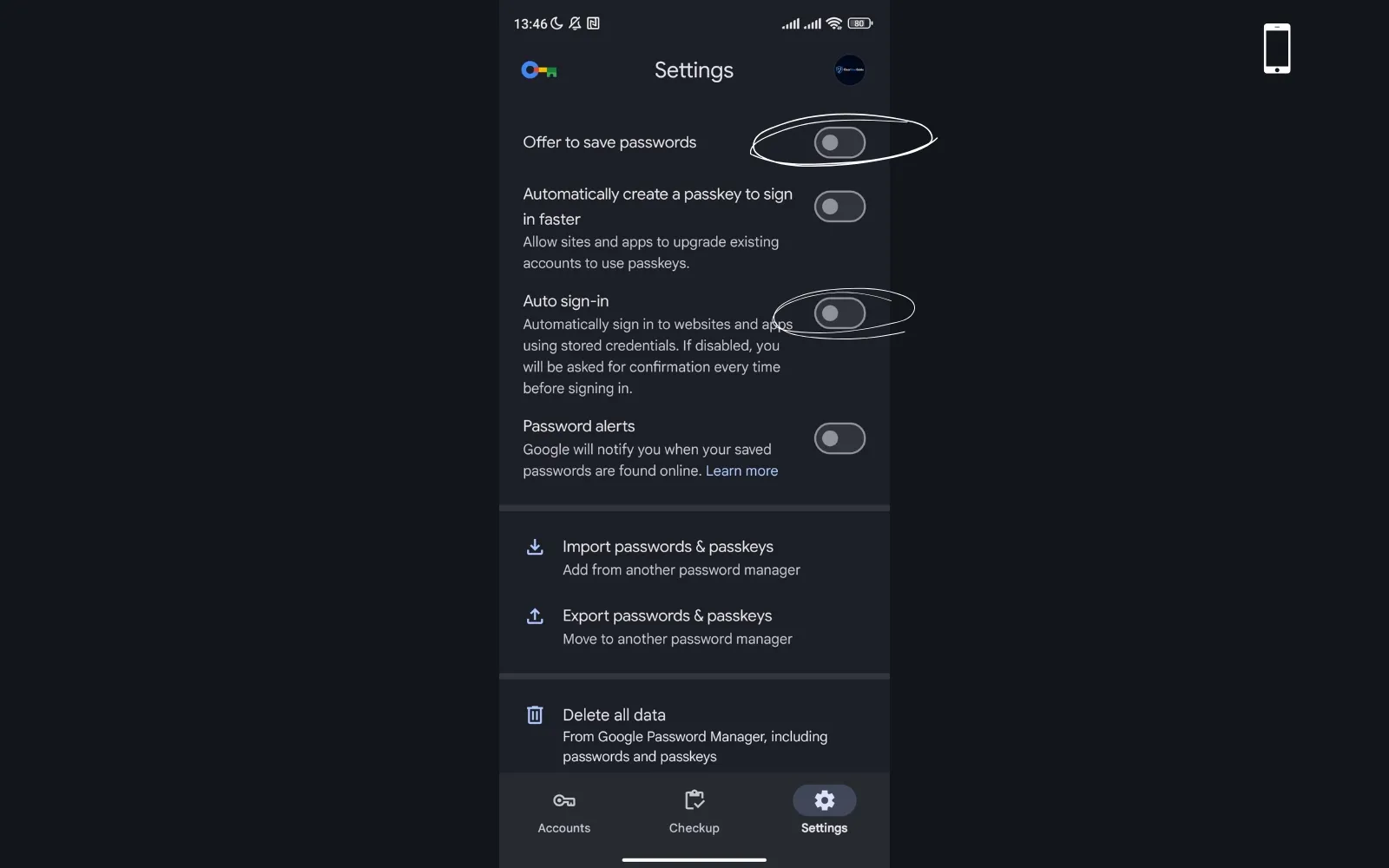
- Open Settings.
- Turn off Offer to save passwords.
Google’s current Chrome Help documentation uses this route for starting or stopping password saving in Chrome on Android.
Android system route if your interface is different
Google also documents a device-level route through Android settings:
- Open the Android Settings app.
- Search for Password Manager.
- Select Password Manager.
- Open Settings.
- Turn Offer to save passwords off.
The exact wording can vary slightly by Android version and device manufacturer.
If Android still shows a save prompt
Check whether the prompt is coming from:
- Google Password Manager;
- Samsung Pass or another device credential service;
- Bitwarden, 1Password or another password manager;
- a work-profile credential manager;
- the website or app itself.
Turning off Chrome’s password-saving offer does not automatically disable a different password manager.
How to stop Chrome asking to save passwords on iPhone and iPad
Chrome for iPhone and iPad has its own password-saving control.
1. Open Chrome
Open Google Chrome on the iPhone or iPad.
2. Open Password Manager
Tap More and then Password Manager.
3. Open Settings
In Password Manager, open Settings.
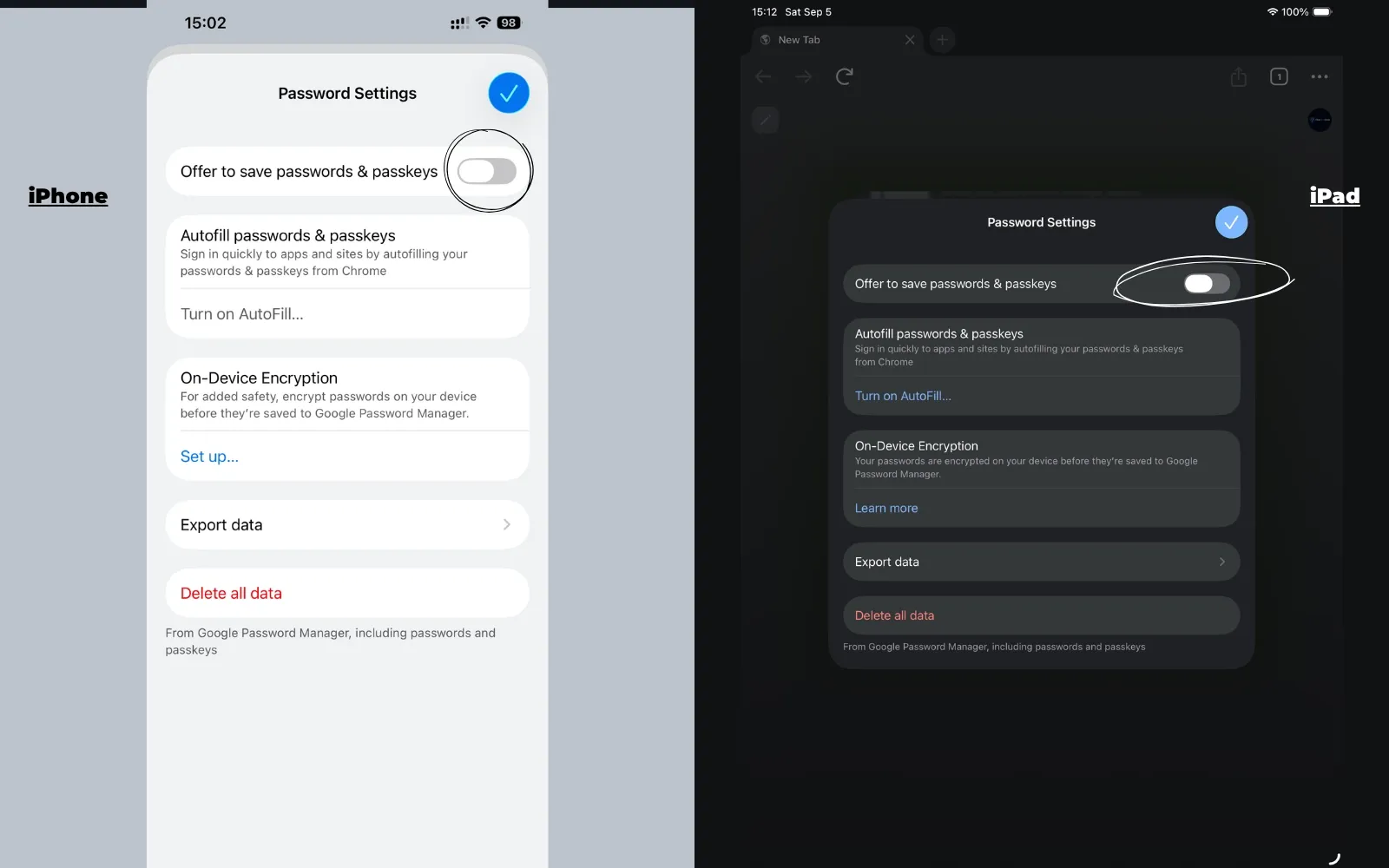
4. Turn off “Offer to Save Passwords”
Turn Offer to Save Passwords off.
Google’s current iPhone and iPad documentation identifies this as the control for starting or stopping Chrome password saving.
If a password prompt still appears on iPhone or iPad
iOS can use more than one credential provider.
A prompt may come from:
- Chrome / Google Password Manager;
- Apple Passwords;
- 1Password;
- Bitwarden;
- another password provider enabled in iOS.
If the prompt clearly belongs to another provider, change that provider’s settings rather than repeatedly changing Chrome.
How to stop Chrome asking on one website only
You do not have to disable password saving everywhere.
If Chrome asks to save a password for a website and you only want to suppress the prompt for that site, choose:
Never
Google documents this as the per-site option for declining future save-password offers.
On desktop, you can review the sites you have declined in:
Google Password Manager → Settings → Declined sites and apps
If you later want Chrome to offer password saving for that site again, remove the site from the declined list.
Use this approach when:
- you want Chrome to keep offering to save passwords on most websites;
- one website repeatedly triggers an unwanted save prompt;
- the site uses a temporary, shared, test, or one-time login that you never want stored.
Offer to save passwords, Auto sign-in and passkeys are not the same thing
A common mistake is to turn off several unrelated security settings because they appear on the same Google Password Manager page.
Offer to save passwords and passkeys
This is the setting that matters for the query in this guide.
Turn it off when you want Chrome or Google Password Manager to stop offering to save new credentials.
Sign in automatically
This setting controls whether Google Password Manager can automatically sign you in with information you have already saved.
Turning it off can be useful if you want to confirm each sign-in manually, especially on a shared computer.
It is not required just to stop the save-password prompt.
Automatically create a passkey to sign in faster
Google Password Manager can separately control automatic passkey creation.
If the message you are seeing says that a passkey was created, asks you to create a passkey, or otherwise refers to passkeys rather than saving a password, this is a different feature.
Do not assume a passkey notification means that Offer to save passwords and passkeys is still enabled.
Password security warnings
Chrome can warn about compromised or unsafe passwords.
These warnings serve a security purpose.
Do not disable security warnings merely because you want to stop Chrome from asking to save passwords.
Will this delete passwords already saved in Chrome?
No.
Turning off Offer to save passwords and passkeys stops future save-password offers. It does not, by itself, delete the credentials already stored in Chrome or Google Password Manager.
That distinction is central:
STOP FUTURE SAVE PROMPTS
≠
DELETE EXISTING PASSWORDS
If your goal changes and you decide to remove passwords that are already stored, use the correct dedicated guide:
Do not use a bulk-deletion option simply to silence future prompts.
Identify which password prompt you are actually seeing
Users often describe several different messages as “Chrome asking for my password” or “Chrome keeps showing password pop-ups”.
Before troubleshooting, identify the message.
| What you see | Likely source | What to check |
|---|---|---|
| Save password? / Save? after signing in | Chrome or Google Password Manager | Offer to save passwords and passkeys |
| A message about creating or saving a passkey | Google Password Manager or the website | Automatic passkey creation / passkey settings |
| A Bitwarden or 1Password save banner | Third-party password manager | That extension or app’s save settings |
| Sign in with Google | Google Identity sign-in | This is not Chrome’s password-saving prompt |
| Apple Passwords or an iOS credential sheet | iOS credential provider | iOS / Apple Passwords settings |
| Change your password or compromised-password warning | Chrome security feature | Password-security settings, not password saving |
| A website modal asking you to remember or save login details | The website itself | Website account/preferences |
| A setting marked Managed by your organisation | Chrome enterprise policy | Your administrator controls the setting |
This distinction prevents you from disabling the wrong feature.
Why Chrome may still ask to save passwords
If Offer to save passwords and passkeys is off but you still see something that looks like a save-password prompt, work through these checks in order.
1. Confirm the correct Chrome profile
If you use personal, work and test profiles, you may have changed the setting in one profile while browsing in another.
Open the profile switcher and confirm the active profile.
Then reopen Google Password Manager settings in that same profile.
2. Check the exact wording of the prompt
Look for the words:
- Save password;
- passkey;
- Sign in with Google;
- compromised password;
- the name of another password manager.
Different wording usually indicates a different source.
3. Close and reopen Chrome
After changing the setting, close Chrome fully and reopen it before testing again.
This is a simple way to make sure you are testing the current profile state rather than an older browser session.
4. Check for another password manager
Browser extensions and operating-system password managers can display their own save prompts.
Common examples include:
- Bitwarden;
- 1Password;
- Apple Passwords;
- Samsung Pass;
- another Android credential manager.
If another manager is responsible for the prompt, Chrome’s setting will not disable it.
5. Check whether the site itself is displaying the message
Some websites display their own “remember me”, “remember this device”, or credential-saving interface.
That is not the Chrome password manager.
Changing Google Password Manager settings will not remove a website-owned message.
6. Check passkey settings separately
If the notification is about a passkey, review the passkey controls in Google Password Manager.
Google documents automatic passkey creation as a separate setting from password-saving offers.
7. Check for enterprise management
On a managed computer, an administrator can control whether password saving is available.
If the setting is locked or marked as managed, you may not be able to change it locally.
For a work or school device, do not try to bypass organisation policy. Contact the administrator responsible for the browser.
Using Chrome with Bitwarden, 1Password or another password manager
Running two password managers at the same time often creates duplicate prompts and uncertainty about where a new password was stored.
A cleaner setup is to choose one primary password manager.
If you use Bitwarden
Bitwarden’s current documentation recommends disabling the browser’s built-in password manager to avoid conflicting prompts.
On Chrome desktop, Bitwarden documents the direct settings page:
chrome://password-manager/settingsand recommends turning off:
- Offer to save passwords and passkeys;
- Sign in automatically.
Bitwarden’s browser extension also includes an option to make Bitwarden the default password manager.
If you use 1Password
1Password likewise recommends turning off the browser’s built-in password manager so it does not interfere with 1Password.
The exact additional steps vary by operating system and browser.
Do not delete your Chrome passwords before migration is verified
If you are moving from Chrome to another password manager, use this safer sequence:
- Set up the new password manager.
- Import or add the passwords you still need.
- Verify that important logins work from the new manager.
- Confirm that the new manager is saving and filling new credentials correctly.
- Only then decide whether to remove the old passwords stored in Chrome.
The goal is to eliminate duplicate prompts without creating an account-lockout problem.
Common mistakes
Deleting passwords when you only wanted to stop the prompt
This is the biggest unnecessary risk.
Do instead: turn off Offer to save passwords and passkeys. Existing saved passwords can remain in place.
Turning off Auto sign-in and expecting the save prompt to disappear
Auto sign-in and password saving are separate controls.
Do instead: change Offer to save passwords and passkeys for the save prompt.
Disabling compromised-password warnings
A security warning is not the same as a save-password prompt.
Do instead: identify the prompt before turning off any security feature.
Changing the setting in the wrong Chrome profile
Chrome profiles can have different account and password-manager states.
Do instead: check the active profile before opening Google Password Manager settings.
Assuming every password pop-up comes from Chrome
A third-party extension, iOS, Android or the website itself may be responsible.
Do instead: check the branding and wording of the message.
Deleting Chrome passwords before moving to another manager
If Chrome contains the only usable copy of a login, premature deletion can create avoidable recovery work.
Do instead: import, verify and test the replacement password manager first.
Using “Never” when you meant to disable all password saving
Never applies to a specific site.
Do instead: turn off the global Offer to save passwords and passkeys setting if you want to disable the prompt everywhere.
Security, privacy and safety notes
Turning off password-saving prompts changes browser behaviour; it does not by itself secure your online accounts.
Keep these points in mind:
- Do not disable password-security warnings merely to reduce notifications.
- Do not delete saved passwords unless you understand where the usable copy will remain.
- Do not export passwords to a shared or untrusted computer.
- If you are migrating password managers, delete any unencrypted export file after the migration is complete.
- On shared computers, also sign out of websites when you finish. Turning off password saving does not end existing website sessions.
- If another person may have accessed one of your accounts, change the password at the website or service itself. Disabling Chrome’s save prompt does not change an account password.
- On managed work or school devices, follow organisation policy instead of attempting to override browser management.
- If you use a third-party password manager, protect that manager with a strong account password and its available multi-factor authentication options.
Faster alternative
If you are on a computer and only need the quickest route to the relevant setting, enter:
chrome://password-manager/settingsThen turn off:
Offer to save passwords and passkeys
This saves several menu clicks.
Use the full guide instead if:
- the prompt still appears afterwards;
- you are on Android, iPhone or iPad;
- the message refers to passkeys rather than saving passwords;
- another password manager is installed;
- the computer is managed by an organisation;
- you are not sure whether you want to stop saving new passwords or delete existing ones.
FAQ
How do I stop Chrome from asking me to save passwords?
On a computer, open Chrome → Passwords and autofill → Google Password Manager → Settings and turn off Offer to save passwords and passkeys.
On Android, open Chrome → Settings → Google Password Manager → Settings and turn off Offer to save passwords.
On iPhone or iPad, open Chrome → More → Password Manager → Settings and turn off Offer to Save Passwords.
Does turning off “Offer to save passwords” delete existing passwords?
No.
It stops future save-password offers but does not delete credentials that are already stored.
If you want to remove existing credentials, use the separate Chrome password-deletion or Google Password Manager deletion guide.
How do I stop Chrome asking to save passwords on only one website?
When Chrome offers to save the password for that site, select Never.
On desktop, you can review sites you have declined under Google Password Manager → Settings → Declined sites and apps.
This lets Chrome continue offering to save passwords elsewhere.
Why does Chrome keep asking to save passwords after I turned the setting off?
The most common causes are:
- you changed the setting in another Chrome profile;
- the prompt is actually about a passkey;
- another password manager is showing the prompt;
- iOS or Android is providing the credential prompt;
- the website itself is displaying the message;
- the browser is managed by an organisation.
Check the exact wording and branding before changing more settings.
Is Auto sign-in the same as saving passwords?
No.
Offer to save passwords and passkeys controls whether new credentials are offered for saving.
Sign in automatically controls how credentials that are already saved can be used during sign-in.
You can turn off the save prompt while leaving automatic sign-in unchanged.
How do I stop Google Password Manager from interfering with Bitwarden or 1Password?
Choose one password manager as your primary manager.
Turn off Chrome’s Offer to save passwords and passkeys setting, then configure Bitwarden, 1Password or your chosen manager as the default or primary password manager according to its documentation.
If you plan to remove existing Chrome passwords, migrate and verify them first.
How do I turn Chrome password saving back on?
Return to the same Password Manager settings and switch Offer to save passwords and passkeys back on.
If you previously selected Never for one website, also remove that site from Declined sites and apps if you want Chrome to offer password saving there again.
Last tested
Documentation, labels and workflows were reviewed against current official Google Chrome and Google Account Help resources on 2026-09-05.
Reviewed for:
- Google Chrome desktop on Windows, macOS and Linux;
- Google Password Manager desktop settings;
- Chrome for Android password-saving controls;
- Chrome for iPhone and iPad password-saving controls;
- per-site Never / declined-site behaviour;
- Sign in automatically;
- automatic passkey creation;
- managed-browser restrictions;
- Bitwarden and 1Password coexistence guidance.
Related guides
Carefully selected guides to help you understand the topic and complete the next useful step.