Removing saved passwords from Chrome is simple, but doing it safely matters. If your passwords are synced to your Google Account, deleting them in one place may affect other devices where you use the same account. If you delete them without checking recovery options first, you may also lock yourself out of important accounts.
This guide focuses on deleting passwords already saved in Chrome: one login or all saved passwords, on desktop, Android, iPhone and iPad. It also explains how sync affects deletions, how to verify the result, and what to do if passwords keep coming back.
Quick answer
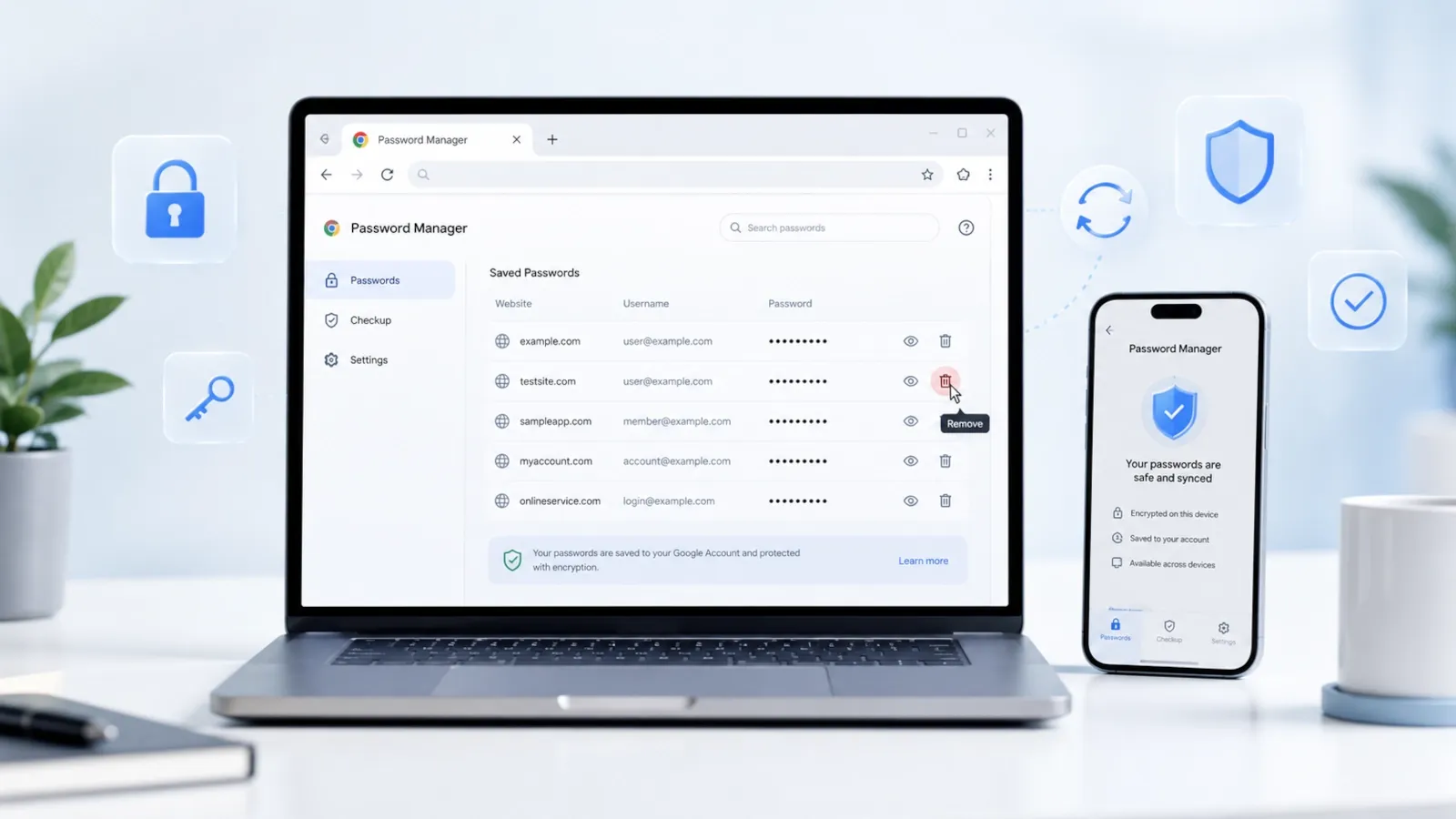
To remove a saved password from Chrome, open Chrome, select the three-dot menu, go to Passwords and autofill, open Google Password Manager, choose the saved login, and delete it. To remove all saved passwords, open Google Password Manager → Settings and use Delete all Google Password Manager data where available. If Chrome sync is enabled, deleting passwords may affect other devices signed in with the same Google Account.
If you are not sure whether you still know your account passwords, do not delete everything immediately. First export or move your important logins to a trusted password manager, confirm your recovery email and phone number, and make sure two-factor authentication is set up correctly.
What do you want to do?
Use this quick router to jump directly to the part of the guide that matches your goal.
| Your goal | Go to |
|---|---|
| Delete one saved Chrome password | Delete one saved password |
| Delete all saved Chrome passwords | Delete all saved passwords |
| Remove passwords from your Google Account | Delete saved passwords from Google Password Manager |
| Delete saved passwords on Android | Chrome on Android |
| Delete saved passwords on iPhone or iPad | Chrome on iPhone and iPad |
| Stop Chrome from asking to save new passwords | Stop Chrome from asking to save passwords |
| Remove saved usernames or autofill suggestions | Clean up usernames and autofill |
| Passwords keep coming back after deletion | Troubleshoot passwords that return |
When to use this solution
Use this guide if you want to:
- remove one old or incorrect password from Chrome;
- delete all saved passwords from Chrome before switching password managers;
- understand how Google Password Manager and sync affect Chrome password deletion;
- clean up saved usernames and autofill suggestions;
- distinguish deleting saved passwords from simply turning off future save prompts;
- prepare a computer before selling, gifting, or sharing it;
- fix saved passwords that keep appearing on other devices;
- understand whether clearing cache, deleting Chrome, or turning off sync actually removes passwords.
This guide is not for resetting a forgotten website password. If you cannot sign in to an account, use that website’s official password reset flow first. Deleting a saved password from Chrome does not change the real password on the website itself.
Before you start
Before deleting saved passwords, check these items carefully:
- Make sure you can still sign in. Open your most important accounts and confirm you know the current password or have another safe sign-in method.
- Check your recovery options. Confirm your recovery email, phone number, and backup codes are still valid.
- Review two-factor authentication. If an account uses 2FA, make sure you still have access to the authenticator app, security key, passkey, or backup codes.
- Decide whether you need an export. If you are moving to a dedicated password manager, export your passwords first and import them into the new tool.
- Treat exported password files as sensitive. A password export file can expose your logins if someone opens it. Delete the file after you finish importing it.
- Check Chrome sync. If sync is on, your passwords may be connected to your Google Account and may appear on other devices.
- Use the correct Chrome profile. Many people have more than one Chrome profile. Make sure you are deleting passwords from the right profile.
- Do not delete everything from a shared or work account without permission. Managed devices and work profiles may have organization policies.
Where Chrome saves your passwords
Chrome can store and manage passwords in more than one place. This is the main reason people get confused when deleted passwords “come back” or still appear on another device.
| Place | What it means | Why it matters |
|---|---|---|
| Chrome saved passwords | Passwords saved through the Chrome browser interface. | You manage them inside Chrome through Google Password Manager. |
| Google Password Manager | Google’s password manager connected to Chrome and your Google Account. | If sync is enabled, saved passwords may follow your account across devices. |
| Local Chrome profile | Browser data stored only in a specific Chrome profile on one device. | Deleting local data may not remove synced passwords from your Google Account. |
| Synced passwords | Passwords available on other devices signed in with the same Google Account. | Deleting a synced password can remove it from other synced Chrome installations. |
| Autofill data | Saved form suggestions, names, addresses, payment details, and sometimes usernames. | Clearing autofill is not the same as deleting saved passwords. |
| Website account password | The actual password stored by the website or app you use. | Removing a saved Chrome password does not change the website password. |
Think of Chrome as the place where the password is filled in, and Google Password Manager as the place where many Chrome passwords are managed. If you are signed in and syncing, the password is not just a local browser suggestion — it can be part of your Google Account password data.
How to delete saved passwords from Chrome
1. How to delete one saved password in Chrome on desktop
Use this method when you want to delete one old, incorrect, duplicated, or sensitive saved login.
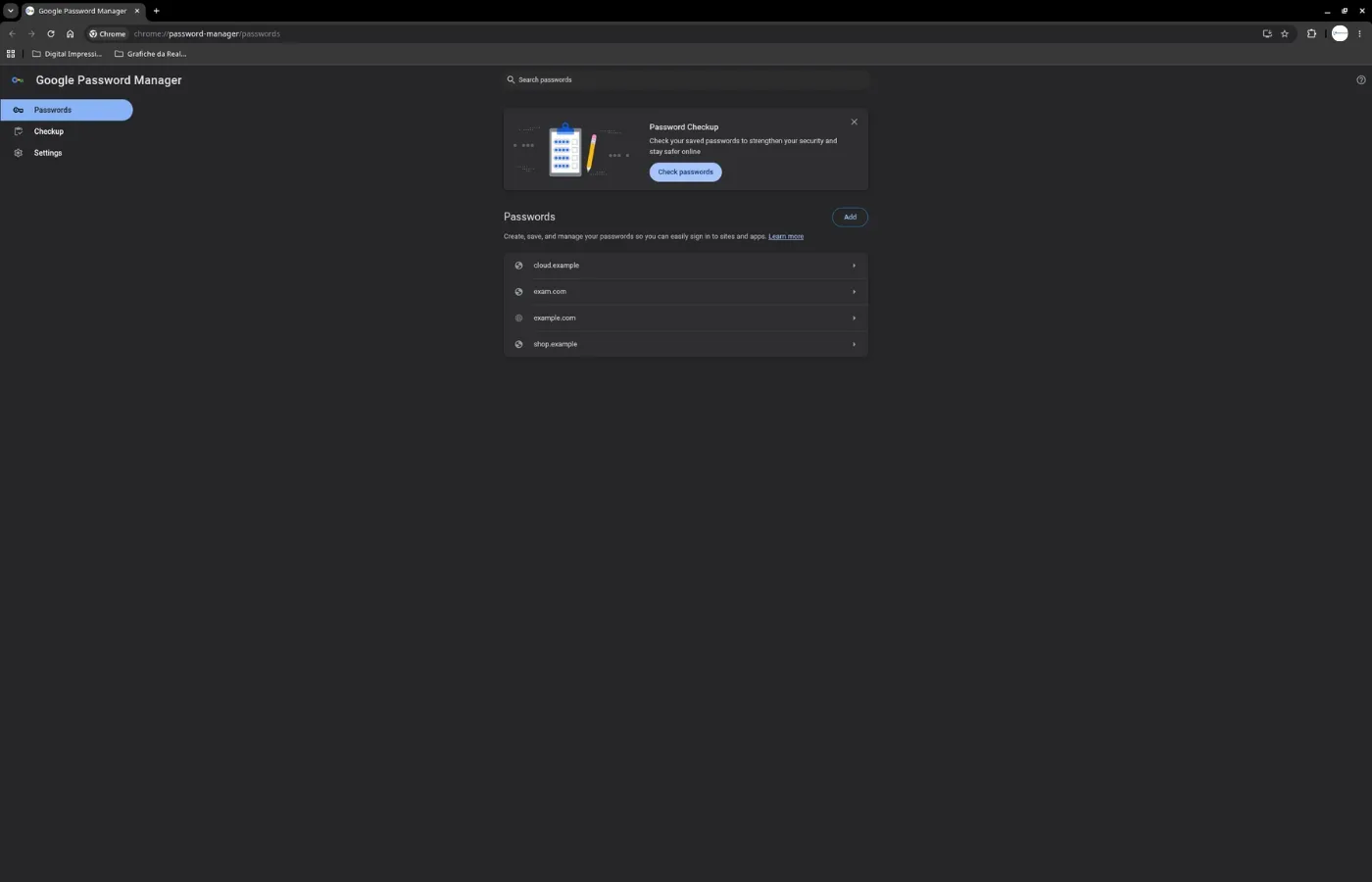
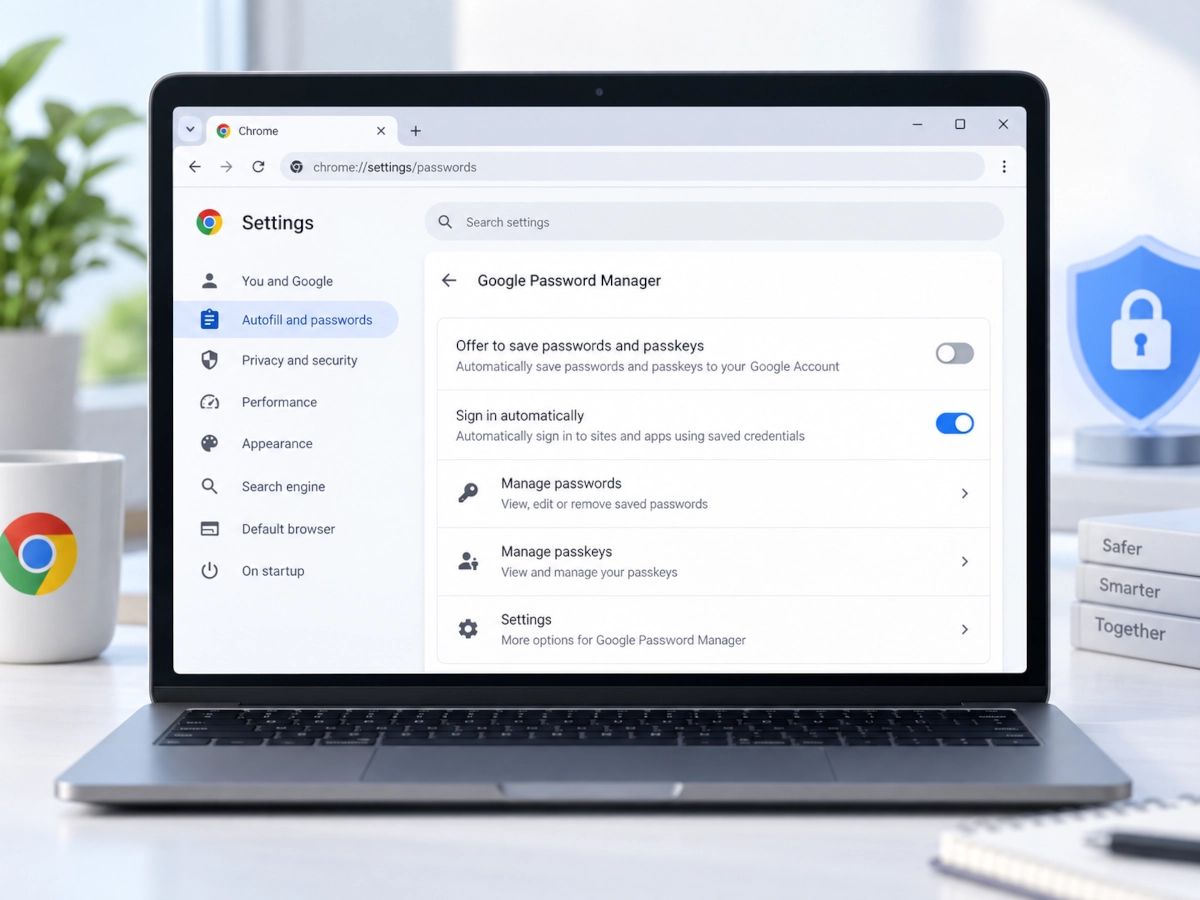
- Open Google Chrome on your computer.
- Select the three-dot menu in the top-right corner.
- Select Passwords and autofill.
- Open Google Password Manager.
- Under Passwords, choose the website or app login you want to remove.
- Authenticate if Chrome asks you to confirm your device password, fingerprint, or system login.
- Select Delete.
- Confirm the deletion if Chrome asks.

After deleting the entry, visit the website’s sign-in page and check whether Chrome still suggests the old login. If it does, make sure you deleted the right Chrome profile and the right Google Account entry.
2. How to delete all saved passwords from Chrome
Use this method only if you are sure you no longer need Chrome to keep those passwords.
On desktop:
- Open Google Chrome.
- Select the three-dot menu.
- Go to Passwords and autofill.
- Open Google Password Manager.
- Select Settings.
- Find Delete all Google Password Manager data.
- Select Delete data.
- Confirm the action.
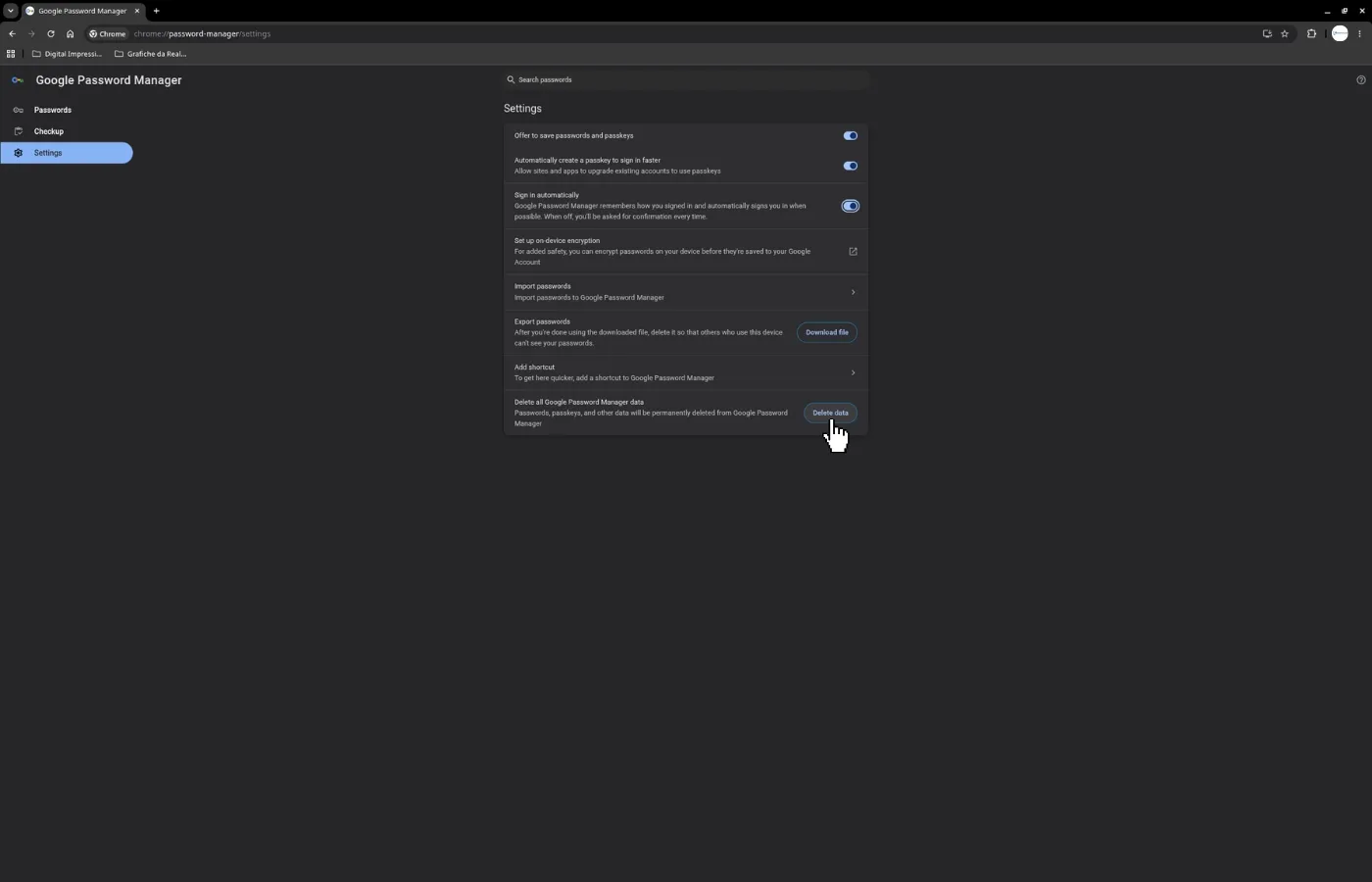
This is the section to use when your real goal is “remove all saved passwords from Chrome,” not just one login. Read the confirmation screen carefully before continuing because this can remove passwords and passkeys stored in Google Password Manager data.
If you are switching to another password manager, export and import your passwords first. After the import is complete and verified, delete the export file from your device.
3. Need to remove passwords from your Google Account instead?
Chrome can store passwords through Google Password Manager, which may sync them across devices.
If your goal is to manage or delete password data directly from your Google Account, use our dedicated guide to delete saved passwords from Google Password Manager.
4. How to delete saved passwords from Chrome on Android
On Android, Chrome password management is also connected to Google Password Manager.
- Open Chrome on your Android phone or tablet.
- Tap the three-dot menu.
- Tap Settings.
- Tap Google Password Manager.
- Choose the saved login you want to remove.
- Tap Delete.
- Confirm if prompted.
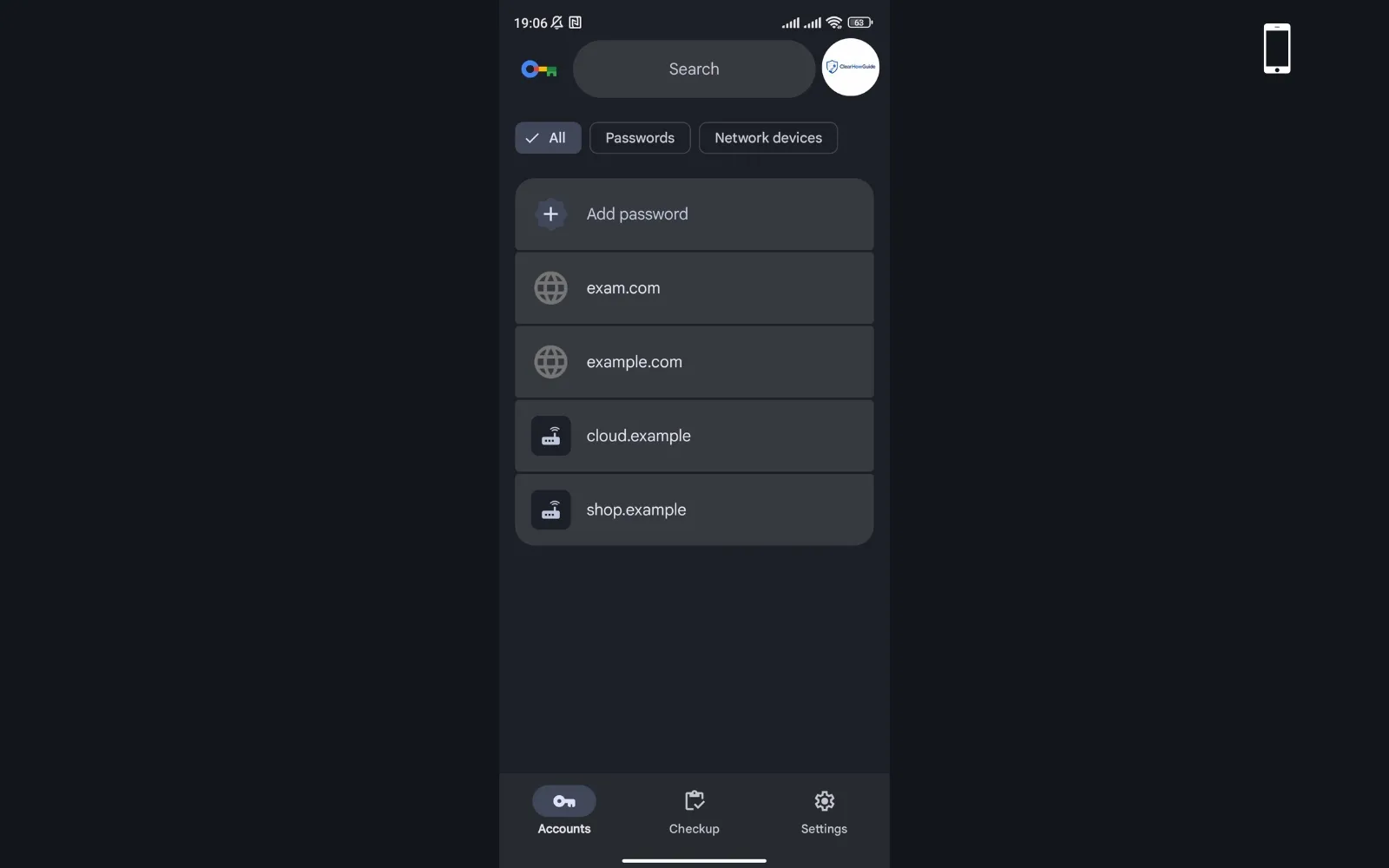
To delete all password manager data on Android, open Google Password Manager, go to Settings, and look for the option to delete all Google Password Manager data if available on your device and account.
Menu names can change slightly depending on Chrome version, Android version, device manufacturer, and whether your Google Account is managed by an organization.
5. How to delete saved passwords from Chrome on iPhone and iPad
On iPhone and iPad:
- Open Chrome.
- Tap the three-dot menu.
- Open Password Manager.
- Tap Edit.
- Under Saved Passwords, select the site you want to remove.
- Tap Delete.
- Confirm the deletion.
For all-data removal, open Password Manager → Settings and look for Delete All Data if available for your account and device. You may need to authenticate with Face ID, Touch ID, or your device passcode.
If your passwords are also saved in Apple Passwords or iCloud Keychain, deleting them from Chrome may not remove them from Apple’s password storage. Check the iOS Passwords app separately if the login still appears in Safari or other apps.
6. Want Chrome to stop asking to save passwords instead?
Turning off password saving does not delete passwords already stored in Chrome. It only stops future save-password offers.
For the complete desktop and mobile procedure, see our dedicated guide to stop Chrome from asking to save passwords.
7. Remove saved usernames and autofill data
Saved passwords and saved usernames are related, but they are not always the same data.
If Chrome still suggests an old username after you delete a password, it may be coming from autofill or form history.
To clean up autofill data on desktop:
- Open Chrome.
- Select the three-dot menu.
- Open Settings.
- Go to Autofill and passwords.
- Review sections such as Addresses and more, Payment methods, and Google Password Manager.
- Remove saved form entries you no longer want Chrome to suggest.
If the username appears only on one specific website field, try clicking into that field, using the keyboard arrows to highlight the suggestion, and removing it according to your browser or operating system behavior. Interface behavior can vary by platform.
Do not confuse clearing autofill with deleting saved passwords. A browser may stop suggesting a username while still keeping the password in Google Password Manager, or the opposite may happen.
8. Check whether the password was removed everywhere
After deleting passwords, verify the result:
- Close and reopen Chrome.
- Visit the sign-in page where the password used to appear.
- Check whether Chrome still suggests the login.
- Open Google Password Manager again and search for the same website.
- Check other devices signed in with the same Google Account.
- Check other Chrome profiles on the same computer.
- If you use another password manager extension, check that tool separately.
If Chrome still fills the password, it may not be coming from Chrome. It could be coming from another browser, the operating system password store, a password manager extension, Apple Passwords, Samsung Pass, Microsoft Autofill, or a workplace management policy.
Does clearing cache delete saved passwords?
Clearing cache normally removes temporary website files. It does not reliably remove saved passwords unless you specifically choose the option for passwords or sign-in data in the clear browsing data settings.
This distinction is important:
| Action | Usually removes | Usually does not remove |
|---|---|---|
| Clear cache | Temporary website files | Saved passwords |
| Clear cookies | Website sessions and some preferences | Saved passwords, unless selected separately |
| Clear browsing history | Visited page history | Saved passwords |
| Clear passwords/sign-in data | Saved login data | Cache only, unless selected too |
| Delete Google Password Manager data | Google Password Manager passwords/passkeys | Website account passwords themselves |
If your goal is to remove passwords, use Google Password Manager or the password/sign-in data option directly. Do not rely on clearing cache alone.
Does deleting Chrome delete saved passwords?
It depends on where the passwords are stored.
If passwords were saved only in a local Chrome profile and were not synced, uninstalling Chrome or deleting the browser profile may remove local password data from that device.
If passwords were synced to your Google Account, uninstalling Chrome from one computer may not delete the passwords from Google Password Manager. When you reinstall Chrome and sign in again, synced passwords may come back.
Before removing Chrome from a device you plan to sell or give away:
- Delete or move important saved passwords.
- Sign out of Chrome.
- Turn off sync if needed.
- Remove the Chrome profile from the device.
- Remove other local user accounts if the computer is leaving your control.
- Reset the operating system if you are transferring ownership of the device.
Deleting a browser is not the same as deleting cloud-synced account data.
What to do if deleted passwords keep coming back
If a deleted password returns, check these causes:
- You deleted it from the wrong Chrome profile. Open the profile switcher and confirm you are using the correct profile.
- You are signed in to a different Google Account. Check the account shown in Chrome and Google Password Manager.
- Sync is restoring it. Another device may still have the saved password and sync it back.
- Another password manager is filling it. Disable extensions temporarily and test again.
- The login is stored by the operating system. iPhone, iPad, Android, Windows, and macOS can have their own password storage systems.
- The website is remembering you with cookies. This is not the same as a saved password. Sign out of the website and clear cookies if necessary.
- Your device is managed. Work or school devices may have policies that affect password settings.
The best fix is to delete the password from Google Password Manager while signed in to the correct Google Account, then check every synced device and every password manager extension.
Common mistakes
Deleting cache and thinking passwords are gone
Cache is not the same as saved login data. If you want to remove saved passwords, delete passwords from Google Password Manager or select the password/sign-in data option explicitly.
Deleting everything before exporting important logins
If you no longer know the real passwords, deleting all saved passwords can lock you out. Export or move important logins first, then verify the new password manager works.
Forgetting Chrome sync
If sync is enabled, passwords may be connected to your Google Account. Deleting local data on one device may not be enough, and deleting synced data may affect other devices.
Using the wrong Chrome profile
Many people have personal, work, and test Chrome profiles. Always check the profile icon before deleting passwords.
Leaving password saving turned on
If you delete old passwords but keep Offer to save passwords enabled, Chrome may start saving new ones again.
Leaving Auto sign-in enabled
If Auto sign-in is enabled, Chrome may sign you in faster with saved credentials. If your goal is privacy on a shared device, review this setting too.
Keeping a password export file on your computer
A password export file is highly sensitive. Anyone who opens it may be able to read your saved passwords. Delete it securely after importing it into your new password manager.
Not enabling 2FA after cleaning up passwords
Removing saved passwords improves local privacy, but it does not protect accounts from phishing, data breaches, or password reuse. Turn on two-factor authentication for important accounts.
Security, privacy and safety notes
Removing saved passwords from Chrome is a privacy decision, not a full account security plan. After you clean up saved passwords, take these steps:
- Use unique passwords for important accounts.
- Do not reuse old passwords that may have been exposed in a data breach.
- Turn on two-factor authentication where available.
- Prefer passkeys on services that support them.
- Use a dedicated password manager if you need secure cross-device storage.
- Keep your recovery email and phone number updated.
- Do not type real passwords into random “password checker” websites.
- Do not share password export files through email, chat apps, or cloud folders without encryption.
- Do not save passwords on public, shared, or borrowed devices.
If you are removing passwords because someone else has used your computer, also review active sessions in your most important accounts. Some websites keep you signed in even after you delete the saved password from Chrome.
Safer alternatives after removing passwords from Chrome
After removing saved Chrome passwords, choose a safer long-term setup.
Use a dedicated password manager
A dedicated password manager can store unique passwords, generate strong ones, warn you about weak or reused credentials, and help you use passwords across devices without relying only on browser storage.
Use strong, unique passwords
Every important account should have its own password. A long, unique password is safer than a short password with predictable substitutions.
Read next: How to create a strong password
Check whether your password was leaked
If you are deleting Chrome passwords because you are worried about security, also check whether your email or password appeared in a data breach.
Read next: How to check if your password was leaked
Turn on two-factor authentication
2FA helps protect your accounts even if a password is guessed, stolen, or reused.
Read next: How to turn on two-factor authentication
Use passkeys where available
Passkeys can reduce the risk of phishing because they do not work like traditional typed passwords.
Read next: What is a passkey?
FAQ
Can I delete only one saved password in Chrome?
Yes. Open Google Password Manager, select the website or app login you want to remove, and choose Delete. This removes that saved login from the password manager area you are using.
How do I delete all saved passwords from Chrome?
On desktop, open Chrome → Passwords and autofill → Google Password Manager → Settings, then look for Delete all Google Password Manager data. Read the warning carefully before confirming.
Will deleting saved passwords delete my online accounts?
No. Removing a saved password from Chrome does not delete your website account. It only removes the stored login from Chrome or Google Password Manager. The account still exists on the website or app.
Does clearing cache remove saved passwords?
Usually no. Clearing cache removes temporary website files. To remove passwords, delete them from Google Password Manager or select the specific password/sign-in data option when clearing browsing data.
Does deleting Chrome delete my saved passwords?
Not always. If passwords are synced to your Google Account, they may return when you reinstall Chrome and sign in again. Delete them from Google Password Manager if you want to remove synced password data.
Why do deleted passwords come back?
The most common reasons are Chrome sync, another signed-in device, the wrong Chrome profile, another password manager extension, or a separate operating system password store.
Where are Chrome passwords stored?
Chrome passwords are managed through Google Password Manager. Depending on your settings, they may be stored locally in a Chrome profile, synced with your Google Account, or available through Google Password Manager across devices.
How do I permanently delete a saved password?
Delete it from Google Password Manager while signed in to the correct Google Account, then check all synced devices and other password managers. If the password belongs to an account you no longer use, also consider closing or securing that account through the website itself.
Editorial sources
This guide was written and reviewed using official Chrome and Google Password Manager documentation. Interface names can change over time, so always check the current wording inside Chrome and Google Password Manager before deleting important password data.
- Google Chrome Help: Manage passwords in Chrome — Computer
- Google Chrome Help: Manage passwords in Chrome — Android
- Google Chrome Help: Manage passwords in Chrome — iPhone and iPad
- Google Chrome Help: Import or export passwords and passkeys with Chrome
- Google Chrome Help: Fix issues with passwords and passkeys
- Google Chrome Help: Use passwords and passkeys across your devices
- Google Password Manager
Last tested
Tested on:
- Google Chrome desktop
- Google Password Manager
- Chrome for Android
- Chrome for iPhone and iPad
Last tested: 2026-09-03
Related guides
Carefully selected guides to help you understand the topic and complete the next useful step.