Quick answer
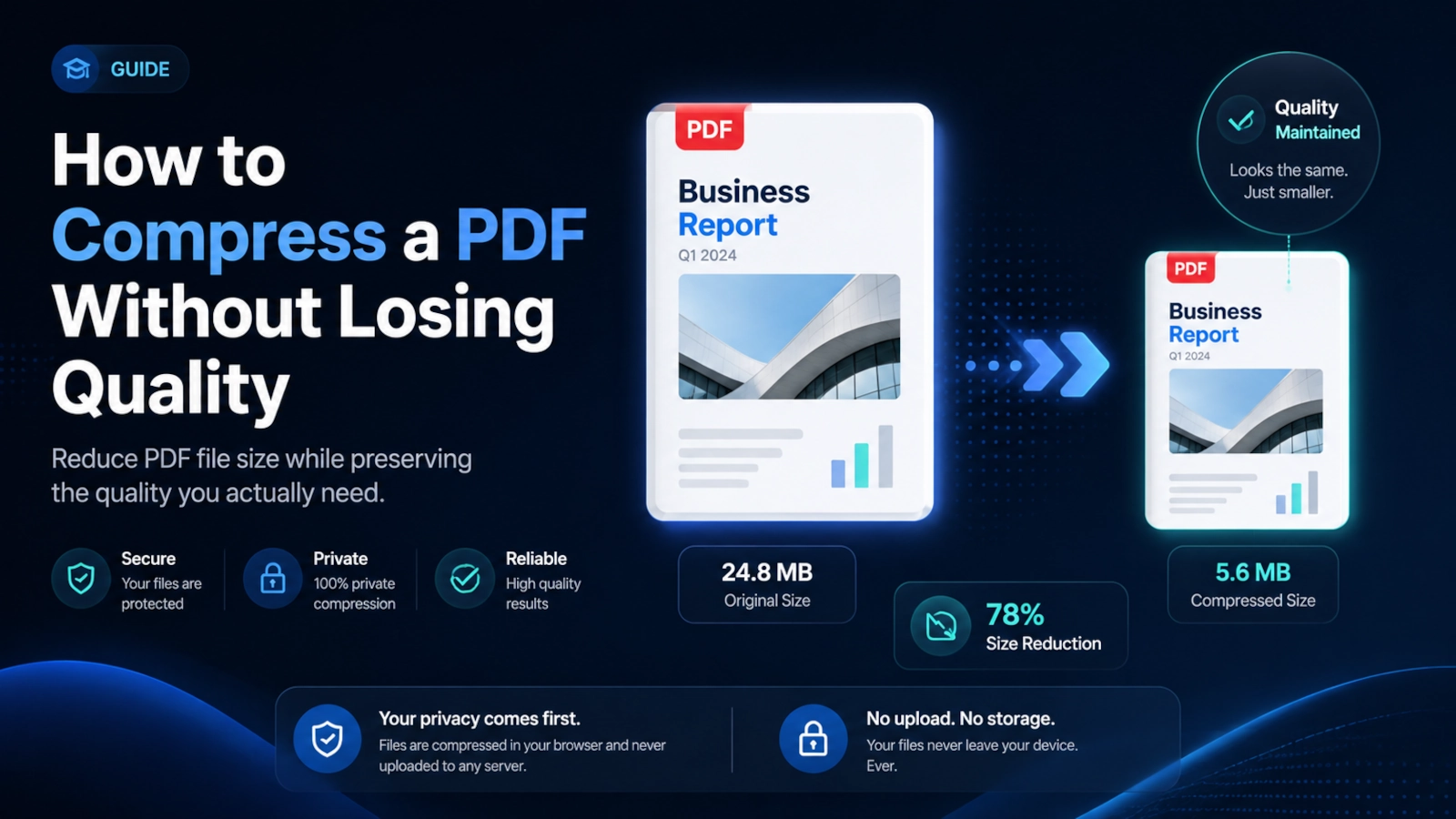
Start with lossless optimization if you want to reduce a PDF without intentionally lowering image quality or changing the document into a flattened image. If the file is still too large, use a balanced mode that trades some internal fidelity for a much smaller file while aiming to keep the page looking nearly the same on screen. Use maximum compression only when file size matters more than preserving every detail or interactive PDF feature.
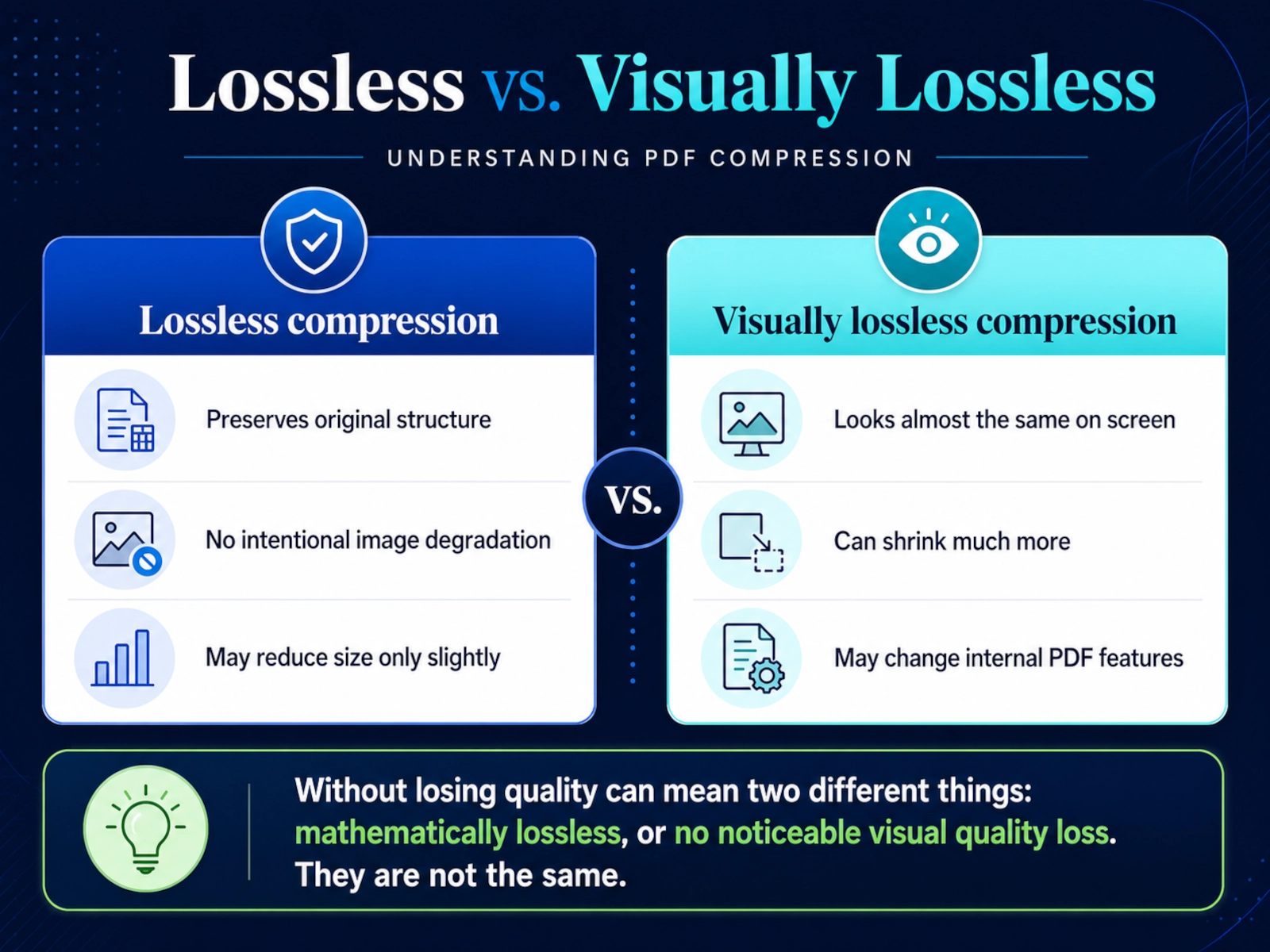
There is an important distinction behind the phrase without losing quality: lossless compression and no noticeable visual quality loss are not the same thing. A PDF can look almost identical after compression even though images were recompressed or pages were rasterized. Always keep the original and preview the compressed file before you send, upload, archive, or print it.
Compress your PDF privately in your browser
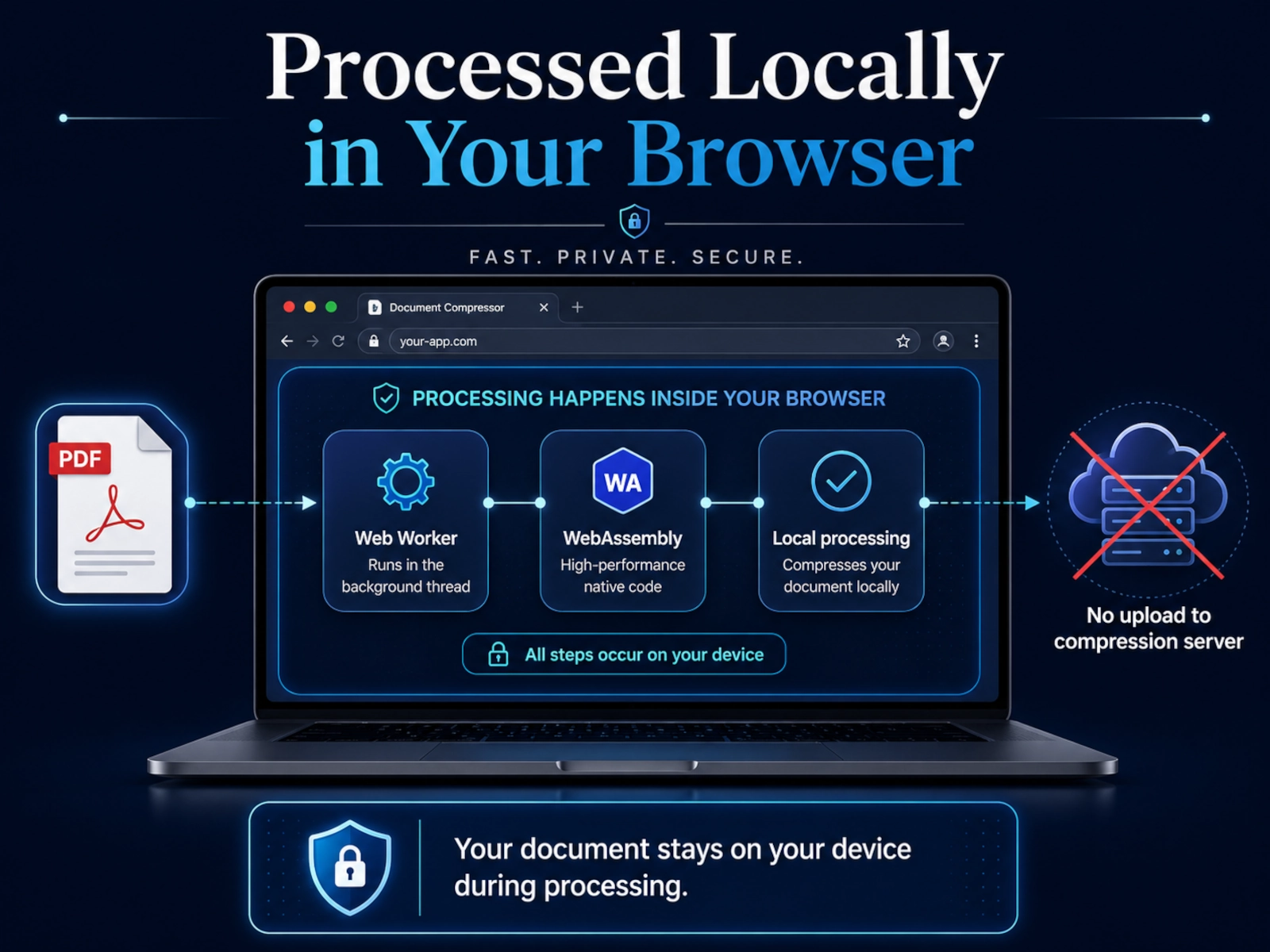
The ClearHowGuide Private PDF Compressor processes the document locally in your browser. The file is not uploaded to ClearHowGuide, PocketBase, R2, or a compression server.
Private browser tool
Private PDF Compressor
Compress PDF files directly in your browser. Your document never leaves this device.
Your PDF
Processing locally
Compressing your PDF…
Starting PDF engine…
Keep this tab open. Your PDF stays on this device.
Compression complete
Your PDF is ready
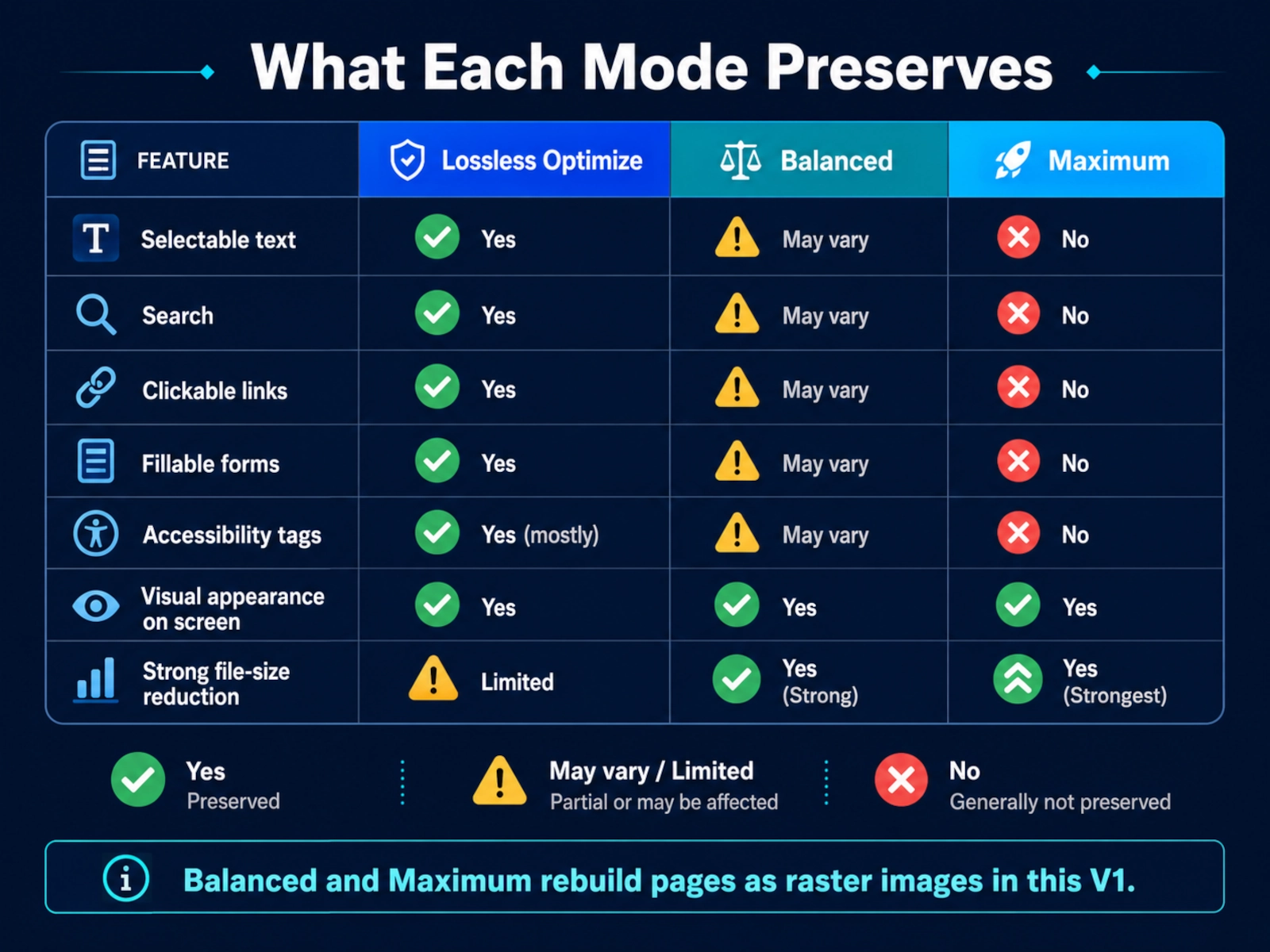
Important: In this V1, Lossless Optimize preserves the original PDF structure as far as the optimization path allows. Balanced and Maximum Compression rebuild pages as compressed raster images for stronger file-size reduction. That means selectable text, clickable links, fillable forms, tags, layers, and other interactive PDF features may no longer work in those two modes.
When to use this solution
This guide is a good fit when your PDF is too large for email, a form, a cloud upload, a school portal, a government website, a messaging app, or simple storage — and you want to make it smaller without blindly destroying quality.
It is especially useful for:
- scanned documents;
- photo-heavy PDFs;
- brochures and presentations exported as PDF;
- PDFs created with high-resolution print settings;
- files that need to fit below an upload limit;
- documents you do not want to upload to a third-party compression service;
- people who want to understand what changes instead of just clicking a mysterious “compress” button.
Use another workflow if you must preserve advanced features such as fillable forms, digital signatures, accessibility tags, layers, bookmarks, embedded files, precise print color, or searchable/selectable text. For those documents, use Lossless first or an advanced PDF optimizer that lets you control images, fonts, objects, and compatibility separately.
Before you start
Before compressing any important PDF:
- Keep the original file. Save the compressed version under a different filename.
- Know what must survive. If text selection, links, forms, accessibility tags, signatures, or print quality matter, do not treat visual similarity as the only quality test.
- Check the destination limit. A portal may require 1 MB, 2 MB, 5 MB, or another maximum size.
- Expect different results from different PDFs. A 40 MB scan can sometimes shrink dramatically, while a 2 MB text PDF may already be highly optimized.
- Use a desktop browser for very large files when possible. Browser-side compression can consume significant memory and CPU.
- Do not rewrite digitally signed PDFs unless you intend to invalidate the signature. ClearHowGuide V1 intentionally avoids compressing signed PDFs for this reason.
Can you really compress a PDF without losing quality?
Yes — but only if you define quality precisely.
There are three separate things people often mean by quality:
1. Visual quality
Does the page still look sharp at normal viewing size?
A PDF can be recompressed and still look almost identical on a laptop or phone. This is often called visually lossless in everyday use, even though data has actually been discarded.
2. Content and feature quality
Can you still:
- select and copy text;
- search inside the document;
- click links;
- fill in forms;
- use bookmarks;
- read accessibility tags;
- preserve vector graphics as vectors?
A PDF can look perfect and still lose these capabilities.
3. Source fidelity
Are the original image pixels, embedded assets, vectors, fonts, and PDF objects preserved without intentional degradation?
This is the stricter meaning of lossless.
That distinction matters because image downsampling genuinely removes pixels. Adobe’s PDF optimization documentation explains that downsampling reduces image resolution, while JPEG/JPEG 2000 compression can be lossy. In other words, a large reduction and absolute zero data loss are often competing goals.
For many everyday PDFs, the practical objective is therefore:
Reduce file size as much as possible while preserving the level of visual and functional quality the document actually needs.
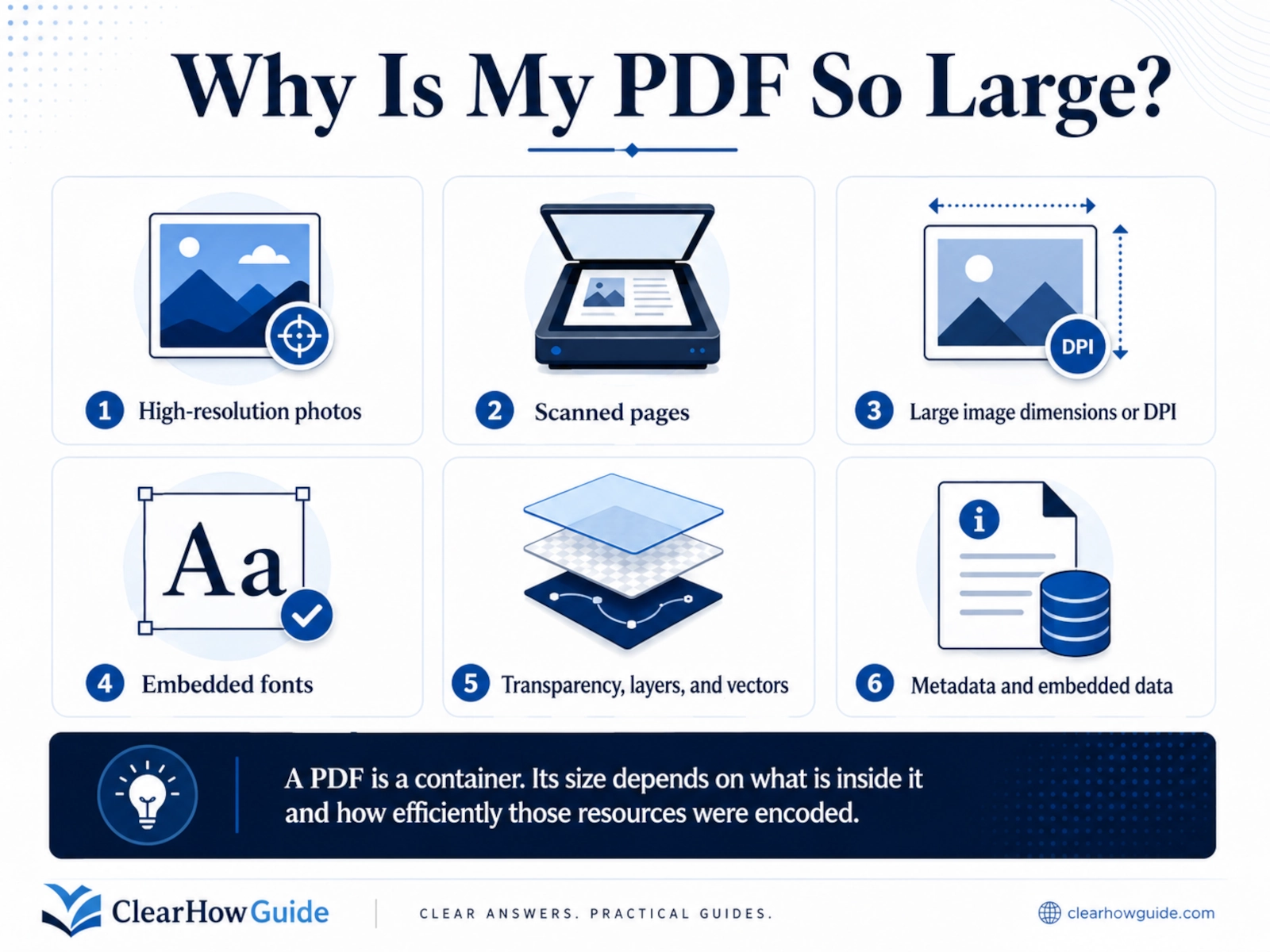
Why is my PDF file so large?
A PDF is a container. Its size depends on what is inside it and how efficiently those resources were encoded.
The most common causes are:
High-resolution photographs
A few full-page photographs can outweigh hundreds of pages of text. Images exported at print resolution may be much larger than necessary for screen viewing.
Scanned pages
A scan is often one large image per page. A 100-page scan can therefore contain 100 high-resolution raster images even when the pages look like ordinary text documents.
Images saved at excessive dimensions or DPI
A page meant only for a screen may still contain image data prepared for professional printing. Reducing that resolution can cut file size substantially.
Embedded fonts
PDFs can embed complete fonts or font subsets so the document renders correctly on other systems. Fonts are usually not the largest part of a photo-heavy PDF, but they can matter in documents that use many typefaces or character sets.
Transparency, layers, and complex vector content
Professional design and publishing software can preserve layers, transparency groups, vector elements, and editing information that increase size and complexity.
Metadata and embedded data
A PDF may contain metadata, thumbnails, attachments, embedded files, comments, form resources, private application data, or other objects that are not obvious when you simply view the pages.
Print-oriented export settings
Print-ready PDFs may include higher-resolution images, color profiles, embedded fonts, and other information designed for printing rather than email or browser viewing.
Adobe Acrobat’s PDF Optimizer exposes separate controls for images, fonts, transparency, discarded objects, user data, and cleanup. That is a useful reminder that “PDF compression” is not one single operation.
Choose the right compression level
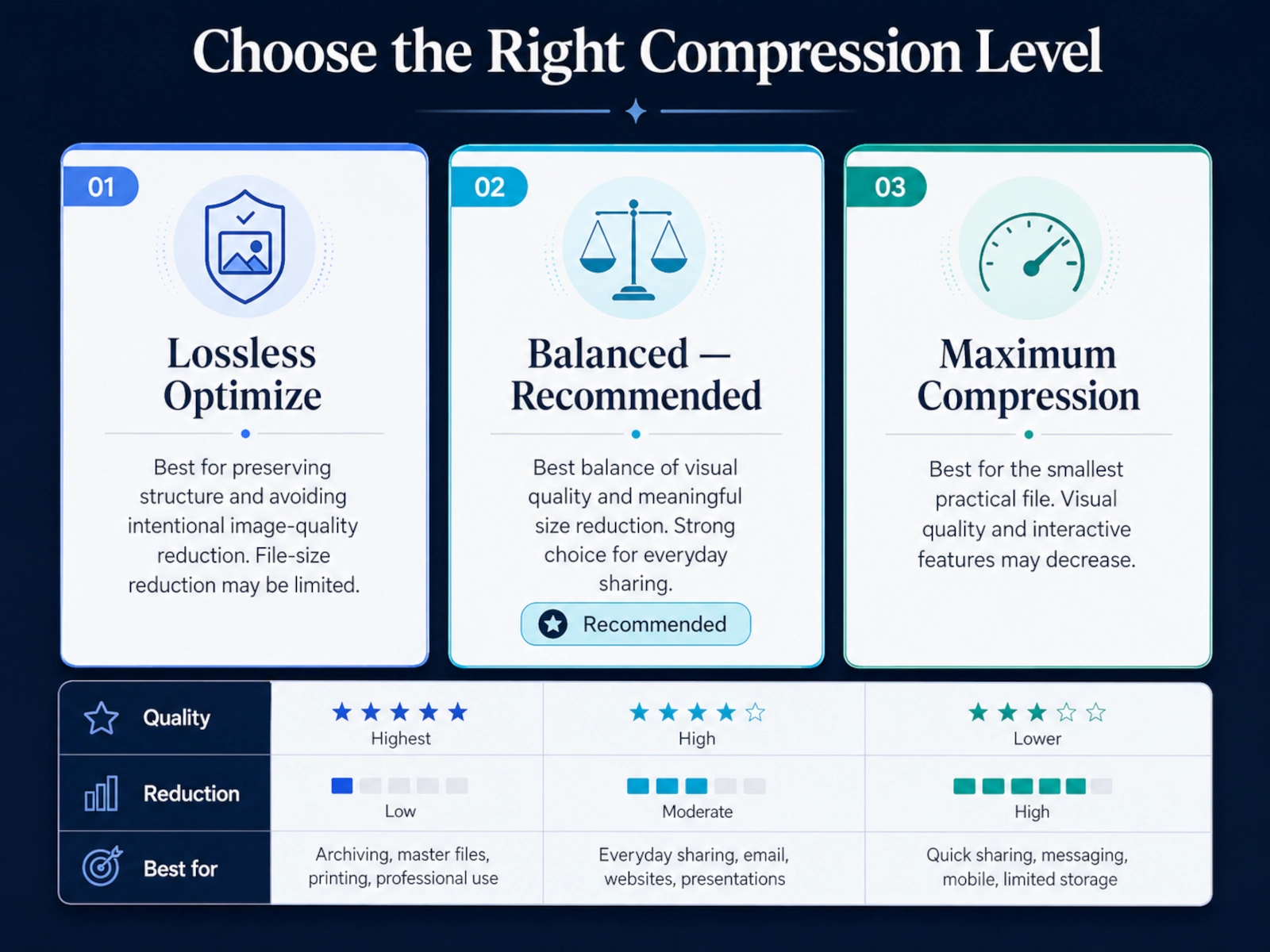
For most users, the safest strategy is to start with the least destructive mode that can meet the file-size requirement.
| Mode | What it prioritizes | Typical reduction | Best for | Main trade-off |
|---|---|---|---|---|
| Lossless Optimize | Original structure and no intentional image-quality reduction | Low to moderate | Important documents, searchable PDFs, forms, archives | May save very little on image-heavy files |
| Balanced — Recommended | High visual quality with meaningful size reduction | Moderate to high | Email, everyday sharing, image-heavy PDFs, screen viewing | Pages are rasterized; selectable text and interactive features may be lost |
| Maximum Compression | Smallest practical file | High | Strict upload limits, screen-only copies, files that must become much smaller | More visible quality loss; pages are rasterized more aggressively |
Lossless Optimize
Use Lossless Optimize first when:
- the PDF is mostly text;
- text selection and search matter;
- the document contains forms or links;
- the PDF may be archived;
- you do not want intentional image degradation.
Do not expect miracles. If 95% of the file size comes from already-compressed JPEG images, structural optimization cannot magically remove most of that image data without changing it.
This is also why a “lossless” tool that promises to shrink every PDF by 80–90% should be treated skeptically.
Balanced — Recommended
Use Balanced when the file needs to become substantially smaller but still needs to look good on normal screens.
ClearHowGuide V1 rebuilds pages at approximately 180 DPI with JPEG quality 82 in this mode. That is a deliberate visual-quality/file-size compromise.
Balanced is often a strong choice for:
- scans;
- handouts;
- brochures;
- reports containing many images;
- PDFs sent by email;
- documents viewed mainly on laptops, tablets, or phones.
Because the pages are rasterized in this V1, do not use Balanced when you need selectable text, live forms, interactive links, accessibility structure, or other native PDF features.
Maximum Compression
Use Maximum when the file-size limit is the hard requirement.
ClearHowGuide V1 uses stronger page rasterization at approximately 120 DPI with JPEG quality 60. It can reduce image-heavy documents much more aggressively than Lossless, but the visual trade-off becomes easier to notice, especially when zooming, printing, or reading small text.
Maximum is appropriate for:
- strict web-form upload limits;
- a copy that will only be read on screen;
- large scanned documents;
- PDFs where a smaller file matters more than perfect reproduction.
Always inspect small text, thin lines, diagrams, screenshots, and photographs after Maximum compression.
What our V1 testing showed
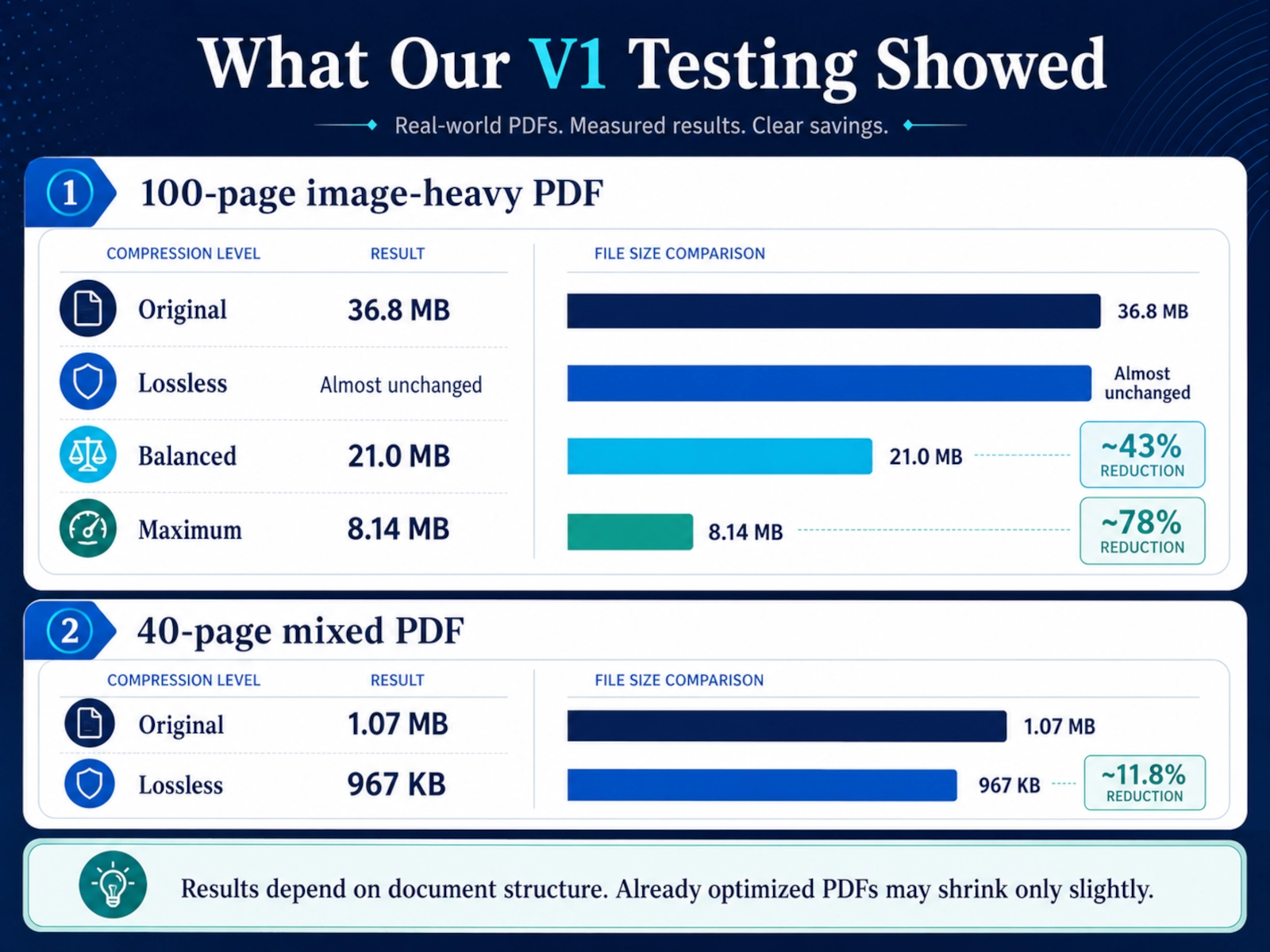
We use real test files because PDF compression behaves very differently depending on document structure.
In one internal V1 test, a 100-page image-heavy PDF of about 36.8 MB behaved exactly as the compression model predicts:
- Lossless Optimize reduced the file only marginally — roughly tens of kilobytes — because almost all of the size was already in page images.
- Balanced reduced the same document to about 21.0 MB, roughly a 43% reduction.
- Maximum Compression reduced it to about 8.14 MB, roughly a 78% reduction.
In a separate 40-page mixed PDF of about 1.07 MB, Lossless alone reduced the file to about 967 KB, around an 11.8% reduction.
These are test results, not promises. A different PDF can behave completely differently. An already optimized PDF may barely shrink. A scan made from oversized images may shrink dramatically.
How to compress a PDF with ClearHowGuide
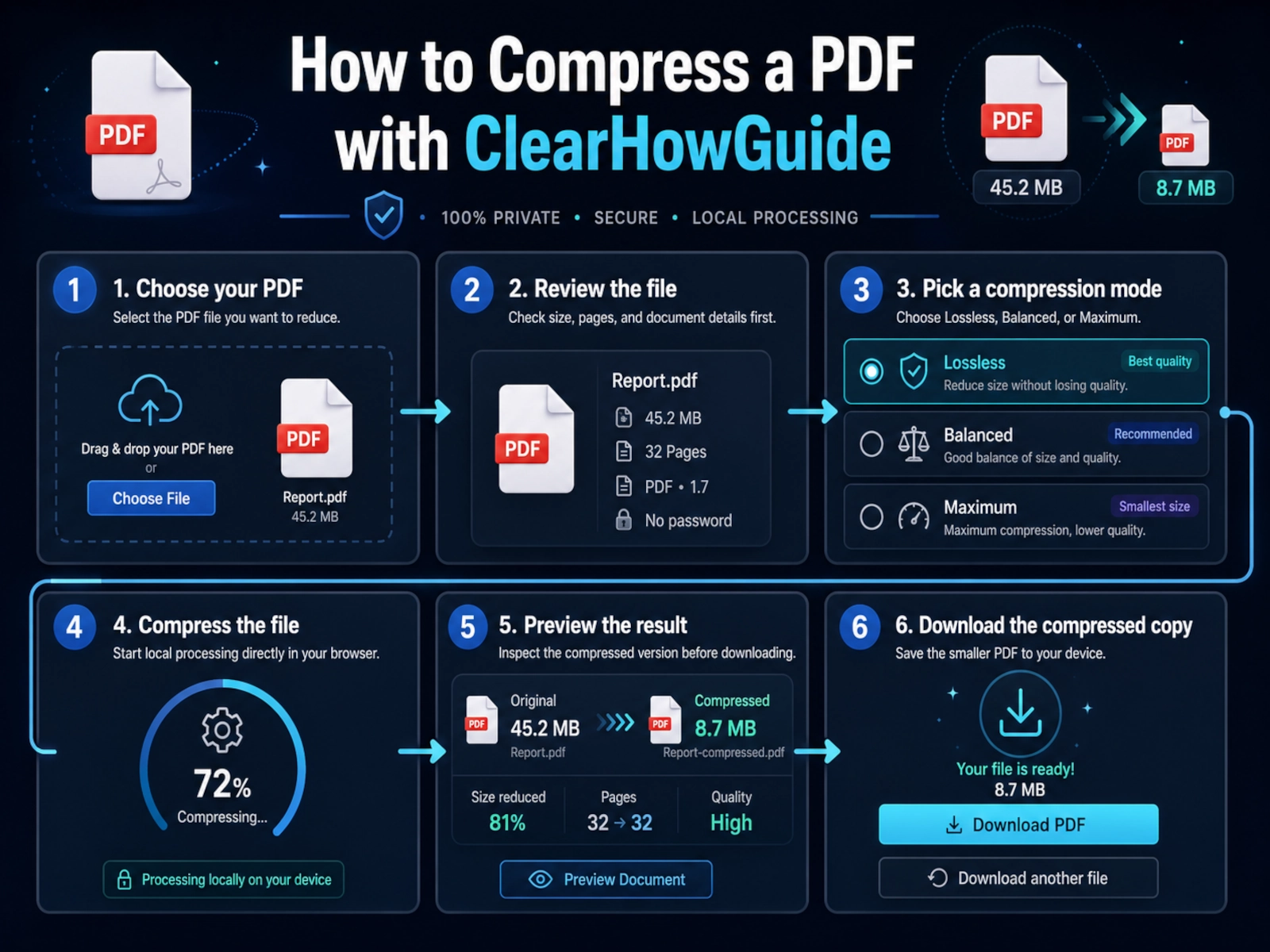
1. Choose your PDF
Use the tool above and select the PDF from your device.
The browser performs the initial analysis locally and shows basic information such as:
- file size;
- page count;
- image count;
- font count;
- a recommended compression mode when the structure strongly suggests one.
2. Start with the recommended mode — but check what you need to preserve
If the file is mostly text or not strongly image-heavy, Lossless Optimize is usually the best first attempt.
If the PDF is image-heavy and you primarily need a smaller visual copy, Balanced is usually the better starting point.
3. Compress the file
Select:
- Lossless Optimize for no intentional image-quality reduction;
- Balanced for stronger reduction with high visual quality;
- Maximum Compression when you need the smallest practical file.
Then choose Compress PDF.
For Balanced and Maximum, processing can take longer because pages are rebuilt locally in the browser. Keep the tab open until the operation finishes.
4. Compare the result
The result panel shows:
- original size;
- compressed size;
- bytes saved;
- percentage reduction;
- work performed by the selected mode.
Do not judge success only by the percentage. A 70% reduction is useless if the resulting document no longer meets your actual requirements.
5. Preview the compressed PDF
Use the preview before downloading.
Check at least:
- a page with small text;
- a page containing photographs;
- diagrams or thin lines;
- any page you expect to print;
- pages where readability is critical.
If the quality is not acceptable, go back and try a less aggressive mode.
6. Download the compressed copy
Download the new PDF and keep the original separately.
A simple naming pattern is:
report.pdf
report-compressed.pdf
That makes it much harder to overwrite the only high-quality copy by mistake.
Which compression method should you use?
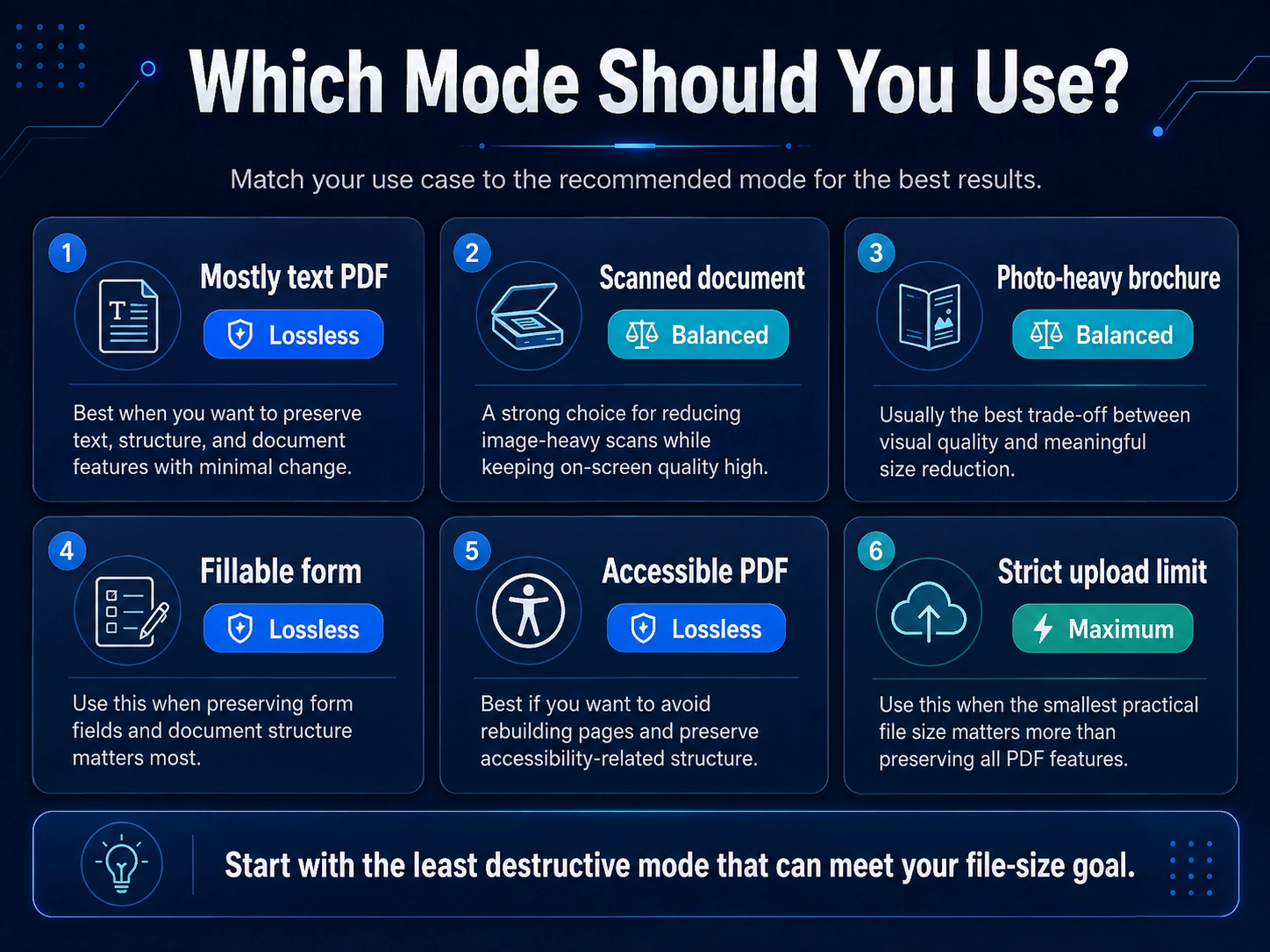
Mostly text PDF
Start with Lossless Optimize.
Text and vector content usually do not need to be converted into page images just to save a modest amount of space.
If the PDF is already small, leaving it alone may be the best answer.
Scanned document
Start with Balanced if the scan only needs to be read on screen.
Scans are often image-heavy, so reducing raster resolution and JPEG quality can have a large effect.
If the scan has OCR text that must remain searchable, use Lossless or a dedicated PDF optimizer that preserves OCR text while separately compressing the page images.
Photo-heavy brochure
Balanced is usually the first practical choice.
Use Maximum only if the file-size target is strict and you accept more visible JPEG artifacts or softness.
Fillable form
Use Lossless Optimize or a PDF editor that explicitly preserves forms.
Do not use a rasterizing mode if the form still needs to be filled in after compression.
PDF with clickable links
Use Lossless if those links must remain interactive.
A rasterized page can still look like it contains a link, but the clickable annotation may no longer exist.
Accessible PDF
Avoid rasterizing the document if accessibility structure matters.
A visually identical image of a page is not equivalent to a tagged, screen-reader-friendly PDF.
Print-ready PDF
Use Lossless first.
If you must reduce a print-ready file, use software that lets you control image downsampling, color profiles, font embedding, transparency, and output compatibility rather than applying a generic aggressive preset.
PDF for email
Balanced is often the best practical compromise if the recipient only needs to read the document.
For a text-heavy file, try Lossless first because it may already get under the attachment limit without flattening the document.
PDF for a government, school, or job portal
First check:
- the exact file-size limit;
- whether the portal requires searchable text;
- whether forms must remain interactive;
- whether digital signatures must remain valid.
If the portal only requires a readable uploaded copy, Balanced or Maximum may be appropriate. If it requires a signed or structured PDF, use Lossless or a preservation-focused workflow.
How to compress a PDF below 1 MB, 500 KB, or another exact limit
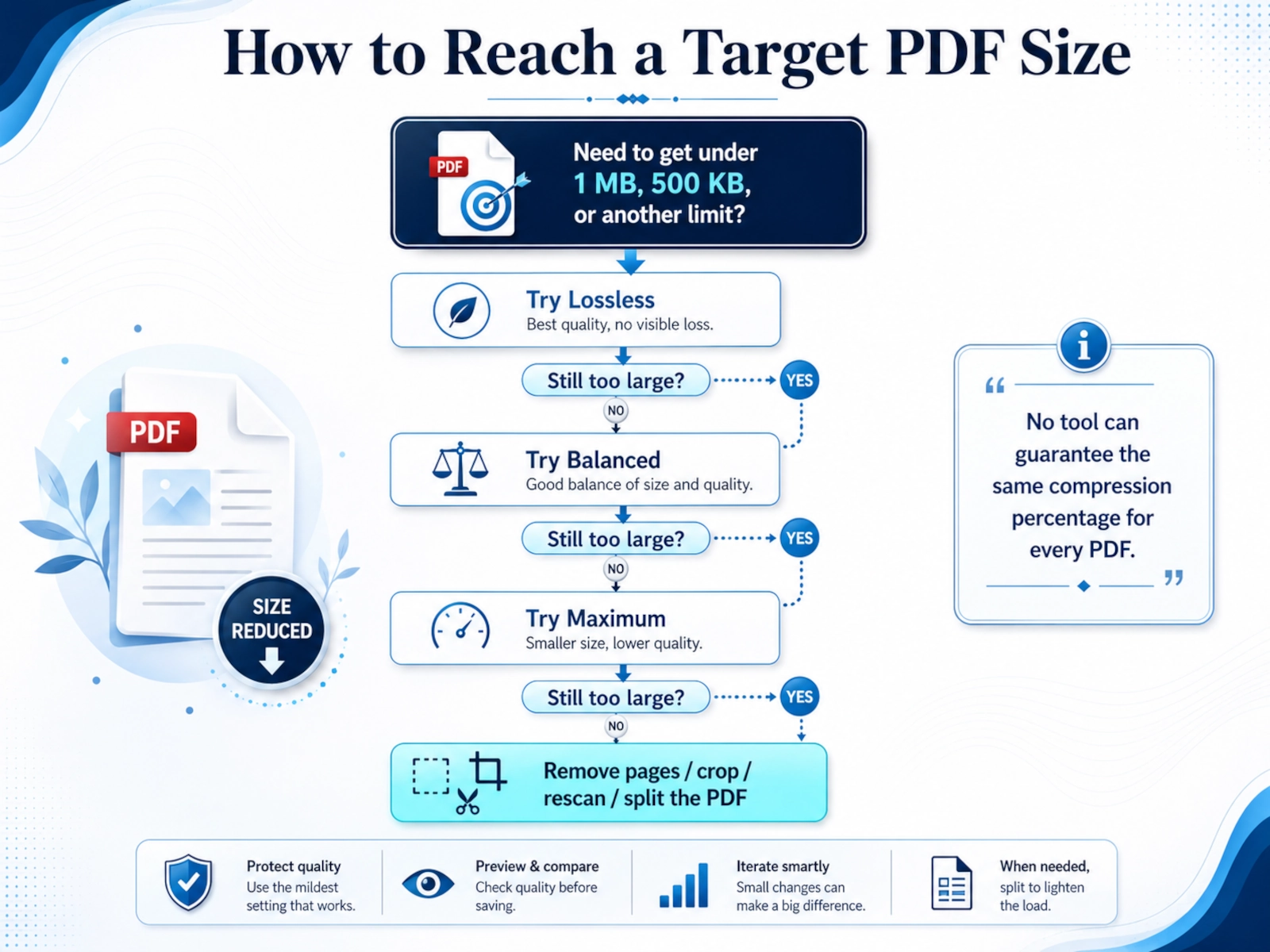
No compressor can guarantee an exact target size for every PDF. File size depends on page count, image content, image complexity, fonts, existing compression, and the output method.
Use this escalation path:
- Try Lossless Optimize.
- If still too large, try Balanced.
- If the file still exceeds the limit and a flattened visual copy is acceptable, try Maximum.
- Remove pages you do not need.
- Crop unnecessary margins if the source images include large unused areas.
- Re-scan the original at a lower appropriate resolution if you control the source.
- Split the PDF when the destination accepts multiple files.
- Use an advanced desktop optimizer when you need finer control over image resolution, fonts, or object cleanup.
If a 50-page photo brochure is 25 MB, asking it to become 300 KB while remaining visually indistinguishable is usually unrealistic. The target may require a noticeable quality compromise or a different document strategy.
Why Lossless sometimes barely reduces the file
This is one of the most common sources of confusion.
Suppose a PDF contains:
- 100 high-resolution page images;
- a small amount of structural PDF data;
- almost no redundant resources.
Lossless optimization can improve the structure, streams, and objects — but it cannot remove most of the image data without changing those images.
The result may therefore look like:
Original:   36.8 MB
Lossless:   36.8 MB
Saved:      only a small amount
That does not mean the compressor is broken.
It means the remaining size is tied to content that cannot be dramatically reduced under a no-intentional-quality-loss rule.
qpdf’s documentation makes the same broader point: structural compression can make PDFs smaller, but substantial image reduction generally requires image-specific optimization, recompression, or resampling.
Why Balanced and Maximum can be much smaller
Balanced and Maximum are allowed to change more.
In ClearHowGuide V1, the strong-compression path rebuilds each page as a raster image, then compresses those page images at different resolution/quality targets.
That can be extremely effective for:
- scans;
- image-only PDFs;
- exported slide decks;
- documents where each page is already essentially a picture.
But the trade-off is equally important: the output becomes a visual reproduction of each page, not a faithful preservation of every original PDF object.
This is why the tool tells you that selectable text, links, forms, and other interactive features may be lost.
Common mistakes
Expecting huge lossless savings from an already optimized PDF
A PDF can already contain compressed images and compact streams. If so, there may be very little safe redundancy left to remove.
Do instead: accept the small lossless gain or choose a mode that intentionally trades some fidelity for size.
Choosing Maximum before checking Balanced
Maximum is not automatically “better.” It is only better when smaller size is more important than quality.
Do instead: start with Balanced unless you have a strict target.
Looking only at the file-size number
A 90% reduction can sound impressive while hiding blurry screenshots, damaged small text, or lost interactivity.
Do instead: preview the compressed PDF and test the features you need.
Overwriting the original
Compression can be irreversible.
Do instead: always save the compressed file as a new copy.
Rasterizing a form, signed PDF, or accessible document
The result may look identical while losing essential functionality.
Do instead: use Lossless or an advanced optimizer designed to preserve those features.
Assuming a fixed compression percentage
Two PDFs of the same size can compress very differently.
Do instead: treat the result as content-dependent, not as a guaranteed percentage.
Compressing the same lossy PDF repeatedly
Repeated JPEG recompression can accumulate artifacts.
Do instead: always return to the original high-quality PDF when creating a new compressed version.
Security, privacy and safety notes
PDFs can contain sensitive information: contracts, IDs, invoices, medical documents, financial records, employment files, academic records, and internal business material.
The ClearHowGuide tool is designed around local browser processing. The PDF is processed on your device using browser technologies including Web Workers and WebAssembly; the document is not uploaded to ClearHowGuide, PocketBase, R2, or a compression server.
That does not remove every security consideration:
- your browser still has access to the file while the page is open;
- browser extensions can have broad permissions depending on what you installed;
- a shared or compromised computer is not automatically safe just because processing is local;
- the compressed copy may still contain sensitive visible information;
- Lossless optimization is not a metadata-redaction tool;
- compression does not encrypt the PDF.
If you need to remove private metadata, redact content, encrypt the file, or sanitize hidden information, use a workflow designed specifically for those tasks.
Digitally signed PDFs
Rewriting a digitally signed PDF generally invalidates the existing signature because the signed byte range changes.
For that reason, ClearHowGuide V1 intentionally does not compress digitally signed PDFs.
Keep the signed original untouched.
Other reliable ways to compress a PDF
The ClearHowGuide tool is not the right solution for every document. A strong guide should make that clear.
Adobe Acrobat Pro — best for advanced optimization controls
Acrobat’s PDF Optimizer is a better fit when you need detailed control over:
- color, grayscale, and monochrome image downsampling;
- JPEG or JPEG 2000 compression;
- fonts;
- transparency;
- objects;
- user data;
- cleanup and compatibility.
Adobe explicitly documents image downsampling and lossy image compression as size-reduction tools, which makes Acrobat Pro more appropriate than a one-click browser compressor for professional print, forms, preservation, or controlled optimization.
Official documentation: Adobe Acrobat — advanced PDF size reduction.
Smallpdf — simple hosted browser alternative
Smallpdf offers browser-based compression with multiple compression strengths and focuses on balancing file size and visual quality.
It is useful when you want a polished hosted service and do not need local-only processing.
Official tool: Smallpdf Compress PDF.
iLovePDF — straightforward compression levels
iLovePDF offers Extreme, Recommended, and Less compression modes, making the quality/file-size trade-off easy to understand.
Official tool: iLovePDF Compress PDF.
macOS Preview — fast built-in option on a Mac
Apple Preview can reduce a PDF using File > Export > Quartz Filter > Reduce File Size. Apple also warns that compressed PDFs may be lower quality and that the result depends on the selected options.
This is a good offline option when you already use macOS and do not need detailed optimization controls.
Official guide: Apple — Reduce the size of a PDF in Preview.
qpdf — useful for structural optimization on the command line
qpdf is a strong option for technical users who want structural PDF optimization without automatically resampling every image.
A conservative file-size command can look like:
qpdf \
  --object-streams=generate \
  --compress-streams=y \
  --recompress-flate \
  --compression-level=9 \
  input.pdf \
  output.pdf
This approach focuses on compressing streams and object structure. It does not automatically provide the dramatic reductions of aggressive image downsampling.
Official documentation: qpdf command-line reference.
Ghostscript — powerful, but treat presets as transformations
Ghostscript can rewrite PDFs with presets such as /screen, /ebook, /printer, and /prepress.
For example:
gs \
  -sDEVICE=pdfwrite \
  -dCompatibilityLevel=1.6 \
  -dPDFSETTINGS=/ebook \
  -dNOPAUSE \
  -dQUIET \
  -dBATCH \
  -sOutputFile=output.pdf \
  input.pdf
Ghostscript’s own documentation warns that these presets alter the input and can produce lower-quality output. The names should not be interpreted as simple “quality levels,” and /prepress does not automatically mean “best quality.”
Use Ghostscript when you understand the transformation and can inspect the result.
Official documentation: Ghostscript PDFSETTINGS.
Faster alternative
If you do not need the explanation and simply want to reduce a file now, open the standalone ClearHowGuide Private PDF Compressor, choose the least destructive mode that can meet your size target, preview the result, and download the compressed copy.
On a Mac, Preview’s built-in Reduce File Size Quartz filter can also be a faster offline option for a quick one-off file, but quality may decrease.
FAQ
What is the best way to compress a PDF without losing quality?
Start with lossless optimization. It can reduce structural overhead without intentionally degrading images. If the result is still too large, Balanced compression can produce a much smaller file with little visible difference in many screen-viewing scenarios, but that is no longer mathematically lossless.
Does compressing a PDF reduce image quality?
It depends on the method. Lossless structural optimization does not intentionally reduce image quality. Downsampling, JPEG recompression, or page rasterization can reduce image fidelity because pixel data is discarded or approximated.
Why did my PDF barely get smaller?
The file may already be optimized, or most of its size may come from already-compressed images. In that case there is little safe redundancy to remove without changing those images.
Why can a scanned PDF compress so much?
Scanned PDFs are often dominated by large raster images. Reducing image resolution or recompressing those images can therefore remove a large amount of data.
Will Balanced or Maximum keep selectable text?
Not in the current ClearHowGuide V1 strong-compression path. Balanced and Maximum rebuild pages as raster images, so selectable text, links, forms, and other interactive PDF features may be lost.
Will Lossless keep selectable text and links?
Lossless is the correct ClearHowGuide mode when preserving the native PDF structure matters. It avoids the page-rasterization path used by Balanced and Maximum.
Can I compress a PDF to exactly 1 MB?
Sometimes, but no general compressor can guarantee an exact target for every file. Use progressively stronger compression, remove unnecessary pages, reduce source image resolution, or split the PDF if the destination allows it.
What is the best mode for email?
Try Lossless first for text-heavy documents. Use Balanced when the file remains too large and the recipient mainly needs a readable visual copy.
What is the best mode for printing?
Use Lossless first. For professional printing, use an advanced optimizer with explicit image-resolution, color, font, and compatibility controls rather than aggressive page rasterization.
Is it safe to compress confidential PDFs online?
That depends on the service and your threat model. A local browser tool avoids transmitting the PDF to a compression server, but you should still consider the security of your device, browser, and extensions. For regulated or highly sensitive material, follow your organization’s approved document-handling policy.
Does PDF compression remove metadata?
Not necessarily. Compression and metadata removal are different tasks. Do not assume a smaller PDF has been sanitized.
Can compression invalidate a digital signature?
Yes. Rewriting a signed PDF can invalidate the signature because the signed content changes. Keep the signed original untouched and use a workflow that explicitly supports signed documents.
Why does Maximum sometimes look worse than Balanced?
Maximum uses stronger rasterization and JPEG compression to prioritize a smaller file. Fine text, screenshots, diagrams, and photographs can therefore show more softness or compression artifacts.
Should I compress the same PDF more than once?
Avoid repeatedly applying lossy compression to an already compressed copy. If you need a different setting, go back to the original PDF and create a new compressed version from that source.
Last tested
Tested on:
- ClearHowGuide Private PDF Compressor V1
- Lossless optimization with pdfcpu 0.15.0
- PDF.js 6.2.108 preview and page-processing pipeline
- local browser worker/WASM processing
- 100-page approximately 36.8 MB image-heavy PDF
- 40-page approximately 1.07 MB mixed PDF
Last tested: 2026-08-25
Related guides
Carefully selected guides to help you understand the topic and complete the next useful step.